


Extension Manager (Browser)
Enables or disables browser extensions easily and organizes them into custom profiles.

A Simple Tool That Solved a Real Problem
I never realized how cluttered my browser had become until it started slowing down. Like most people, I install extensions whenever I need something quick—SEO tools, grammar checkers, screenshot tools, design plugins, and productivity add-ons. Over time, they pile up. Managing them through Chrome’s default extensions page felt slow and inconvenient.
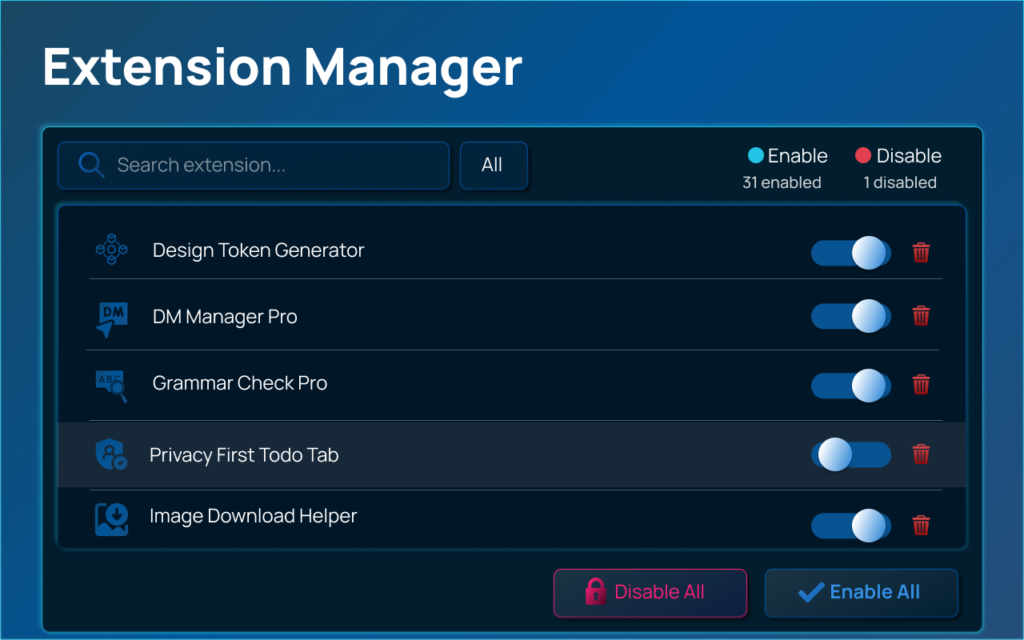
That’s when I started using Extension Manager. What impressed me immediately was its clear purpose: to give users a fast and simple way to manage all installed browser extensions from a single popup. No extra tabs. No complicated navigation. Just one click and everything is right there.
Opening the Popup: Instant Access
The first time I opened the Extension Manager popup, I noticed how clean and modern the interface looked. The dark UI feels polished and easy on the eyes, especially if you work long hours in front of a screen.
As soon as it opens, all installed extensions load automatically using the Chrome Management API. You can instantly see which extensions are enabled and which are disabled. The layout is straightforward, making it beginner-friendly from the very first interaction.
There’s no learning curve. Even if you’ve never used a management tool before, it feels intuitive.
Enabling and Disabling Extensions in Seconds
One of the biggest time-savers for me has been the instant toggle feature. Instead of opening Chrome’s extension settings, scrolling, and manually enabling or disabling tools, I can now do it directly from the popup.
Whenever I need a distraction-free writing session, I disable everything except my grammar tool. When I switch to research or analysis work, I turn my SEO and developer tools back on. The changes apply immediately, and there’s no delay.
It sounds simple, but over time, these small saved seconds really add up.
Removing Extensions Without the Hassle
We’ve all installed extensions “just to try” and then forgotten about them. Extension Manager makes cleaning up effortless. If I decide I no longer need something, I can uninstall it directly from the popup with a confirmation dialog.
There’s no need to visit another page. The process feels controlled and intentional. After doing a proper cleanup using this tool, I realized how many unnecessary extensions were quietly running in the background.
Searching and Filtering for Better Control
If you have a long list of extensions, scrolling can become frustrating. The live search feature solves that instantly. As soon as you type, the list filters in real time based on name or description.
There’s also a filter option that lets you view all extensions, only enabled ones, or only disabled ones. Personally, I use the “Enabled” filter often just to check what’s actively running. It gives me quick clarity and helps me manage performance better.
Instead of guessing what’s affecting my browser speed, I can see it immediately.
Bulk Actions That Make You Feel Like a Power User
This is where Extension Manager truly moves from beginner-friendly to powerful. At the bottom of the popup, you’ll find options to enable or disable all extensions at once.
I’ve used this feature multiple times when testing websites or troubleshooting performance issues. Disabling everything instantly creates a clean browsing environment. Later, I can selectively enable what I need.
It’s efficient, practical, and surprisingly satisfying.
Refresh and Keyboard Shortcuts for Smooth Workflow
Another detail I appreciate is the refresh option. If I install or remove an extension outside the popup, I can simply refresh the list without reopening the tool.
The keyboard shortcuts are a subtle but smart addition. Being able to quickly focus on the search bar or close the popup without reaching for the mouse makes the experience smoother. These small touches show thoughtful design.
A Clean Interface That Makes Daily Use Pleasant
Design matters more than we think. The modern dark interface, smooth toggles, and subtle animations make the tool feel professional rather than basic. It doesn’t overwhelm you with unnecessary settings. Everything is organized and purposeful.
For a tool that handles something as routine as extension management, it feels surprisingly refined.
My Overall Experience
After using Extension Manager regularly, I’ve noticed a difference in how I interact with my browser. I’m more aware of what’s running. My workflow feels lighter and more controlled. Managing extensions no longer feels like a chore.
It’s not a flashy tool. It doesn’t promise dramatic transformations. But it quietly improves your daily browsing experience, and sometimes that’s exactly what you need.
Final Thoughts
Extension Manager is one of those tools that makes you wonder why you didn’t start using it earlier. It simplifies something we all deal with but rarely optimize. Whether you’re a beginner with just a few extensions or a professional juggling dozens, it helps you stay organized and efficient.Productivity isn’t always about adding new tools. Sometimes it’s about managing what you already have in a smarter way.
AI Automation Guide 2026: Work Smarter, Faster & Better
Artificial intelligence and automation are changing the way people work, manage information, communicate, and complete…

Tool Reviews: Find the Best Tools for Every Need
Every single morning, millions of people open their laptops to a screen crammed with open…

The Best Audio Editing Software 2026: Music, Podcasts & More
Good audio can completely change how a song, podcast, video, or voice recording feels.Audio Editing…

Tool Reviews 2026: Explore, Compare & Find Better Tools
Finding the right digital tool can save time, simplify repetitive tasks, and make everyday work…

The Best No-Code Automation Tools Simplify Workflows & Save Time
A lot of everyday work follows the same pattern. No-Code Automation Someone fills out a…
The Best Vivo V80 5G Expected Price, Camera & Features
The Vivo V80 5G is one of the upcoming smartphones attracting attention in India’s premium…

Disclaimer : This article is based on personal experience and understanding of the tool’s features. Performance and functionality may vary depending on browser version and individual usage patterns.
#AltFTool #ExtensionManager #BrowserProductivity #ChromeExtensions #WorkflowOptimization #TechTools #ProductivityHacks #Carrerbook #Anslation