
Managing multiple projects, deadlines, client requests, and daily tasks can become challenging when everything is spread across emails, spreadsheets, and chat messages. The right Workflow tools help bring these activities into one organised system, making it easier to track progress, assign responsibilities, and complete work on time.
Whether you run a small business, manage a growing team, or work independently as a freelancer, workflow management software can help you organise your workload and reduce repetitive tasks.
In this guide, we explore the best workflow tools for small businesses, teams, and freelancers, including their main features, benefits, limitations, and practical uses.
What Are Workflow Tools?
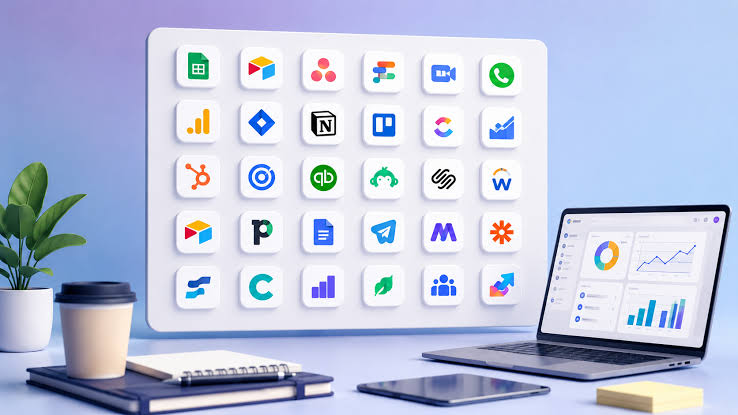
Workflow tools are software applications that help individuals and organisations organise, manage, track, and automate tasks. They can support everything from planning a marketing campaign and managing client projects to approving documents and coordinating team responsibilities.
Depending on the platform, workflow tools may include task boards, calendars, automation rules, collaboration features, reporting dashboards, document management, and integrations with other business applications.
For example, a freelancer can use a workflow tool to track a project from the first client meeting to final delivery. A small business can use it to manage customer enquiries, assign work to employees, and monitor deadlines.
Why Are Workflow Tools Important?
Workflow tools can improve the way people organise their daily work by providing a shared view of tasks, responsibilities, and project progress.
1. Better Task Organisation
A central task management system helps users keep track of upcoming work, priorities, deadlines, and completed activities. Instead of searching through multiple messages, team members can check their assigned tasks in one place.
2. Improved Team Collaboration
Many workflow platforms allow users to comment on tasks, share documents, assign responsibilities, and provide progress updates. This makes collaboration easier for office-based, remote, and hybrid teams.
3. Less Repetitive Work
Workflow automation can handle routine actions such as sending notifications, creating tasks from form submissions, or moving information between connected applications. This can reduce manual effort and help teams follow consistent processes.
4. Clearer Project Visibility
Managers and business owners can monitor project stages, identify delayed tasks, and understand which activities need attention. This makes it easier to coordinate work and respond to problems before they become larger issues.
5. More Efficient Time Management
With priorities, reminders, and deadlines organised in one place, individuals can plan their workload more effectively and spend less time managing scattered information.
The Best Workflow Tools for Small Businesses, Teams, and Freelancers

The best option depends on the type of work you do, the size of your team, your budget, and the level of automation you need. The following platforms offer different approaches to workflow and project management.
1. ClickUp — Best for an All-in-One Workspace
ClickUp is a flexible work management platform that brings together tasks, documents, project views, and collaboration features. It can be useful for businesses that want to organise several types of work in a shared workspace.
Key features:
- Task and subtask management
- List, board, calendar, and timeline views
- Shared documents and project information
- Task assignments, priorities, and deadlines
- Workflow customisation and automation options
Best for: Small businesses, growing teams, agencies, and freelancers managing several projects.
Why choose it?
ClickUp is worth considering when you want to manage projects and supporting information without switching constantly between separate applications. Its flexibility can be valuable for teams with different workflows, although setting up too many features may make the workspace more complicated than necessary.
Website: https://clickup.com/
2. Trello — Best for Simple Visual Workflows
Trello uses boards, lists, and cards to help users organise work visually. Tasks can move between stages such as To Do, In Progress, and Completed, making project status easy to understand.
Key features:
- Drag-and-drop task cards
- Customisable boards and lists
- Due dates, checklists, and attachments
- Comments and team collaboration
- Automation options and integrations
Best for: Freelancers, small teams, content creators, and businesses that prefer straightforward task tracking.
Why choose it?
Trello is a practical starting point for people who want to organise tasks without building a complex project management system. For example, a content team can create a board with stages for topic research, writing, editing, approval, and publishing.
Its simplicity is an advantage, but teams managing complex projects may eventually need more advanced reporting and planning features.
Website: https://trello.com/
3. Asana — Best for Team Coordination
Asana helps teams coordinate projects, assign work, and monitor progress. It is particularly useful when several people or departments contribute to the same project.
Key features:
- Task ownership and due dates
- Project lists and boards
- Calendar and timeline views
- Progress tracking and status updates
- Rules and workflow automation on supported plans
Best for: Small businesses, marketing teams, operations teams, and organisations coordinating work across departments.
Why choose it?
Asana makes it easier to establish clear responsibility for each task. For example, when launching a new product, a marketing team can assign separate tasks for research, design, content, advertising, and launch preparation.
The platform is most useful when teams need structured project coordination rather than a simple personal to-do list.
Website: https://asana.com/
4. monday.com — Best for Customisable Workflows
monday.com provides visual work management boards that businesses can adapt to their own processes. Users can organise information with columns, statuses, deadlines, and other fields.
Key features:
- Customisable work boards
- Task and project tracking
- Multiple project views
- Automation recipes
- Dashboards and progress monitoring
Best for: Growing businesses, marketing departments, project coordinators, and teams managing repeatable processes.
Why choose it?
Businesses can use monday.com to organise processes such as customer onboarding, campaign management, recruitment, and internal requests. Its visual layout helps users understand where each activity stands.
However, businesses should review plan limits and seat requirements before choosing a subscription, especially when several employees need access.
Website: https://monday.com/
5. Notion — Best for Documents, Knowledge, and Tasks
Notion combines pages, documents, databases, and task organisation in a flexible workspace. It can be useful for people who want project plans and reference information stored together.
Key features:
- Shared documents and notes
- Databases and task trackers
- Project and content calendars
- Templates and internal knowledge bases
- Team collaboration and supported integrations
Best for: Freelancers, content creators, small businesses, and teams that rely on documentation.
Why choose it?
Notion can help users maintain project briefs, meeting notes, content calendars, standard operating procedures, and task lists in one place.
For example, a freelance writer can create a client workspace containing article briefs, deadlines, revision notes, invoices to follow up on, and published links.
Because the workspace is highly customisable, it helps to establish a clear structure before adding too many pages and databases.
Website: https://www.notion.so/
6. Zapier — Best for Connecting Apps and Automating Tasks
Zapier focuses on connecting applications and automating repetitive actions. It uses automated workflows, commonly called Zaps, to trigger actions when specific events occur in connected services.
Key features:
- Connections between supported applications
- Trigger-based workflow automation
- Automated data transfer
- Notifications and follow-up actions
- Multi-step workflows on supported plans
Best for: Small businesses, freelancers, sales teams, marketers, and anyone who regularly transfers information between apps.
Why choose it?
Imagine that a business receives enquiries through an online form. A suitable Zapier workflow could add the enquiry to a spreadsheet or customer management system and notify the responsible team member.
Automation can save manual effort, but workflows should be tested carefully. Users should also review task limits, application permissions, and subscription costs before automating important business processes.
Website: https://zapier.com/
7. Todoist — Best for Personal Task Management
Todoist is a task management application designed to help users organise personal responsibilities, recurring tasks, and work priorities.
Key features:
- To-do lists and task priorities
- Due dates and reminders
- Recurring tasks
- Projects and labels
- Shared projects and collaboration features
Best for: Freelancers, solo entrepreneurs, consultants, and individuals managing busy schedules.
Why choose it?
Todoist is suitable for people who need a simple way to organise daily work. A freelancer might use it to track client follow-ups, research deadlines, meetings, administrative tasks, and weekly planning.
It is especially useful when your primary need is personal organisation rather than managing a large, interconnected business workflow.
Website: https://todoist.com/
8. Microsoft Planner — Best for Microsoft 365 Users
Microsoft Planner helps teams organise tasks and coordinate work within Microsoft’s productivity environment. It can be a natural option for businesses that already rely on Microsoft 365 applications.
Key features:
- Shared task plans
- Task assignments and due dates
- Progress and status tracking
- Collaboration with other Microsoft tools
- Additional planning capabilities depending on the subscription
Best for: Small businesses and teams that already use Microsoft Teams, Outlook, and other Microsoft 365 services.
Why choose it?
Using a planning tool within an existing software environment can make adoption easier. Teams can coordinate responsibilities while continuing to use familiar applications for communication and documents.
Before choosing a plan, check which Planner features are included in your existing Microsoft 365 subscription and which require additional licensing.
Website: https://www.microsoft.com/microsoft-365/business
How to Choose the Right Workflow Tool
Choosing workflow software is not simply about selecting the platform with the largest number of features. The right tool should solve your current problems and remain practical as your workload grows.
1. Identify Your Main Requirement
Start by identifying the task that creates the most difficulty in your current process.
- For visual task tracking, consider Trello.
- For connected project management and documents, explore ClickUp.
- For structured team coordination, consider Asana.
- For customisable business processes, explore monday.com.
- For documents and internal knowledge, consider Notion.
- For connecting applications, explore Zapier.
- For personal to-do lists, consider Todoist.
- For Microsoft 365-based work, explore Microsoft Planner.
These are starting points rather than universal rankings. The best fit depends on your workflow and requirements.
2. Consider Your Team Size
A freelancer may need only personal tasks, reminders, and a client project tracker. A small team may need shared boards, task assignments, and comments. A growing business may require reporting, permissions, approvals, and more advanced automation.
Choose a platform that matches your current needs without creating unnecessary complexity.
3. Review the Budget
Many workflow platforms offer free plans or trials, but their limits differ. Some restrict the number of users, projects, automations, integrations, or advanced views.
Before purchasing a subscription, check the official pricing page, billing terms, available features, and the total cost for everyone who needs access.
4. Check Integrations
Your workflow tool should work well with the applications you already use, such as email, calendars, cloud storage, communication platforms, and customer management systems.
Integrations can reduce duplicate data entry, but not every integration is available on every plan.
5. Test Ease of Use
A powerful platform is not helpful if your team finds it difficult to use consistently. Test the interface, create a sample project, invite a colleague, and check whether the workflow is easy to understand.
Start with essential features and add complexity only when it solves a real problem.
Workflow Tools for Different Types of Users
The following recommendations can help narrow your options.
For Small Businesses
Small businesses often need to coordinate customers, operations, marketing, and administration with limited resources.
ClickUp, Asana, and monday.com are worth exploring for broader work management. Zapier may be useful when repetitive tasks involve multiple applications.
For Teams
Teams generally need shared task ownership, deadlines, progress updates, and a clear way to communicate about work.
Asana is worth considering for structured coordination, Trello for visual workflows, and ClickUp for teams that want a more customisable workspace.
For Freelancers
Freelancers often need to balance client projects, deadlines, revisions, and business administration.
Todoist is suitable for personal task tracking, Trello for visual client boards, and Notion for combining project information with documents. ClickUp may be useful for freelancers managing several complex projects.
Practical Ways to Improve Your Workflow
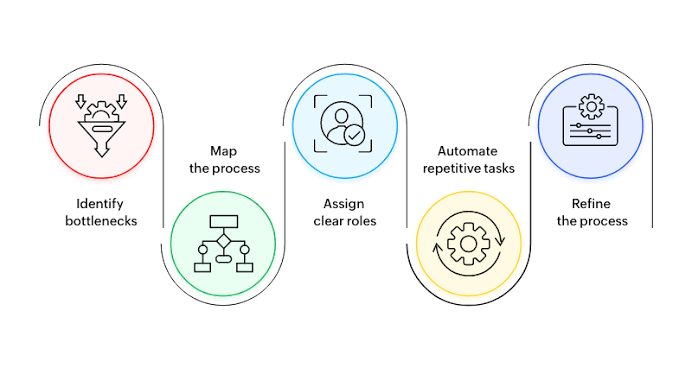
Choosing software is only the first step. A well-designed process is equally important.
Create a consistent task structure. Use clear task names, assign one responsible person, and set realistic deadlines.
Define workflow stages. Decide how work moves from the initial request to completion. Keep the stages simple enough for everyone to follow.
Automate repetitive actions. Begin with low-risk tasks such as reminders or notifications. Test each automation before relying on it.
Review progress regularly. Use a short weekly review to identify overdue tasks, upcoming deadlines, and blocked projects.
Keep information organised. Store important instructions, files, and decisions where the relevant team members can find them.
Avoid using too many overlapping tools. Multiple platforms can create confusion when tasks and updates are duplicated. Give each application a clear purpose.
Common Mistakes to Avoid When Using Workflow Tools
Even good software can become ineffective if the workflow is poorly designed.
- Overcomplicating the setup: Too many boards, labels, statuses, and dashboards can make everyday work harder.
- Ignoring team training: Explain how tasks should be created, assigned, updated, and completed.
- Automating a broken process: Simplify the process before adding automation.
- Failing to update tasks: Outdated information makes project dashboards less useful.
- Overlooking privacy and permissions: Restrict access to confidential client, employee, and business information.
- Choosing based on features alone: Evaluate usability, integrations, support, and total cost as well as functionality.
Frequently Asked Questions
1. What are the best workflow tools for small businesses?
ClickUp, Asana, Trello, monday.com, and Notion are useful options to explore. The right choice depends on whether your business prioritises task tracking, team coordination, customisable processes, or documentation.
2. Which workflow tool is best for freelancers?
Todoist is a useful choice for personal task management, Trello works well for visual project tracking, and Notion can combine client information with documents. Freelancers managing complex projects may prefer a broader platform such as ClickUp.
3. Are there free workflow tools?
Yes. Several platforms offer free plans, although user limits, storage, automation, reporting, and collaboration features vary. Review the current plan details on each provider’s official website before deciding.
4. What is the difference between workflow management and project management?
Workflow management focuses on how recurring tasks and processes move through defined stages. Project management focuses on planning and delivering a particular project with its objectives, deadlines, and resources. Many modern tools support both.
5. Can workflow tools automate daily business tasks?
Yes. Depending on the platform and subscription, workflow automation can send notifications, create tasks, update records, or transfer information between applications. Important workflows should be tested and monitored to prevent errors.