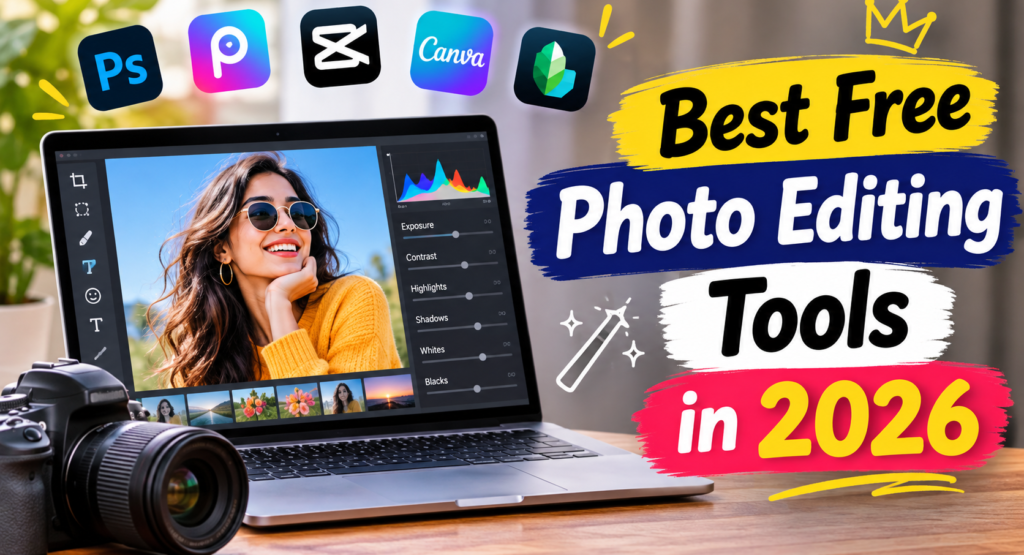
For years, I honestly believed that if my photos didn’t look like magazine covers, the problem was simple: I needed to pay for expensive desktop subscriptions. Every time I watched a photography tutorial online, the creator would casually click through pricey monthly software suites, moving sliders I didn’t understand while my bank account quietly wept. So, like most people trying to make their travel snapshots, family portraits, and golden-hour landscapes pop, I spent a small fortune on software subscriptions I barely used half of. Then one evening, after staring at an annual renewal charge for a program I had opened twice all month, I finally hit “cancel.” I decided to see what would happen if I relied purely on free photo Editing Tools instead.
Honestly? I wish I had done it years ago. Looking at where free Editing Tools and open-source software stand right now in late 2026, the gap between “paid pro tools” and “zero-cost editors” has practically disappeared for everyday creators and hobbyists. Whether you edit RAW camera files on a laptop at midnight or tweak phone pictures on a train ride home, there is an incredible lineup of free Editing Tools that won’t slap ugly watermarks across your memories or lock basic sliders behind a paywall.
Here is my personal, hands-on roundup of the best free photo editing tools I actually keep installed on my phone and laptop right now—and how each one fits into real daily editing.
1. Snapseed: Still the Undisputed King of Free Mobile Editing Tools
If you only download one Editing Tools onto your iPhone or Android phone, make it Snapseed. For a long time, those of us who loved Snapseed worried Google had forgotten about it, until the big Snapseed 4.0 overhaul landed in 2026 with a refreshed interface while keeping the exact promise that made it legendary: zero ads, zero subscriptions, and zero locked tools.
How I Actually Use I
Whenever I take a quick portrait outdoors and the background sky looks bright while my friend’s face sits in shadow, Snapseed’s Selective tool saves the shot in ten seconds. You just drop a tiny control point right onto the face, pinch to adjust the radius, and nudge the brightness up—leaving the rest of the frame untouched. It also handles RAW DNG files natively and lets you save your favorite slider combinations as reusable “Looks” so your whole travel album shares the same warm color tone.
2. Photopea: Photoshop Power Straight Inside Your Web Browser
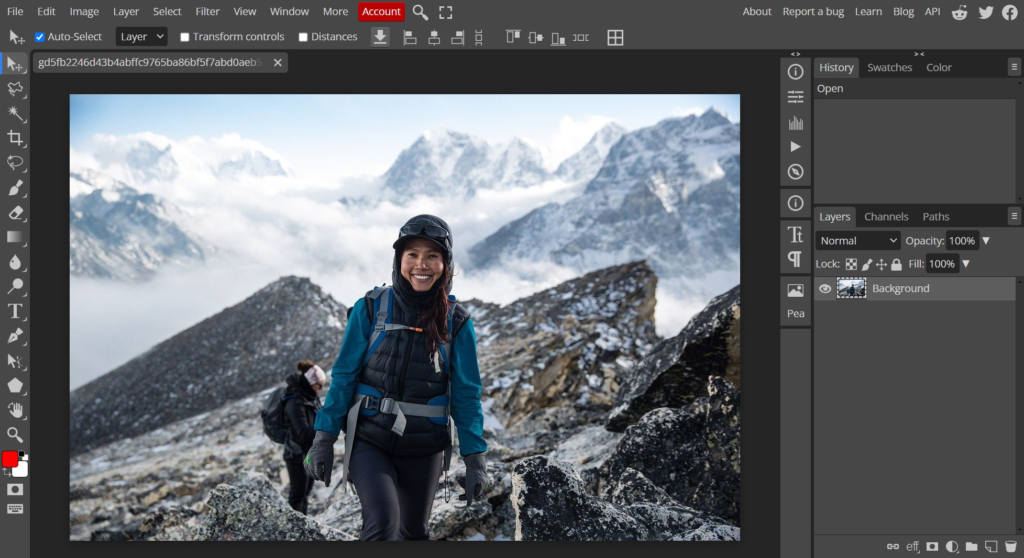
There are days when I am working on a borrowed laptop or don’t feel like waiting for a heavy program to boot up, yet I need real layers, masks, or a quick background cutout. That is when Photopea Editing Tools feels like pure magic.
You don’t download or install anything. You just open a browser tab, type in the web address, and suddenly you are looking at a full layered editor that looks—and behaves—almost identically to Adobe Photoshop.
- Opens Almost Every File Type: Whether someone sends me a complicated
.PSDlayered file, a RAW camera shot, or a basic.PNG, Photopea opens it cleanly without complaining. - The Trade-Off: Because it runs completely free in your browser, you will see a small column of ads along the right edge of the screen. Personally, having full layer masks, healing brushes, and text tools available on any computer anywhere in the world for free is a trade I will gladly make every single time.
3. Darktable: The Desktop Editing Tools
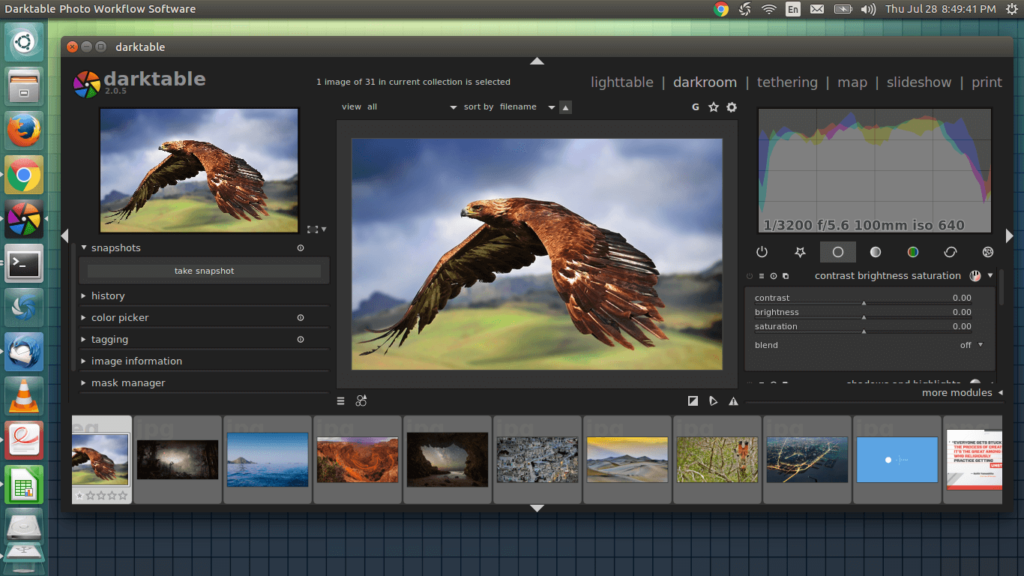
When I bring home three hundred photos from a weekend trip shot on my camera, editing them one by one on a phone screen is a nightmare. For serious desktop catalog sorting and non-destructive RAW editing, Darktable has completely replaced paid catalog software on my laptop.
I won’t sugarcoat it: the first evening I opened Darktable, I stared at the screen for twenty minutes feeling slightly intimidated. Unlike beginner apps with three cheerful buttons, Darktable gives you deep, studio-level control over color grading, tone curves, highlight recovery, and lens distortion.
What Made It Click for Me
- Non-Destructive Freedom: Darktable never overwrites your original camera file. You can experiment wildly with moody film colors or dramatic black-and-white contrast, and reset back to your untouched original whenever you want.
- Batch Copy-Paste: Once I dial in the warm sunset colors on one photo from an evening walk, I can copy that exact edit history and paste it onto forty other photos from the same afternoon in two clicks.
- 100% Open-Source: Because it is community-developed open-source software, there are no surprise “upgrade to Pro” pop-ups blocking your export button.
4. GIMP: Heavy-Duty Retouching Without the Price Tag
If Darktable is my digital darkroom for lighting and color, GIMP (GNU Image Manipulation Program) is my workbench for heavy creative edits, compositing, and precision retouching.
Whenever I need to blend two exposures together, remove a complicated distracting object from a busy street scene, or design custom graphic overlays with intricate layer masks, GIMP handles the heavy lifting effortlessly.
While its interface feels a bit old-school compared to sleek modern apps, spending one weekend learning its basic selection and clone tools unlocks capabilities that rival paid desktop suites.
5. Adobe Lightroom Mobile (Free Tier) & Google Photos Editing Tools
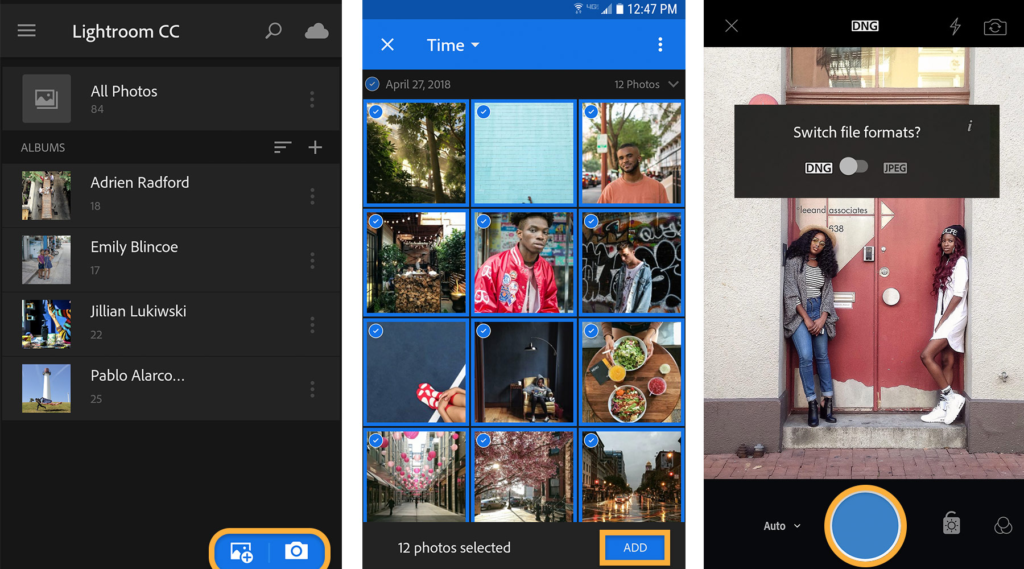
Lightroom Mobile and Google Photos are both free ways to edit photos on your phone, but they suit different kinds of users. Lightroom’s free tier includes all capture, organization and sharing features, plus most editing tools. That means you can adjust exposure, contrast, highlights, shadows and colour, and apply presets with real manual control. Premium features such as cloud sync, the healing brush, masking, geometry tools, batch editing and raw editing need a paid subscription.
Google Photos goes the other way. Its editor is built for speed and simplicity, with one-tap enhancements, filters, cropping, basic light and colour sliders, and AI-assisted fixes, all inside the app where your photos are already backed up. So Lightroom’s free tier suits people who want precise, hands-on control and a path to professional workflows. Google Photos suits people who want quick, good-looking results with little effort. Many casual photographers do well using Google Photos for everyday touch-ups and Lightroom when they want to fine-tune a shot
How I Mix Them Together
- Lightroom Mobile’s Free Plan: Even without paying a rupee for Creative Cloud, the free version of Lightroom Mobile gives you the cleanest Color Mixer (HSL) and Tone Curve sliders on a phone. Whenever I want to turn harsh neon greens in a park photo into softer, cinematic olive tones, Lightroom’s free color sliders handle it gracefully.
- Google Photos Built-In Editor: If a photo just needs a quick horizon straighten, a touch of warmth, or a stray passerby removed with Magic Eraser, I don’t even bother opening a separate app—Google Photos handles those thirty-second touch-ups right inside my gallery.
| Tool Name | Platform | Best Use Case | What’s Free vs. Catch |
| Snapseed | iOS & Android | Everyday precision mobile editing & selective lighting | 100% free, zero ads, no paid tier at all |
| Photopea | Web Browser | Quick layered edits, cutouts & PSD files on any PC | Completely free with sidebar ads |
| Darktable | Windows, Mac, Linux | Full desktop RAW development & batch color grading | 100% free and open-source; steeper learning curve |
| GIMP | Windows, Mac, Linux | Complex retouching, composites & graphic manipulation | 100% free and open-source |
| Lightroom Mobile | iOS & Android | Best color grading wheels & curve tools on mobile | Core light, color & curve tools free; masking/healing paid |
| Google Photos | iOS & Android | Instant cleanup, Magic Eraser & everyday lighting tweaks | Built-in free basics; heavy AI edits capped without storage plan |
Three Editing Habits That Matter Way More Than the App
After testing dozens of free editors over the past few years, I realized something important: no software can save an over-edited photo. Early on, I ruined plenty of good pictures by cranking the saturation, sharpness, and contrast sliders up to 100 because I thought “more” meant “better.”
- Always Fix Light Before Touching Color: Start by recovering bright skies with the Highlights slider and lifting dark corners gently with Shadows. Once your lighting looks balanced, your colors often look twice as rich without needing heavy saturation.
- Use the “20% Dial-Back” Trick: Whenever I think I am completely done editing a photo, I take my strongest adjustments—whether warmth, contrast, or a film preset—and pull them back by about 20%. That tiny step is what keeps photos looking naturally gorgeous instead of overly processed.
- Avoid Installing Five Apps at Once: Pick one mobile Editing Tools (like Snapseed) and one computer Editing Tools (like Photopea or Darktable). Learning every corner of two reliable free tools will improve your photography ten times faster than hopping between twenty trendy filter apps.
FAQ’s
1. What are the best free photo editing tools in 2026?
Some popular free options include Canva, Pixlr, Photopea, GIMP, and Adobe Express. The best choice depends on whether you need simple edits, graphic design, or advanced photo editing.
2. Can I edit photos professionally for free?
Yes. Free tools such as GIMP and Photopea offer advanced editing features that can be useful for professional-looking photo edits without paying for expensive software.
3. Which free photo editing tool is best for beginners?
Canva and Adobe Express are good choices for beginners because they offer simple interfaces, ready-made templates, filters, and easy editing features.
4. Can I edit photos online without downloading software?
Yes. Tools such as Photopea, Pixlr, Canva, and Adobe Express allow you to edit photos directly in a web browser.
5. Are free photo editing tools good for social media photos?
Yes. Many free photo editors include filters, cropping, background removal, templates, resizing, and other features that can help create attractive images for Instagram, Facebook, Pinterest, and other platforms.