Let’s be completely honest for a second: you don’t need to spend four years studying color theory or dropped into a $50-a-month software trap just to make a flyer for your weekend pop-up shop.
A decade ago, graphic design meant sitting in front of a heavy, overheating laptop, staring at a dizzying panel of 80 different vector tools, and Googling keyboard shortcuts for three hours just to learn how to crop a background. If you weren’t a trained professional, you were basically locked out of making things that looked polished.
Fast forward to 2026, and the entire landscape has shifted. The web browser is officially the new creative studio.
Whether you need an Instagram carousel by 5:00 PM, a slick pitch deck for a potential client, an event poster, or a quick logo tweak for a side hustle, online graphic design platforms have completely bridged the gap between seasoned creative directors and everyday folks who just need to get stuff done.
The best part? The goal isn’t to pretend you’re a full-time design agency—it’s about getting your ideas out into the world fast, without pulling your hair out. Here is your definitive, no-nonsense, deeply human guide to the best online graphic design tools available right now, how they actually compare, and how to pick the right one for your exact workflow.
What Actually Makes an Online Design Tool “Good”?
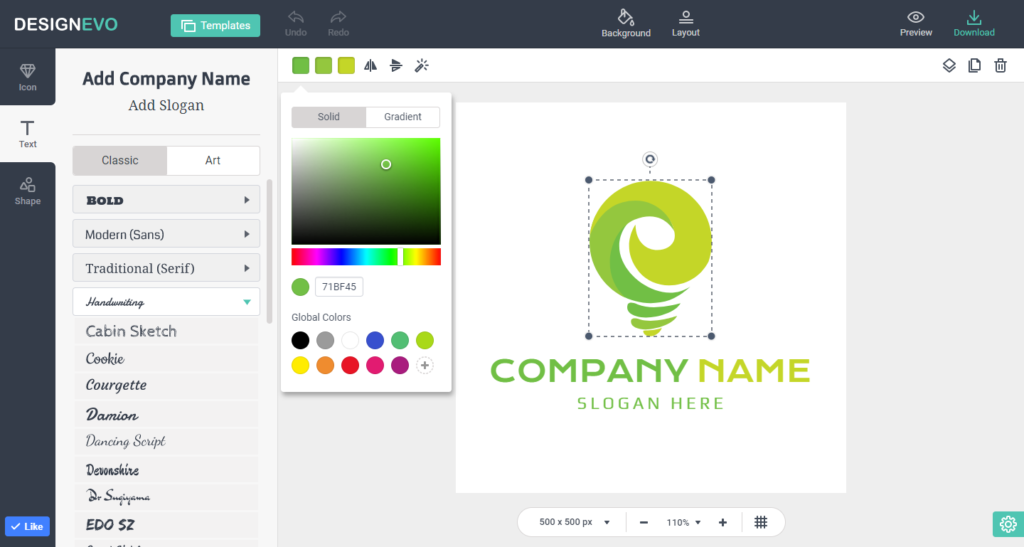
Before jumping into the list, let’s establish a reality check. Feature lists can be deceiving. A tool can boast 500,000 stock photos and a dozen AI filters, but if the interface lags every time you try to move a text box two millimeters to the left, it’s useless.
When you’re trying to get real work done, a great online design tool needs to hit four specific marks:
- Zero-Friction Editing: The drag-and-drop mechanics should feel smooth, responsive, and intuitive. You shouldn’t have to hunt through six nested dropdown menus just to change a font color.
- Templates That Don’t Look Like 2012: Cheap, cheesy templates make your brand look cheap and cheesy. Modern tools need curated, contemporary layouts that look like a human designer actually built them.
- Smart Asset Management: Access to built-in stock photos, clean vector icons, and customizable fonts right inside the editor saves you from opening 15 different browser tabs just to find a single royalty-free image.
- Export Versatility: You should be able to download crisp PNGs, print-ready PDFs, or lightweight WebP files without hitting hidden paywalls at the final step.
The Real-Talk Tool Matchmaker
Different tools are engineered for completely different jobs. Trying to design a high-fidelity mobile app prototype inside Canva will leave you frustrated, just like trying to throw together a quick birthday party invitation in Photopea will feel like overkill.
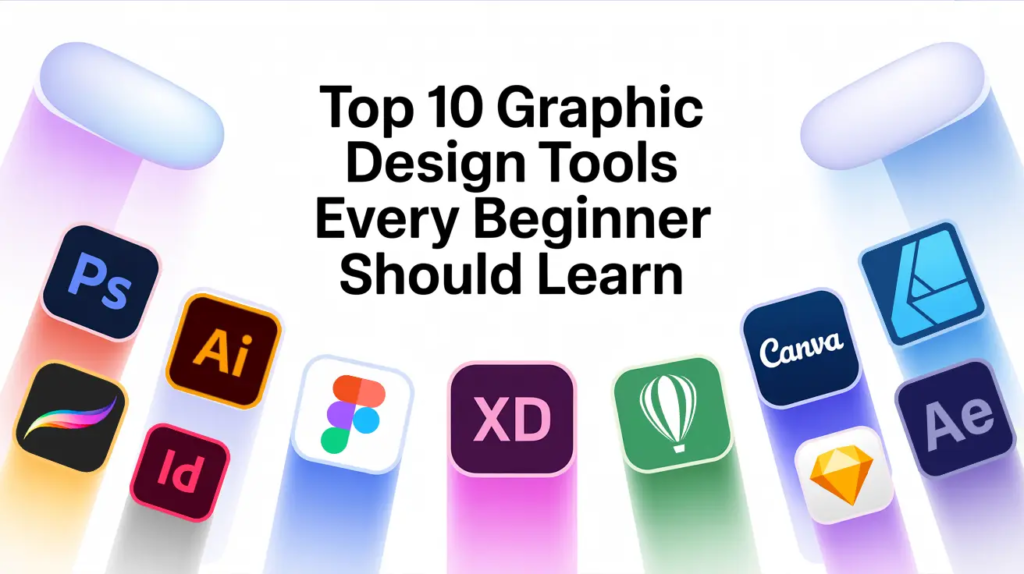
Here is how the top ten tools match up in plain English:
| Tool Name | The “In Plain English” Vibe | Primary Use Case | Learning Curve | Standout Sweet Spot |
| Canva | The universal Swiss Army Knife | Social posts, quick decks, printable flyers | Zero (Beginner) | Massive template library; ridiculously easy interface. |
| Adobe Express | Canva’s polished, creative cousin | Quick brand graphics & short video edits | Super Easy | One-click background removal & Adobe Stock integration. |
| Figma | The holy grail of team collaboration | Web/app UI, interactive prototypes, vector art | Moderate | Real-time multi-player editing—like Google Docs for design. |
| Visme | The data-nerd’s secret weapon | Infographics, reports, interactive data charts | Easy | Turns complex spreadsheets into gorgeous visual stories. |
| Photopea | Photoshop inside a browser tab (for free) | Detailed photo editing & working with .psd files | Harder | Full layer/mask control without installing software. |
| Pixlr | Quick, lightweight photo retouching | Rapid image crops, filters, & background fixes | Easy | Fast browser photo edits without heavy system lag. |
| Piktochart | Clean visual storytelling for research | Educational infographics & step-by-step guides | Easy | Structured visual layouts designed specifically for data. |
| VistaCreate | Fresh social media marketing content | Ad banners, promo videos, Instagram reels | Easy | Modern, un-cluttered marketing templates. |
| Desygner | On-the-go branding & PDF editing | Mobile graphic creation & modifying PDF layouts | Easy | Mobile-first workflow with surprisingly strong PDF editing. |
| Snappa | Pure speed over feature bloat | Fast blog headers, YouTube thumbnails, ad graphics | Zero (Beginner) | Pre-sized canvases built for sheer production speed. |
Deep Dive: The 10 Best Online Graphic Design Tools in 2026
1. Canva: The Undisputed Everyday Heavyweight
It’s impossible to talk about web-based design without starting with Canva. It essentially invented the modern drag-and-drop template market, and it remains the undisputed default for millions of non-designers worldwide.
[ Choose Template ] ───> [ Swap Text & Photos ] ───> [ Hit Export ]
                       (Takes under 5 minutes)
What makes Canva so dominant isn’t just that it’s easy—it’s that the ecosystem is massive. Whether you need a restaurant menu, an Instagram Story template, a resume, a real estate flyer, or a pitch deck presentation, Canva has thousands of ready-to-use options.
- Why You’ll Love It: The Brand Kit feature allows you to upload your custom logos, brand colors, and fonts once, automatically applying them to any template with a single click.
- The Caveat: Because everyone uses Canva, generic templates can start to look recognizable across social media if you don’t customize your colors and typography.
- Best For: Everyday social media graphics, fast presentations, and simple print materials.
2. Adobe Express: Template Speed Backed by Creative Power
For a long time, Adobe was known exclusively for complex, high-end creative software that required a steep learning curve. Adobe Express is their direct answer to modern, template-driven web design.
Express takes some of the best assets from the professional Adobe universe—including Adobe Stock photos, Adobe Fonts, and quick action tools powered by Photoshop engine technology—and drops them into a clean, drag-and-drop browser interface.
- Why You’ll Love It: The quick-action tools are phenomenal. Removing a background from a photo, converting a video into a GIF, or resizing a graphic for five different social platforms takes a single click.
- The Caveat: If you aren’t already integrated into the Adobe ecosystem, some features can feel slightly fragmented compared to Canva’s all-in-one layout.
- Best For: Small business owners who want professional-grade typography and stock imagery without touching Photoshop.
3. Figma: The Digital Product & Team Leader
Figma operates in a completely different category from template-based social media tools. It is a professional-grade interface design, vector editing, and wireframing platform that runs entirely inside your web browser.
       ┌────────────────────────────────────────────────────────┐
       │                  FIGMA CANVAS                          │
       │                                                        │
       │   [User A Cursor]          [User B Cursor]             │
       │   "Tweaking Button"        "Updating Copy"             │
       │          ╲                        ╱                    │
       │           ▼                      ▼                     │
       │     ┌──────────────────────────────────┐               │
       │     │     Interactive UI Component    │               │
       │     └──────────────────────────────────┘               │
       └────────────────────────────────────────────────────────┘
The real magic of Figma is its multiplayer nature. Just like working inside a Google Doc, you and your team can jump into the same design file simultaneously, drop comments, build UI components, and test interactive prototypes in real time.
- Why You’ll Love It: Complete creative freedom. There are no rigid templates locking you in—you have total control over vectors, auto-layouts, design systems, and component libraries.
- The Caveat: It has a real learning curve. If you just want to make a quick “Happy Holidays” post for Instagram, Figma is definitely overkill.
- Best For: Web designers, app developers, product managers, and teams building digital products together.
4. Visme: Turning Boring Data into Visual Stories
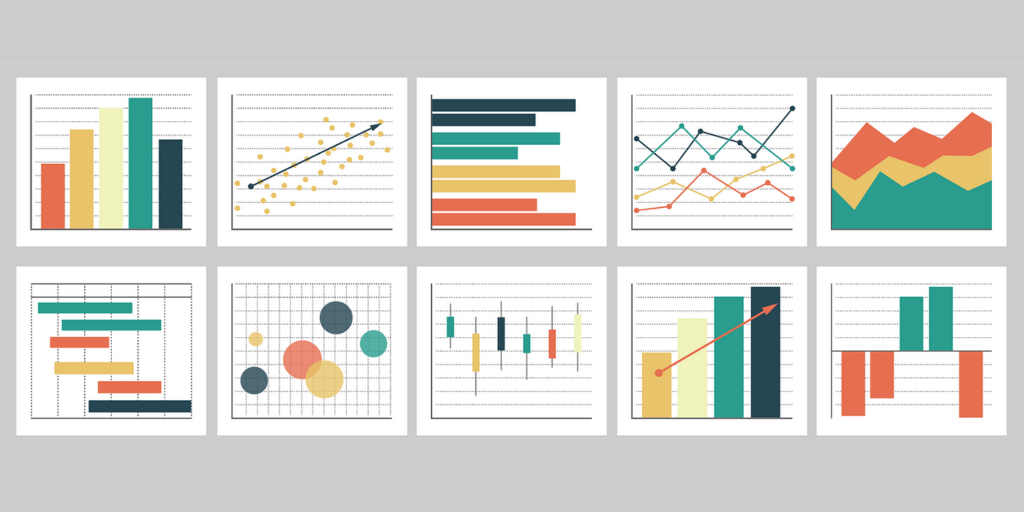
If your job involves presenting information, statistics, or reports, you know how soul-crushing plain spreadsheets and text-heavy slide decks can be. Visme was built specifically to solve that problem.
Visme goes beyond basic social templates, focusing heavily on interactive charts, data widgets, infographics, and corporate presentations. It allows you to hook live data feeds into visual charts, making complex numbers easy to understand at a glance.
- Why You’ll Love It: Its data visualization engine is brilliant. You can transform boring raw numbers into beautiful, animated pie charts, bar graphs, or maps in seconds.
- The Caveat: The free tier can feel somewhat restrictive if you need high-resolution PDF exports or advanced interactive features.
- Best For: Marketers, educators, researchers, and corporate teams who need to make data look compelling.
5. Photopea: Photoshop in a Web Tab (For Free)
Imagine taking Adobe Photoshop, stripping away the requirement to install heavy software on your computer, making it run entirely inside a web browser tab, and offering it for free. That is precisely what Photopea is.
[ Open Browser ] ───> [ Load Photopea.com ] ───> [ Drag in .PSD File ] ───> [ Edit Layers ]
Created as a passion project by a single developer, Photopea supports native .psd (Photoshop), .ai (Illustrator), .sketch, and .XCF files. It includes full support for layer masks, blending modes, smart objects, vector paths, and raster brush tools.
- Why You’ll Love It: If you already know how to use Photoshop, there is zero learning curve. You can open and edit complex, multi-layered Photoshop files on a cheap Chromebook without installing anything.
- The Caveat: Because it mimics traditional professional software, it does not offer drag-and-drop social media templates or pre-made layouts. You are starting with raw image layers.
- Best For: Photo editing, retouching, working with native Photoshop files, and designers on a zero budget.
6. Pixlr: Fast, Lightweight Image Editing
Sometimes you don’t need a massive design suite or a multi-layered photo editor. You just have a photo that looks a little too dark, needs to be cropped to a specific ratio, or needs a quick color filter before being uploaded.
Pixlr comes in two flavors: Pixlr X (an ultra-simple, quick editor for basic tweaks) and Pixlr E (a more robust image editing tool). Both run smoothly in almost any web browser without hogging your computer’s memory.
- Why You’ll Love It: It loads almost instantly and handles quick background removal, color balancing, and cropping faster than almost any heavy desktop app.
- The Caveat: Ads on the free version can occasionally get annoying if you’re working on a smaller screen.
- Best For: Fast photo retouching, social media image sizing, and quick visual adjustments.
7. Piktochart: Bite-Sized Visual Reports & Guides
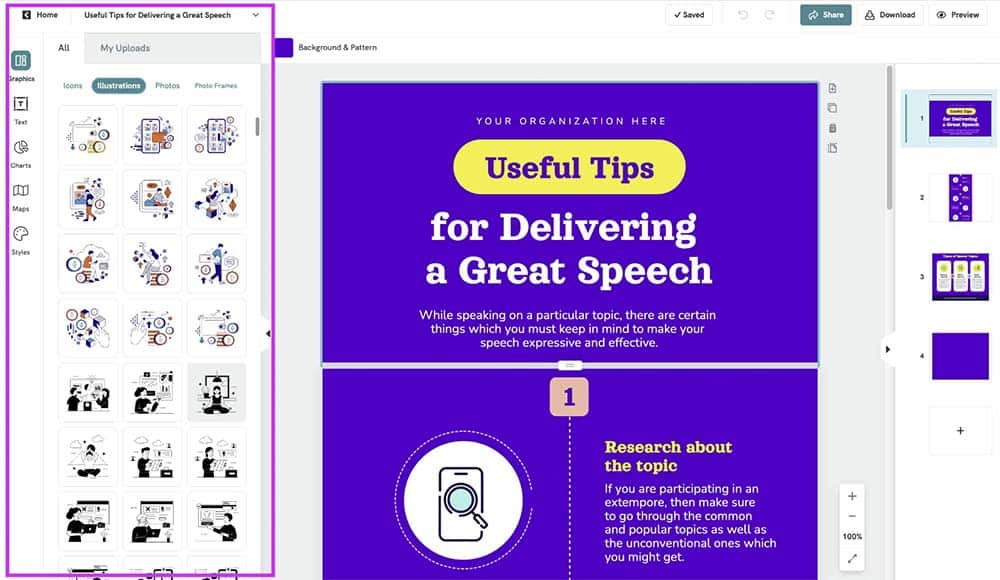
Piktochart was born out of a simple idea: visual information is far easier for the human brain to retain than dense paragraphs of text. While it shares some overlap with Visme, Piktochart focuses heavily on clean, bite-sized infographics, poster designs, and educational reports.
It breaks the design process down into modular blocks. You can stack visual sections on top of each other, reorder them effortlessly, and drop in pre-styled list layouts, timeline graphics, or comparison tables.
- Why You’ll Love It: The modular block editor prevents you from accidentally messing up the alignment of your entire document when you adjust a single section.
- The Caveat: The template library is heavily skewed toward business and educational infographics, so it’s less ideal for lifestyle or high-fashion social content.
- Best For: Step-by-step guides, educational posters, non-profit reports, and process infographics.
8. VistaCreate: Fresh, Ad-Ready Content for Small Businesses
Formerly known as Crello, VistaCreate is a direct competitor to Canva designed specifically for small businesses, local shops, and digital marketers who need a steady stream of promotional content.
What makes VistaCreate standout is its heavy library of dynamic, animated templates. If you want to make an eye-catching Instagram Reel cover, a Facebook ad banner with moving text, or a short promotional video clip, VistaCreate makes the process incredibly straightforward.
- Why You’ll Love It: The templates often feel a bit less overused than Canva’s default library, offering a fresh, modern aesthetic right out of the box.
- The Caveat: The asset library, while good, is slightly smaller than Canva’s massive content ecosystem.
- Best For: E-commerce stores, social media managers, and small business promotional campaigns.
9. Desygner: Mobile-First Branding & PDF Magic

Most online graphic design tools were built for desktop browsers first and ported over to mobile as an afterthought. Desygner took the opposite approach, building a platform that works just as smoothly on a smartphone or tablet as it does on a desktop monitor.
Beyond standard social graphics, Desygner features a surprisingly powerful PDF editing engine. You can upload an existing, locked PDF document into Desygner, and it will automatically break the text, images, and logos into editable vector layers.
- Why You’ll Love It: The ability to import, edit, and fix typos inside locked PDF files directly from your phone is a lifesaver when you’re away from your desk.
- The Caveat: The desktop browser interface feels a bit simpler compared to powerhouses like Canva or Adobe Express.
- Best For: Editing PDFs on the fly and creating social graphics directly from a mobile device or tablet.
10. Snappa: Pure Speed for High-Volume Marketers
Snappa was designed around one core philosophy: eliminating waste and fluff. It was built specifically for bloggers, podcasters, and social media managers who need to churn out multiple graphics every week and don’t want to waste time tweaking unnecessary options.
[ Select Preset Size ] ───> [ Choose Clean Layout ] ───> [ Export in 60 Seconds ]
When you log into Snappa, you aren’t greeted by endless complex menus. You select a pre-sized canvas (e.g., YouTube Thumbnail, Twitter Header, Blog Featured Image), pick a clean template, swap the text, and export. You can literally finish a graphic in under two minutes.
- Why You’ll Love It: It enforces proper graphic sizing automatically, preventing your images from getting awkwardly cropped when uploaded to different social platforms.
- The Caveat: It lacks advanced design tools, complex vector editing, and animation capabilities. It is strictly built for speed.
- Best For: High-volume content creators, bloggers, and solo entrepreneurs who value efficiency above all else.
3 Gold-Standard Rules for Better DIY Design
No matter which tool you choose from the list above, tool quality only accounts for half of the final result. The rest comes down to basic execution.
If you want your graphics to look clean, professional, and trustworthy, follow these three simple rules:
Rule 1: Limit Your Typography (The 2-Font Limit)
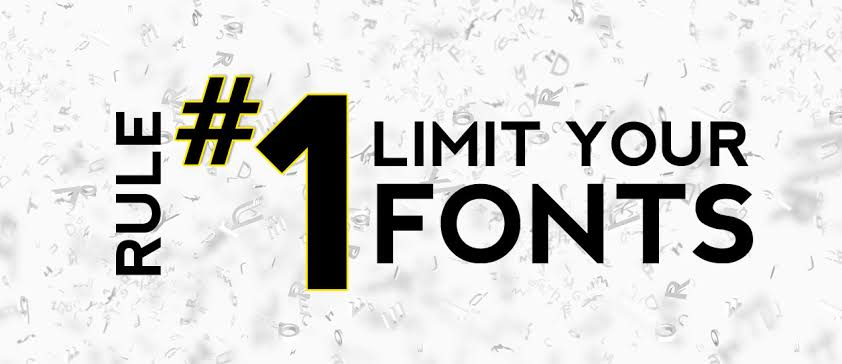
The absolute fastest way to make a graphic look amateur is combining four different fancy fonts on a single image. Stick to two fonts maximum:
- Font 1 (Header): A strong, readable, personality-driven font (Serif or bold Sans-Serif).
- Font 2 (Body/Details): A clean, simple, highly legible font (like Inter, Arial, or Open Sans).
Rule 2: Embrace Negative Space (Let It Breathe)
New designers often feel terrified of empty space, packing every corner of a canvas with text, icons, starbursts, and borders. White space (or empty space) is not wasted space. Giving your headline and imagery room to breathe makes your design instantly look high-end and easier to read.
Rule 3: Don’t Leave Default Template Colors As-Is
Templates are meant to be starting points, not final products. If you pick a popular template and don’t change the default colors or stock photos, thousands of people will recognize it. Swap the primary accent color to your brand’s specific color palette and use a unique photo to make the graphic distinctly yours.
Free vs. Paid: When Is It Actually Worth Upgrading?
Almost every platform mentioned on this list offers a robust free tier. So, when should you actually pull out your credit card and upgrade to a premium plan?
┌─────────────────────────────────────────────────────────────────┐
│ YOU CAN STICK WITH THE FREE TIER IF:                             │
│ • You only make 2-3 graphics per month for personal use.        │
│ • You don't need transparent PNG background exports.            │
│ • You are comfortable using basic free fonts and stock images.  │
└─────────────────────────────────────────────────────────────────┘
                                │
                                ▼
┌─────────────────────────────────────────────────────────────────┐
│ YOU SHOULD UPGRADE TO A PAID PLAN IF:                           │
│ • You need an automatic One-Click Background Remover tool.       │
│ • You manage multiple brand kits (saved logos, fonts, colors).  │
│ • You need high-res, print-ready PDF exports with crop marks.   │
│ • You want access to premium stock photo & video libraries.     │
└─────────────────────────────────────────────────────────────────┘
Frequently Asked Questions
Top Workflow Tools for Better Team Productivity in 2026
It rarely happens with a big dramatic crash. Instead, it’s a slow, quiet leak. You…

AI Automation Guide 2026: Work Smarter, Faster & Better
Artificial intelligence and automation are changing the way people work, manage information, communicate, and complete…
Tool Reviews: Find the Best Tools for Every Need
Every single morning, millions of people open their laptops to a screen crammed with open…

The Best Audio Editing Software 2026: Music, Podcasts & More
Good audio can completely change how a song, podcast, video, or voice recording feels.Audio Editing…
Tool Reviews 2026: Explore, Compare & Find Better Tools
Finding the right digital tool can save time, simplify repetitive tasks, and make everyday work…
The Best No-Code Automation Tools Simplify Workflows & Save Time
A lot of everyday work follows the same pattern. No-Code Automation Someone fills out a…