
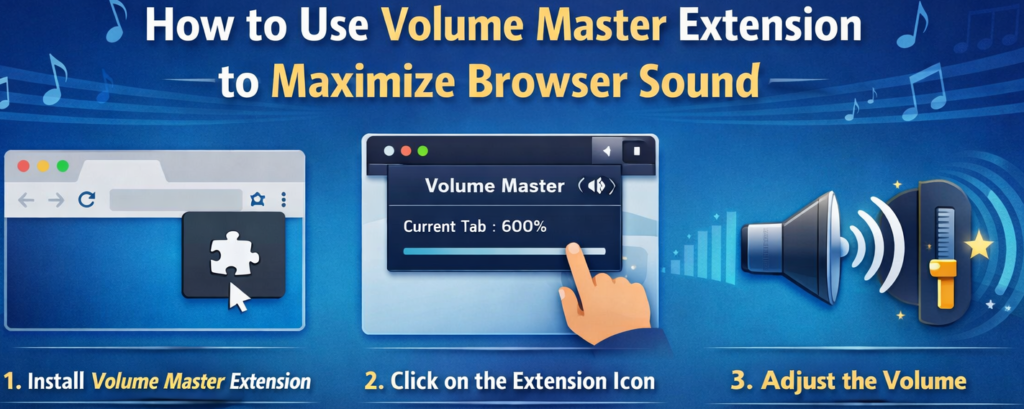
If you’ve ever struggled with a video that sounds too low even at 100% system volume, you’re not alone. I found myself constantly adjusting laptop speakers, switching headphones, and still missing dialogue in online lectures and late-night streams. That’s when I started using Volume Master Ultimate, a browser extension designed to push audio beyond the usual limits while keeping everything private and secure.
After using it consistently, I can confidently say it changes the way you experience browser audio. Here’s my personal breakdown of how it works and what makes it useful.
Why I Started Using Volume Master Ultimate
Some websites simply have low audio output. Even with high-quality speakers, certain videos, webinars, or live streams just don’t reach a comfortable level. Volume Master Ultimate solves that by allowing you to boost sound up to 600%, which is far beyond the browser’s default 100% cap.
What stood out to me immediately was that it doesn’t feel like a cheap “volume booster.” Instead, it uses real-time audio processing through the Web Audio API and GainNode, which means amplification happens smoothly and without obvious distortion when adjusted responsibly.
Key Features That Made a Difference

Volume Boost up to 600%
This is the headline feature. You can amplify audio well beyond system limits. Personally, I rarely push it to the maximum, but having that headroom helps when dealing with poorly mixed videos or soft-spoken speakers.
Tab-Specific Control
One of my favorite features is independent volume control for each tab. If I’m watching a tutorial in one tab and listening to music in another, I can boost the tutorial while keeping the music at normal levels. It feels organized and practical.
Real-Time Audio Processing
The extension uses GainNode-based processing for smooth amplification. In real-world use, this means when you move the slider, the change is instant. There’s no delay or awkward audio cut.
Granular Volume Slider
Instead of just “low, medium, high,” you get a precise slider ranging from 100% to 600%. I usually adjust between 125% and 250%, depending on the content.
Live Audio Visualizer
The visualizer gives real-time feedback on sound levels. It’s a small touch, but it reassures you that audio is being processed actively.
Offscreen Audio Handling (Manifest V3 Compliant)
From a technical standpoint, it uses offscreen processing compliant with Manifest V3. As a user, this simply means it works efficiently in modern browsers without performance issues.
Privacy-Focused Design
This was important to me. The extension does not record audio or communicate with external servers. Everything happens locally in the browser, which makes it feel safe to use during meetings, lectures, or personal streaming sessions.
Step-by-Step: How I Use It Daily
Using Volume Master Ultimate is straightforward:
Step 1: I open a browser tab that’s playing audio, whether it’s a streaming platform, an online class, or a podcast.
Step 2: I click on the Volume Master Ultimate extension icon in the browser toolbar.
Step 3: The extension captures the active tab’s audio stream automatically. There’s no complicated setup.
Step 4: I adjust the volume slider to increase gain. Usually, I increase gradually to avoid distortion.
Step 5: The audio is amplified instantly and plays through my system output in real time.
The whole process takes less than five seconds, and once you’ve used it a few times, it becomes second nature.
My Honest Experience After Regular Use
After weeks of using Volume Master Ultimate, I’ve noticed a clear improvement in how I consume online content. Soft dialogue in movies becomes clearer. Online classes feel more engaging because I don’t strain to hear. Even low-volume live streams become enjoyable.
However, I’ve also learned that moderation is key. Pushing audio too high can cause distortion or even damage speakers or hearing if used irresponsibly. I usually increase gradually and stop once clarity improves.
Who Should Use Volume Master Ultimate?
This extension is ideal for:
- Students attending online classes
- Remote workers in virtual meetings
- Streamers and viewers dealing with inconsistent audio levels
- Anyone frustrated with low browser sound
If you frequently find yourself maxing out system volume and still wanting more, this tool can make a noticeable difference.
AI Automation Guide 2026: Work Smarter, Faster & Better
Artificial intelligence and automation are changing the way people work, manage information, communicate, and complete…

Tool Reviews: Find the Best Tools for Every Need
Every single morning, millions of people open their laptops to a screen crammed with open…

The Best Audio Editing Software 2026: Music, Podcasts & More
Good audio can completely change how a song, podcast, video, or voice recording feels.Audio Editing…
Tool Reviews 2026: Explore, Compare & Find Better Tools
Finding the right digital tool can save time, simplify repetitive tasks, and make everyday work…

The Best No-Code Automation Tools Simplify Workflows & Save Time
A lot of everyday work follows the same pattern. No-Code Automation Someone fills out a…
The Best Vivo V80 5G Expected Price, Camera & Features
The Vivo V80 5G is one of the upcoming smartphones attracting attention in India’s premium…

Disclaimer: This article is based on personal experience and is intended for informational purposes only. Excessive volume amplification may cause audio distortion or potential damage to speakers and hearing. Users should adjust volume responsibly and at their own discretion.
#VolumeMaster #BrowserExtension #AltFTool #AudioBooster #TechTools #ProductivityHacks #ChromeExtensions #Carrerbook #Anslation