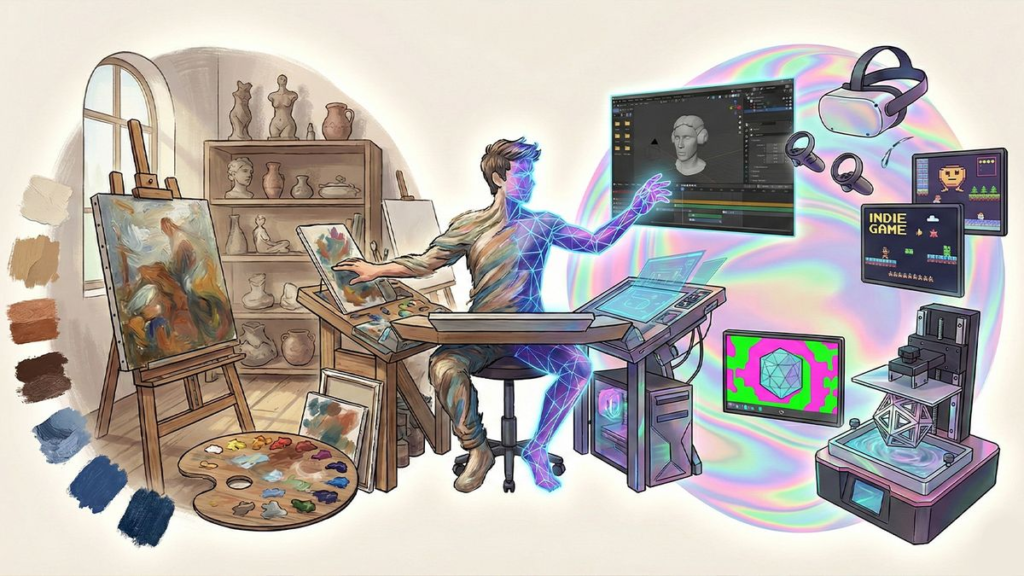
Look, let’s be real for a second: digital art used to feel like an exclusive club with a massive velvet rope. You needed a $2,000 computer, a clunky graphics tablet that took up your entire desk, expensive software, and a degree in fine art just to figure out what half the buttons did.
Thankfully, in 2026, those days are completely dead and buried.
Whether you’re a full-time freelancer, a graphic designer, a student, or someone who just wants to doodle on an iPad while lounging on the couch, the barrier to entry has completely dissolved. But with so many apps promising to turn you into a master artist overnight, picking the right one gets overwhelming fast.
Here’s the cold, hard truth: you don’t need to learn every shiny new software out there. The “best” illustration tool isn’t the one with the longest feature list or the highest price tag—it’s the one that gets out of your way, feels natural in your hands, and actually makes you want to draw.
Let’s strip away the corporate marketing buzzwords and break down the best illustration tools available right now, what they’re actually good for, and which one is worth your time and sanity.
Best Illustration Tools: The Reality Check
Instead of reading through feature lists full of technical jargon, here’s a grounded, person-to-person look at how these popular tools stack up in real life:
| Tool | Who It’s Actually Built For | The “Human” Reality (Pros & Cons) | Difficulty Level |
|---|---|---|---|
| Procreate | iPad users, digital painters, and casual doodlers | The Good: Feels like drawing in a real sketchbook. Zero fluff. The Catch: iPad only. No vector support for scalable logos. | Easy (Jump right in) |
| Adobe Illustrator | Graphic designers making logos, vectors, and branding | The Good: Industry standard. Your art can resize to billboard scale. The Catch: Monthly subscriptions hurt, and pen tools take patience. | Steep (Prepare to learn) |
| Clip Studio Paint | Comic creators, manga artists, and character designers | The Good: Insanely good brush feel, 3D pose models, and panel tools. The Catch: The menu-dense screen can feel intimidating at first. | Moderate |
| Krita | Budget-conscious painters and digital art students | The Good: 100% free and open-source. Powerful painting brushes. The Catch: Interface looks a bit technical and dated out of the box. | Moderate |
| Affinity Designer | Artists tired of monthly Adobe subscriptions | The Good: Pay once, keep it forever. Smoothly combines vectors & pixels. The Catch: Smaller online community for quick troubleshooting. | Moderate |
| Canva | Marketers, teachers, and non-artists needing quick graphics | The Good: Idiot-proof drag-and-drop templates. Lightning fast. The Catch: Not for custom hand-drawn art or detailed painting. | Super Easy |
| Inkscape | Anyone needing free scalable vector graphics | The Good: Completely free vector tool. Great for SVG edits. The Catch: Clunky performance if your file gets overly complex. | Moderate |
The Heavy Hitters: Where Should You Actually Spend Your Time?
1. Procreate (If You Just Want to Draw on an iPad)
If you own an iPad and an Apple Pencil, this is almost a no-brainer. Procreate stripped away all the confusing menus and desktop floating windows, replacing them with a clean canvas and an insanely fluid brush engine.
It feels close to actual paper. You open it up, pick a pencil or watercolor brush, and start sketching immediately. It’s perfect for concept art, character design, and children’s book illustrations.
- The Catch: It’s strictly raster (pixel-based). If you need to design a logo that scales up to fit the side of a building without getting blurry, Procreate isn’t the right tool.
2. Adobe Illustrator (The Unshakeable Industry Standard)
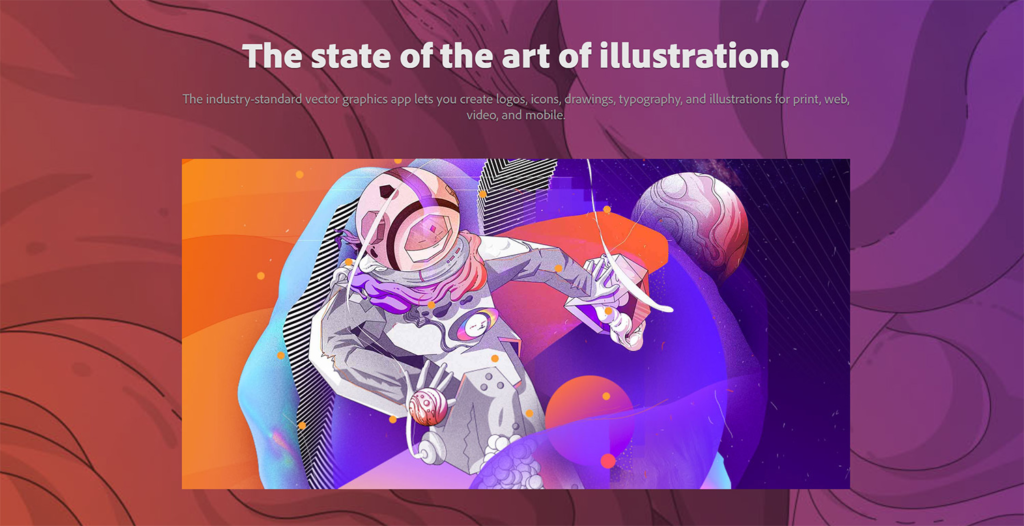
If your goal is to make money designing logos, icons, custom typography, or crisp vector art, Illustrator is still king. Vector artwork doesn’t rely on pixels—it relies on math. That means you can shrink an illustration to fit a tiny business card or blow it up for a billboard, and it stays razor-sharp.
- The Catch: Adobe’s monthly subscription model stings. Plus, learning how vector paths and anchor points work takes genuine practice. It’s not an app you master in a single afternoon.
3. Clip Studio Paint (The Comic & Manga Powerhouse)
If you draw characters, webcomics, or manga, Clip Studio Paint is practically a cheat code. Its brush stabilization makes line art look buttery smooth even if your hands are a bit shaky.
It also includes built-in 3D poseable human models that you can drag into your canvas when you’re struggling with tough body angles or tricky perspectives.
- The Catch: There are a lot of menus. You’ll want to watch a few beginner YouTube tutorials to customize your workspace so it doesn’t look like an airplane cockpit.
4. Krita (The Best Free Gift to Digital Artists)
You do not need to drop cash to make incredible digital art. Krita is completely free, community-driven, and made by artists for artists. It focuses heavily on digital painting, featuring a phenomenal brush engine, color wheels, and layer blending modes that rival expensive software.
- The Catch: Because it’s open-source, the interface isn’t quite as slick or polished as commercial products, but functionally? It punches way above its weight class.
What About AI Tools in 2026?
Let’s address the elephant in the room. AI image generators are everywhere now, but they haven’t killed human illustration—they’ve just changed the workflow.
Most smart creators use AI as a digital whiteboard. If you’re staring at a blank canvas with zero ideas, you can use AI to quickly throw together visual references, test color palettes, or brainstorm character concepts. Once you have a spark of inspiration, you take over, fire up your drawing software, and craft the actual art yourself.
Think of AI as an assistant that fetches reference photos, not the artist holding the pen.
How to Stop Overthinking and Pick One
If your head is spinning, use this quick checklist to make your decision:
- If you have an iPad and want a relaxing drawing experience: Go with Procreate.
- If you want to draw comics, anime, or detailed characters: Grab Clip Studio Paint.
- If you’re designing logos, stickers, or brand graphics: Bite the bullet and learn Adobe Illustrator (or Affinity Designer for a one-time purchase).
- If you have $0 to spend but want to paint seriously: Download Krita.
- If you just need social media graphics in 5 minutes: Use Canva.
The Best Workflow Tools for Small Businesses, Teams, and Freelancers
Running a business involves more than completing tasks. Workflow You have emails to answer, projects…

Content Marketing Trends 2026: Research & Storytelling
The internet has never had a shortage of content. Every day, businesses publish blog posts,…
Top Workflow Tools for Better Team Productivity in 2026
It rarely happens with a big dramatic crash. Instead, it’s a slow, quiet leak. You…

AI Automation Guide 2026: Work Smarter, Faster & Better
Artificial intelligence and automation are changing the way people work, manage information, communicate, and complete…
Tool Reviews: Find the Best Tools for Every Need
Every single morning, millions of people open their laptops to a screen crammed with open…
The Best Audio Editing Software 2026: Music, Podcasts & More
Good audio can completely change how a song, podcast, video, or voice recording feels.Audio Editing…