
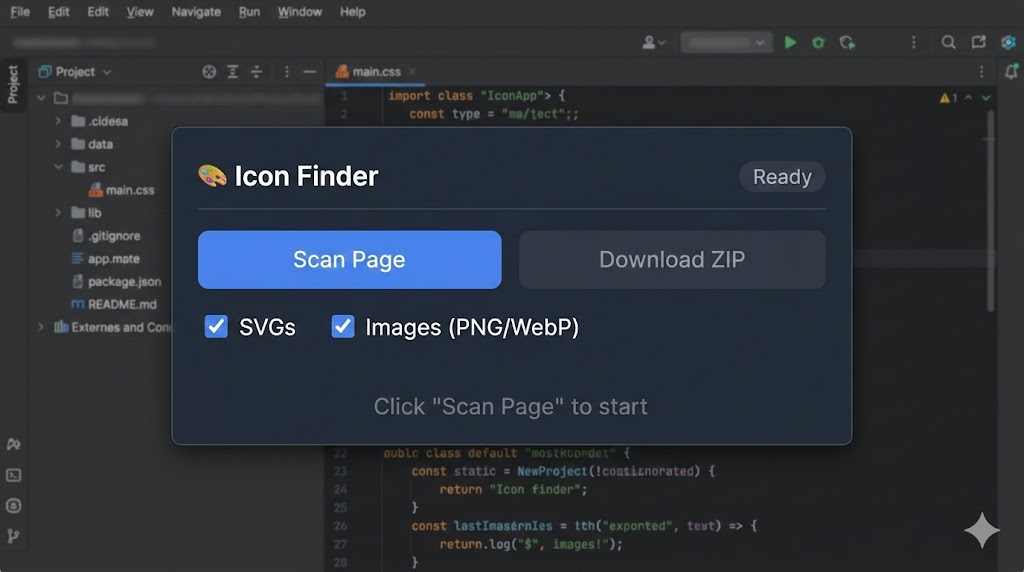
As a blogger and someone who constantly works with UI inspiration, I can’t even count how many times I’ve right-clicked on a website, opened “Inspect,” and dug through messy HTML just to find one tiny SVG icon. It’s frustrating, time-consuming, and honestly — unnecessary in 2026.

That’s exactly why Icon Extractor (Icon Finder from Website by AltfTool) feels like a lifesaver. After using it regularly in my workflow, I can confidently say it’s one of those small tools that makes a big difference.
Why I Started Using Icon Extractor
There was a time when collecting icons from live websites meant manually checking the page source, searching for <svg> tags, copying paths, or digging through CSS files. It felt technical, slow, and inefficient — especially when I just needed quick design inspiration or assets for a project draft.
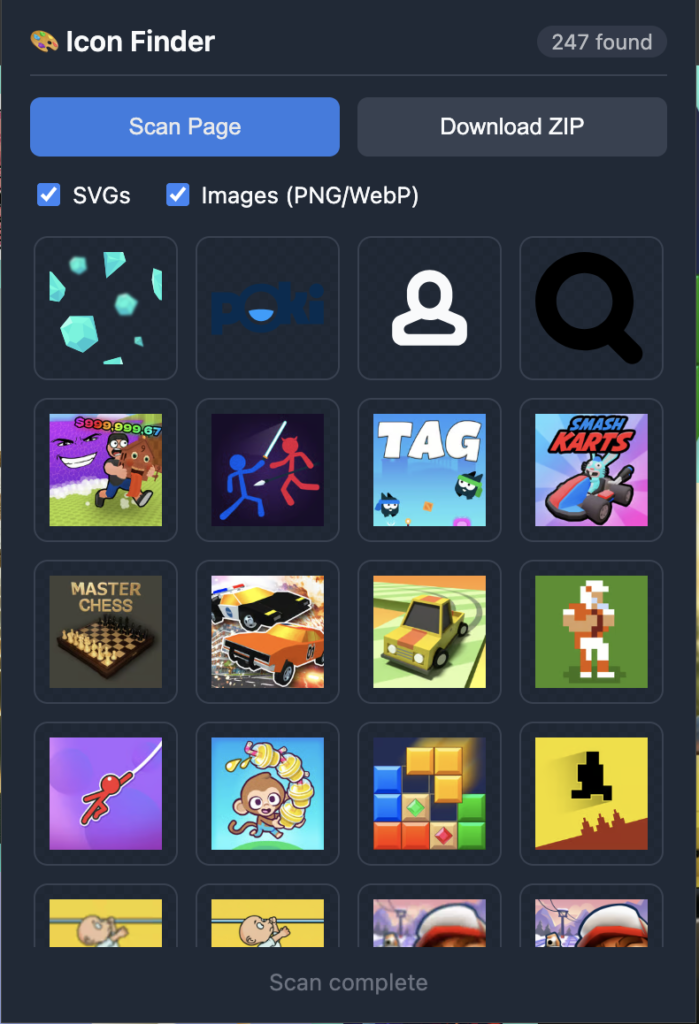
Icon Extractor completely changed that experience for me. Instead of digging into code, I simply click the extension and let it scan the page. Within seconds, I see a clean grid of icons ready to copy or download.
No coding stress. No confusion. Just instant results.
What Makes Icon Extractor So Powerful
What impressed me the most is how deeply it scans a website. It doesn’t just detect obvious image files — it goes much further.
Smart Page Scanning
With one click on “Scan Page,” the extension analyzes the entire webpage and collects visible icon elements. It detects:
- Inline SVG elements
- SVG sprite references
- Image icons (PNG, WebP, GIF, ICO)
- CSS background and mask images
- Icons inside Shadow DOM elements
This level of detection is something I didn’t expect from a lightweight browser extension.
Clean Grid Preview
Once the scan is complete, all detected icons appear inside a neat grid preview within the popup.
I personally love this feature because:
- I can visually identify what I need instantly
- No guessing file names
- No opening multiple tabs
It feels organized and designer-friendly.
Filter and Smart Controls
Another feature I use frequently is the filtering option. You can filter icons by type — SVG or image — which makes the process even faster.
It also:
- Automatically removes duplicate icons
- Skips large images over 512px (so you don’t accidentally download banners instead of icons)
That level of smart filtering shows real attention to usability.
How I Use Icon Extractor in My Daily Workflow
Here’s exactly how I use it when I find a website with interesting icons:
Step 1: Open the Website
I navigate to any site that has icons I want to analyze.
Step 2: Click the Extension
I click the Icon Extractor extension icon in my browser.
Step 3: Hit “Scan Page”
Within seconds, it scans and gathers all available icons.
Step 4: Preview in Grid
The popup displays every detected icon in a grid layout.
Step 5: Copy or Download
- I copy SVG code directly if I need editable vector files.
- Or download individual icons instantly.
Step 6: Download All as ZIP
If I need multiple icons, I simply click “Download ZIP” and everything gets bundled together.
It’s smooth. It’s fast. And it saves me so much time.
Who Should Use Icon Extractor?
From my experience, this tool is perfect for:
- UI/UX designers
- Front-end developers
- Bloggers and content creators
- Students learning web design
- Anyone collecting design inspiration
Even if you’re not technical, the interface is simple enough for beginners.
What I Honestly Love Most
For me, the best part isn’t just the scanning — it’s the simplicity. There’s no complex setup, no confusing settings, and no need to inspect page source manually.
It does exactly what it promises: extract icons instantly from any webpage.
And when a tool saves time without adding complexity, it becomes part of your daily routine. That’s exactly what happened with me.

AI Automation Guide 2026: Work Smarter, Faster & Better

Tool Reviews: Find the Best Tools for Every Need

The Best Audio Editing Software 2026: Music, Podcasts & More

Tool Reviews 2026: Explore, Compare & Find Better Tools
The Best No-Code Automation Tools Simplify Workflows & Save Time
The Best Vivo V80 5G Expected Price, Camera & Features
Final Thoughts
Icon Extractor isn’t just another browser extension — it’s a productivity upgrade. In a world where speed matters, having a tool that instantly detects, previews, filters, and downloads icons feels incredibly empowering. If you regularly work with website assets or design inspiration, this extension can easily become one of your go-to tools. Sometimes, the smallest tools solve the biggest frustrations — and for me, Icon Extractor is one of them.
Frequently Asked Questions (FAQs)
Disclaimer : This blog post is based on my personal experience using the Icon Extractor extension. Features and functionality may evolve with future updates. Always respect copyright and licensing rules before using extracted icons for commercial purposes.
#IconExtractor #WebDesignTools #UIUXDesign #BrowserExtension #DesignWorkflow #SVGIcons #DeveloperTools #ProductivityTools #Carrerbook #Anslation