
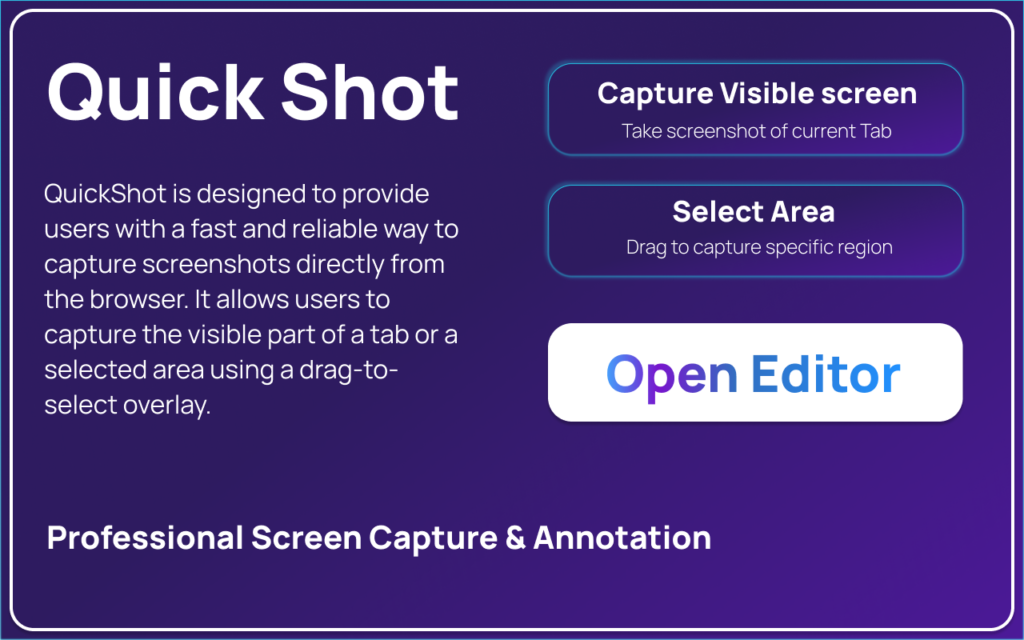
Introduction: My Honest Experience with QuickShot


QuickShot
Fast screenshot capture tool with minimal UI.

In 2026, screen capture tools are everywhere. As someone who writes blogs daily, creates tutorials, and shares walkthroughs on social media, I rely heavily on screenshot extensions. I’ve tried many tools over the years—some were too slow, some complicated, and others raised privacy concerns. That’s when I started using QuickShot – Advanced Screen Capture, and honestly, it changed the way I capture and edit screenshots.
QuickShot isn’t just another screenshot extension. It feels like a complete mini design studio built directly into the browser. From capturing a selected area with precision to editing with blur, highlight, and annotation tools — everything runs smoothly and locally. No lag. No unnecessary uploads. Just fast, clean results.
Fast & Reliable Capture Options
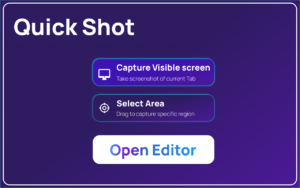
One of the main reasons QuickShot stands out in 2026 is its capture flexibility. Whether I need the entire visible screen of my current tab or just a specific section, it works instantly.
The Visible Screen Capture option is perfect for quick documentation. When I’m reviewing a website or showing a feature update, I just click and capture.
The Selected Area Capture is where it truly shines. The drag-to-select overlay feels natural, with a crosshair mode and a live size indicator that shows the exact dimensions. This small detail actually saves time when creating precise tutorial images.
There’s even a cancel option, which might sound minor—but when you take dozens of screenshots daily, it matters.
Built-In Editor That Feels Professional
Most screenshot extensions force you to use another tool for editing. QuickShot doesn’t.
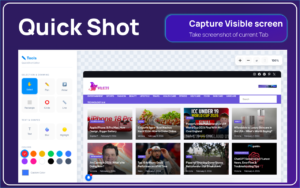
After capturing, the built-in editor opens automatically (if enabled in settings). From my experience, this is where QuickShot becomes the best screen capture extension in 2026.
Here’s what I personally use the most:
- Pen tool for quick notes
- Arrow tool for pointing at UI elements
- Rectangle and Circle for highlighting sections
- Blur tool for hiding sensitive information
- Text tool for adding explanations
- Highlight tool for emphasis
The brush size and opacity control give creative freedom, and Undo/Redo works flawlessly. The zoom controls and optional grid overlay are surprisingly helpful when precision is required.
Everything feels smooth and responsive. There’s no delay between actions.
Privacy & Speed: A Big Advantage
What truly makes QuickShot different is that everything runs locally. In 2026, privacy is more important than ever. Many tools process screenshots on external servers, but QuickShot keeps everything on your device.
From my perspective, this gives two major benefits:
- Faster performance
- Better data privacy
I’ve used tools that freeze while uploading large screenshots. With QuickShot, it’s instant.
Settings That Improve Workflow
QuickShot also offers smart settings like:
- Auto-copy after capture
- Auto-open editor
I personally keep auto-copy enabled. The moment I finish editing, the image is already on my clipboard. This small feature saves a surprising amount of time when working on multiple projects.
Export & Sharing Made Simple
Once editing is done, exporting is effortless. You can:
- Save as PNG
- Copy edited image
- Use the Share modal
PNG quality is sharp and clean, making it perfect for blogs, reports, or presentations.
QuickShot Features Overview
| Feature Category | Key Features Included | Why It Matters |
|---|---|---|
| Capture Options | Visible Screen, Selected Area | Flexible screenshot control |
| Selection Overlay | Crosshair, Drag-to-select, Live size indicator | Precision capturing |
| Editor Tools | Pen, Arrow, Shapes, Blur, Highlight, Text | Complete annotation system |
| Customization | Color palette, Brush size, Opacity | Creative flexibility |
| Controls | Undo/Redo, Zoom, Grid overlay | Accuracy & correction |
| Export | PNG download, Copy to clipboard | Easy sharing |
| Privacy | Runs locally | Faster & secure |
Why QuickShot Is the Best in 2026
From a daily user’s perspective, QuickShot balances speed, simplicity, and power.
It doesn’t overwhelm beginners, yet it offers enough advanced tools for professionals. Whether you are a content creator, student, designer, or remote worker, it adapts to your workflow.
In 2026, productivity tools must be fast, secure, and intuitive. QuickShot checks all three boxes.
Frequently Asked Questions (FAQ)
Final Thoughts
After using QuickShot consistently, I can confidently say it’s one of the most practical and efficient screen capture extensions available in 2026. It combines speed, privacy, and professional editing tools into one simple interface.
For anyone tired of switching between multiple tools just to capture and annotate screenshots, QuickShot offers a streamlined and reliable solution.
It’s not just about taking screenshots — it’s about capturing, editing, and sharing smarter.
AI Automation Guide 2026: Work Smarter, Faster & Better
Artificial intelligence and automation are changing the way people work, manage information, communicate, and complete…

Tool Reviews: Find the Best Tools for Every Need
Every single morning, millions of people open their laptops to a screen crammed with open…
The Best Audio Editing Software 2026: Music, Podcasts & More
Good audio can completely change how a song, podcast, video, or voice recording feels.Audio Editing…

Tool Reviews 2026: Explore, Compare & Find Better Tools
Finding the right digital tool can save time, simplify repetitive tasks, and make everyday work…
The Best No-Code Automation Tools Simplify Workflows & Save Time
A lot of everyday work follows the same pattern. No-Code Automation Someone fills out a…
The Best Vivo V80 5G Expected Price, Camera & Features
The Vivo V80 5G is one of the upcoming smartphones attracting attention in India’s premium…
Disclaimer : This blog post is based on personal experience and feature analysis of QuickShot – Advanced Screen Capture. Features and availability may vary depending on browser version or updates. Users should verify details from the official extension page before installation.
#QuickShot #ScreenCaptureTool #ScreenshotExtension #BrowserExtension #ProductivityTools #TechTools2026 #ContentCreatorTools #WorkSmarter #Carrerbook #Anslation