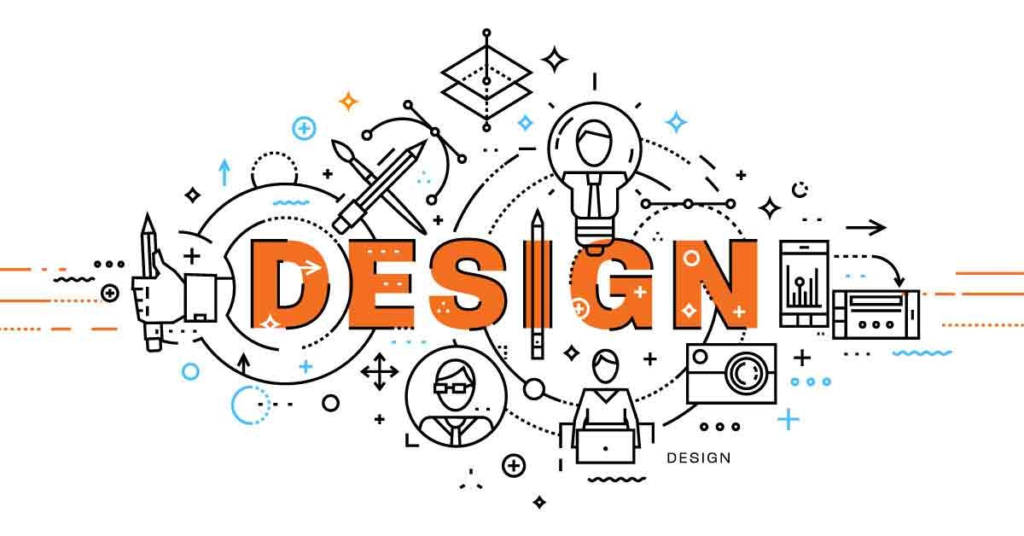
Graphic design is an essential part of modern communication.Graphic Design From social media posts and website banners to business logos, advertisements, and product packaging, good design helps people understand information and connect with a brand. Graphic Design for Beginners: A Complete Step-by-Step Guide The best part is that you do not need to be a professional artist to get started. With the right tools, basic design principles, and regular practice, anyone can begin learning graphic design.
If you are new to graphic design, this guide will help you understand the fundamentals, choose suitable tools, create your first design, and develop the skills needed to improve over time.
What Is Graphic Design?
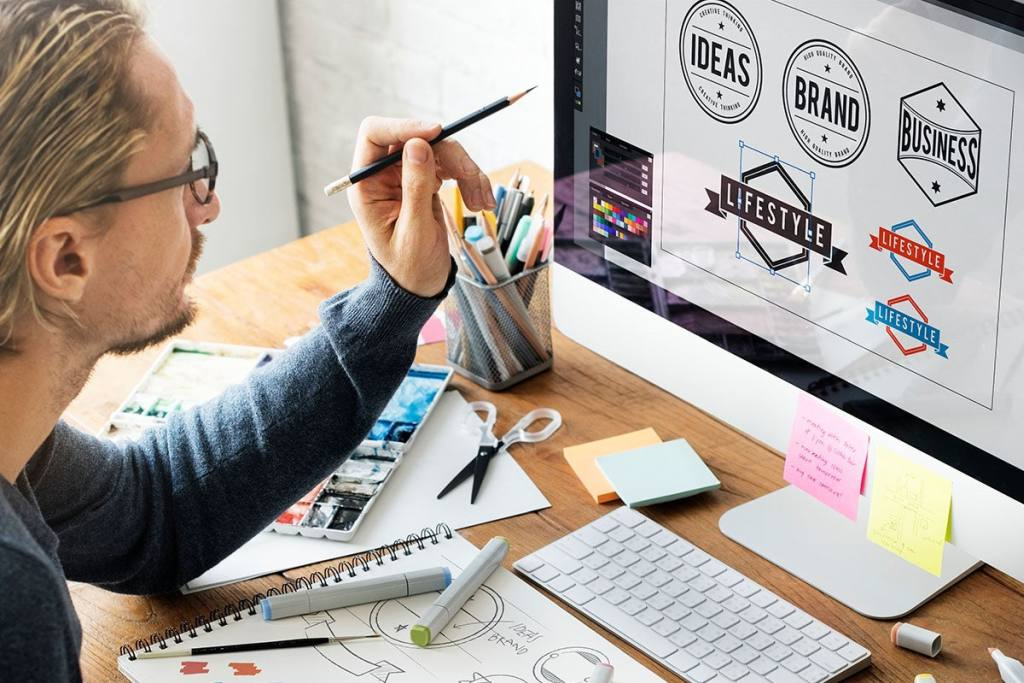
Graphic design is the process of combining text, images, colors, shapes, and other visual elements to communicate a message. Designers use these elements to make information attractive, clear, and easy to understand.
For example, a business might use graphic design to create a logo, a restaurant might need a menu, and a content creator might design a YouTube thumbnail. Each project has a different purpose, but all require thoughtful visual communication.
Graphic design is used in many areas, including:
- Branding: Logos, business cards, and brand identity materials.
- Digital marketing: Advertisements, promotional banners, and social media graphics.
- Web design: Website layouts, icons, buttons, and visual elements.
- Publishing: Book covers, magazines, brochures, and posters.
- Packaging: Labels, product boxes, and packaging artwork.
Understanding these applications can help you decide which area of graphic design you want to explore first.
Learn the Basic Principles of Graphic Design
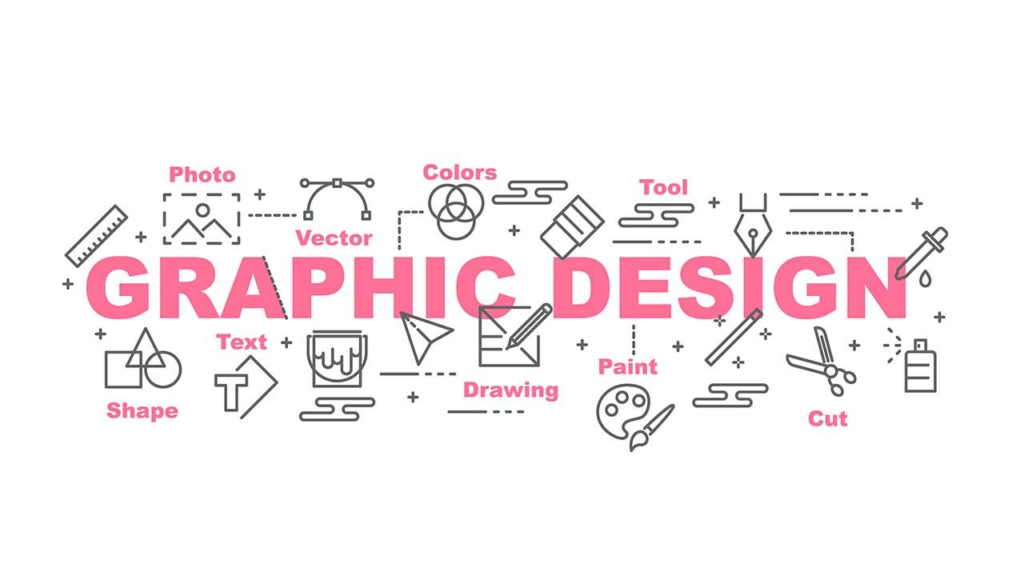
Before creating complex designs, learn the principles that make a layout visually appealing and easy to understand.
Color Theory Graphic Design
Colors influence how people perceive a design. Different combinations can create contrast, communicate a mood, and help important elements stand out.
Start by learning primary, secondary, and complementary colors. Practice combining two or three colors that work well together instead of using too many colors in one design.
Beginner tip: Create a small color palette before starting a project and use it consistently.
Typography Graphic Design
Typography refers to the way text is selected, arranged, and presented. The right fonts make a design readable and establish a clear visual style.
For example, a formal business design may use clean, professional fonts, while a playful event poster may use more expressive typography.
Beginner tip: Start with one font for headings and another for body text. Check that both are easy to read at the intended size.
Layout and Alignment Graphic Design
Layout determines how text, images, and other elements are positioned on a page or screen. A good layout guides the viewer’s attention in a logical order.
Use consistent margins, align related elements, and leave enough empty space between sections. Avoid placing too many items close together.
Contrast and Visual Hierarchy Graphic Design
Contrast helps distinguish important elements from less important ones. It can be created through differences in color, size, weight, or spacing.
Visual hierarchy determines what viewers notice first, second, and third. For example, a promotional graphic might feature a large headline, a supporting image, and smaller details underneath.
Beginner tip: Ask yourself what the viewer should notice first. Make that element the most prominent.
Balance and Spacing Graphic Design
Balance refers to how visual weight is distributed throughout a design. A layout does not need to be perfectly symmetrical, but its elements should feel intentional.
Spacing prevents a design from looking crowded and helps readers understand the relationship between different elements.
Choose the Right Graphic Design Tools
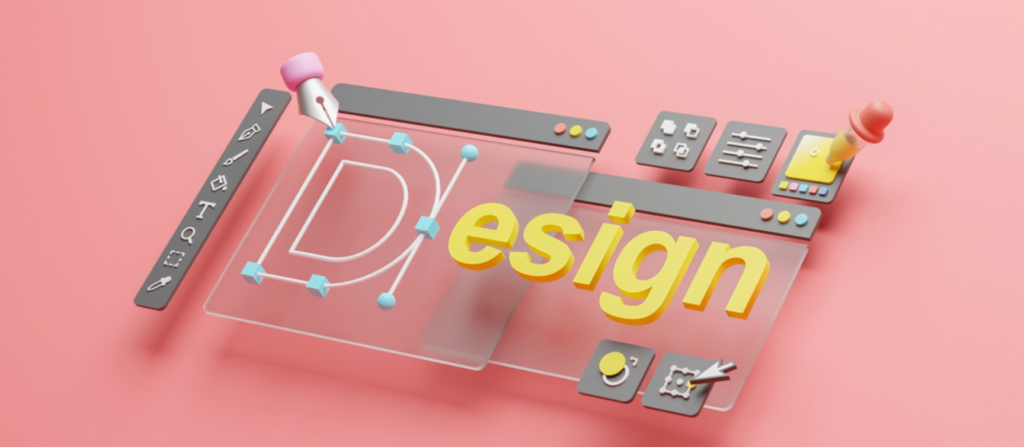
You do not need expensive software to start learning graphic design. Several tools offer beginner-friendly features, templates, and more advanced editing options.
Canva Graphic Design
Canva is a useful starting point for beginners who want to create social media posts, presentations, posters, flyers, and simple marketing materials. Its templates and drag-and-drop editor make it easy to experiment with layouts.
Adobe Express Graphic Design
Adobe Express offers templates and tools for creating digital graphics, promotional content, and other visual materials. It can be helpful when you want to create polished designs without beginning every project from scratch.
Adobe Photoshop Graphic Design
Photoshop is widely used for photo editing, image compositing, digital artwork, and detailed visual effects. Beginners can start by learning cropping, layers, selections, and basic adjustments.
Adobe Illustrator Graphic Design
Illustrator is designed for vector graphics, which can be resized without losing quality. It is commonly used for logos, icons, illustrations, and other scalable artwork.
Figma
Figma is especially useful for interface design, wireframes, website layouts, and collaborative design projects. It can also help beginners understand spacing, components, and digital layout systems.
How to choose: Start with one tool that matches your immediate goal. If you want to design social media posts, try Canva or Adobe Express. If you want to learn professional image editing or vector illustration, explore Photoshop or Illustrator.
Free features and subscription plans can change, so check each tool’s official website before choosing a plan.
Set a Clear Goal for Your First Design

A common beginner mistake is starting a project without knowing what it needs to communicate. Before opening your design tool, answer three simple questions:
- Who is the design for?
- What message should it communicate?
- Where will the design be used?
For example, if you are designing an Instagram post for a bakery, the audience may be local customers, the message might promote a new product, and the final graphic will be viewed on a mobile screen.
These answers help you select suitable colors, fonts, images, and dimensions.
Create Your First Graphic Design Step by Step
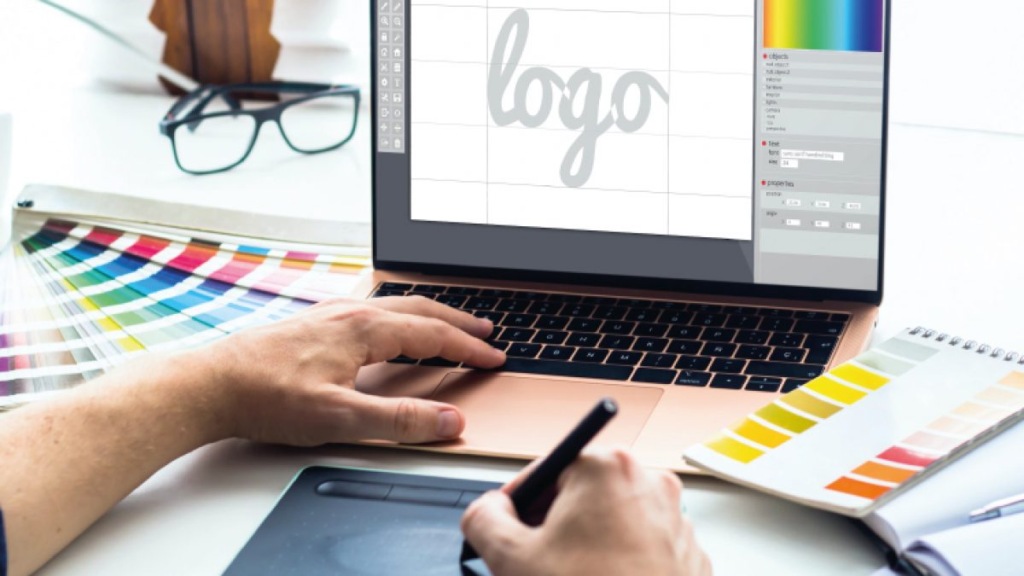
A social media post is a practical first project because it lets you practice typography, color, spacing, and visual hierarchy in one design.
1: Select a Design Size
Open your chosen design tool and select a social media post template or set custom dimensions appropriate for the platform. Always check the platform’s current image specifications before exporting.
2: Choose a Simple Background
Select a solid color, subtle gradient, or suitable photograph. Make sure the background does not make your text difficult to read.
3: Add a Clear Headline
Write a short headline that communicates the main message. Use a readable font and make the heading more prominent than supporting text.
For a bakery promotion, you might use a headline such as “Freshly Baked Every Morning.”
4: Add Relevant Images or Graphics
Choose a high-quality photograph, illustration, or icon that supports your message. Avoid adding decorative elements that do not contribute to the purpose of the design.
Use images you created, licensed stock assets, or other materials you have permission to use.
5: Organize the Elements
Place the headline, image, and supporting information in a clear order. Align related elements and leave sufficient space around the edges.
Check the design at a smaller size to make sure the text remains readable on a phone.
6: Review the Colors and Fonts
Make sure the colors work well together and the text contrasts clearly with the background. Use a consistent font style and avoid unnecessary effects such as excessive shadows or outlines.
7: Export the Final Design
Download the graphic in a format suitable for its purpose. PNG and JPEG are common choices for digital graphics, while print projects may require PDF or other specifications provided by the printer.
Open the exported file to check for missing elements, incorrect cropping, spelling mistakes, and unexpected changes in quality.
Understand Image Quality and File Formats

Choosing the right file format helps your design look good across different platforms.
- PNG: Useful for graphics that need crisp edges or a transparent background.
- JPEG: Commonly used for photographs and web images where file size matters.
- SVG: Suitable for many vector graphics, such as icons and logos, when the destination supports it.
- PDF: Often used for documents and print-ready designs, depending on the printer’s requirements.
Resolution also matters. Digital designs should be created at dimensions suitable for their intended platform. For print, use the required physical dimensions and resolution specified by the print provider.
Do not enlarge a small, low-quality image and expect it to become perfectly sharp. Whenever possible, begin with a high-resolution image or a suitable vector file.
Practice With Small Design Projects

Regular practice is one of the most effective ways to develop graphic design skills. Begin with simple projects that let you focus on one or two principles at a time.
Try these beginner exercises:
- Social media post: Practice color selection, typography, and spacing.
- Event poster: Learn how to organize a headline, date, location, and supporting information.
- Business card: Focus on alignment, readability, and essential details.
- YouTube thumbnail: Practice visual hierarchy and clear communication at small sizes.
- Simple logo concept: Explore shapes, typography, and basic vector graphics.
- Website banner: Learn how to balance images and text in a wide layout.
After completing each project, compare it with examples from experienced designers. Identify one thing you like and one thing you would improve. This helps turn practice into measurable progress.
Learn From Professional Designs
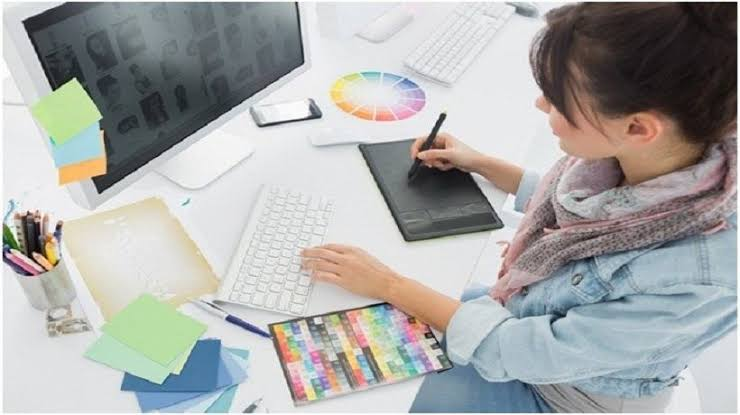
Studying well-designed examples can help you understand how experienced designers use color, typography, spacing, and composition.
Explore design portfolios, brand websites, posters, packaging, and digital advertisements. Instead of copying an entire design, analyze the decisions behind it.
Ask questions such as:
- Why does the headline attract attention?
- How many fonts are used?
- How are colors repeated throughout the design?
- What makes the layout easy to follow?
- How does the image support the message?
You can also create practice versions inspired by general design principles, using your own text, images, and layouts. This develops your visual judgment while helping you create original work.
Build a Graphic Design Portfolio
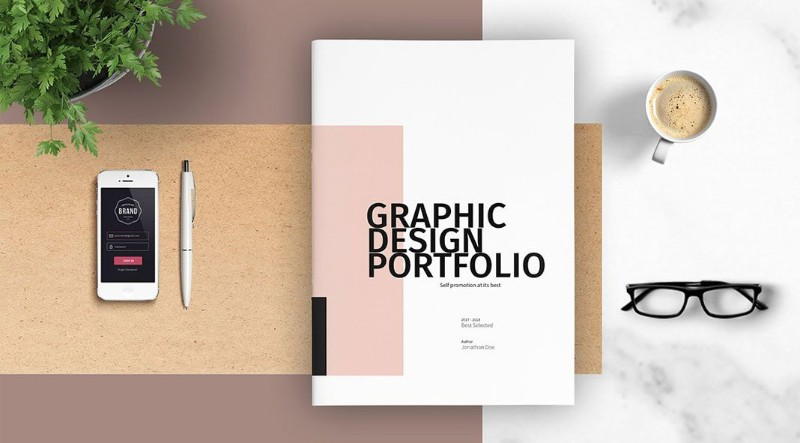
A portfolio is a collection of your best design work. It helps potential clients, employers, or collaborators understand your abilities and creative approach.
You do not need dozens of projects to begin. Start with a small collection of carefully completed designs.
For each project, include:
- The purpose of the design.
- The intended audience.
- The challenge you wanted to solve.
- The colors, fonts, and layout choices you made.
- The final design and any relevant variations.
You can create a portfolio using a personal website, a design portfolio platform, or a well-organized PDF. If a project is fictional, label it as a concept project rather than presenting it as paid client work.
Update your portfolio as your skills improve and remove weaker pieces that no longer represent your best work.
Avoid Common Graphic Design Mistakes
Beginners often improve quickly by learning what to avoid as well as what to do.
Using too many fonts: Too many font styles can make a design look inconsistent. Limit your font choices and use size or weight to create hierarchy.
Choosing colors without a plan: Random color combinations can make a design feel disconnected. Build a small palette and apply it consistently.
Crowding the layout: Too many images, shapes, and text blocks can overwhelm the viewer. Remove unnecessary elements and increase spacing.
Ignoring readability: Decorative fonts and low-contrast text may look attractive but can be difficult to read. Prioritize clarity.
Using low-quality images: Blurry or stretched photographs can reduce the overall quality of a design. Use suitable source files and correct dimensions.
Copying other designers: References are useful for learning, but copying an existing design without permission can create ethical and copyright problems. Develop your own layout and use assets you have the right to use.
Skipping the final review: Always check spelling, alignment, cropping, and export quality before publishing or delivering your work.
Follow a Simple 30-Day Graphic Design Learning Plan
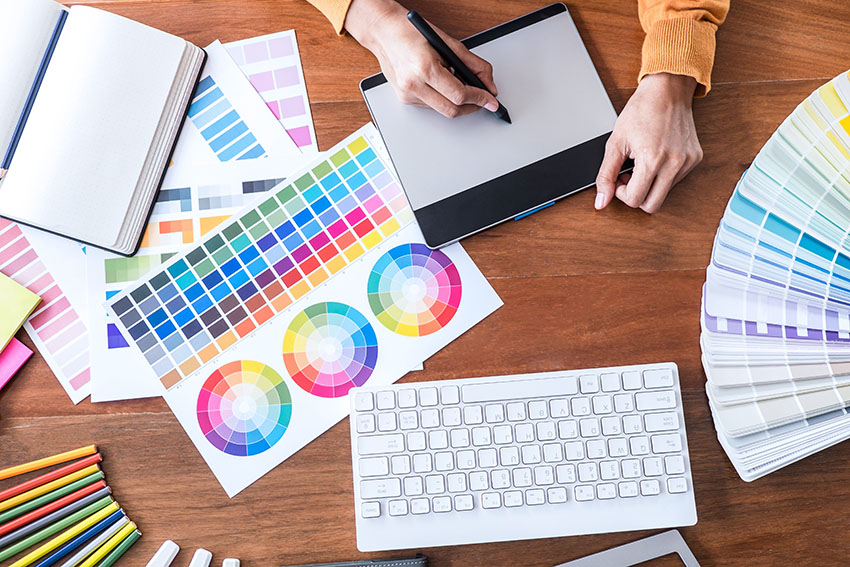
A structured learning plan can make it easier to stay consistent without becoming overwhelmed.
Week 1: Learn the Fundamentals
Study color theory, typography, alignment, contrast, and spacing. Create a few simple layouts using basic shapes and text.
Week 2: Explore One Design Tool
Choose a tool that fits your goals. Learn its essential features, including text editing, layers or object selection, image placement, alignment, and exporting.
Week 3: Create Practical Projects
Design a social media post, poster, banner, and business card. Apply the principles you learned and revise each project at least once.
Week 4: Review and Build Your Portfolio
Select your strongest projects, correct any issues, and organize them into a portfolio. Write a short explanation of the goal and design decisions behind each piece.
By the end of the month, you can have a useful foundation and several practice projects. Becoming proficient takes longer, so continue learning, seeking feedback, and working on increasingly challenging designs.
Career Opportunities in Graphic Design
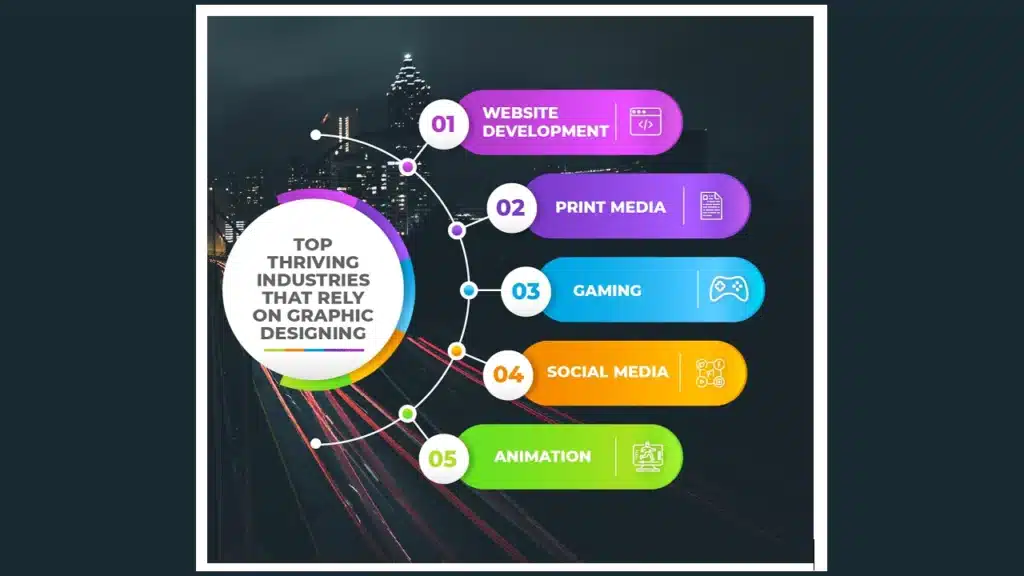
Graphic design can lead to several career paths, depending on your interests and skills.
- Graphic designer: Creates visual materials for brands, businesses, and organizations.
- Brand identity designer: Develops visual systems such as logos, colors, and typography.
- Social media designer: Produces graphics for digital campaigns and online content.
- UI designer: Designs the visual interfaces of websites and applications.
- Packaging designer: Creates visual layouts for product packaging and labels.
- Freelance designer: Works with different clients on individual projects or ongoing assignments.
Your opportunities will depend on the quality of your work, your communication skills, your portfolio, and the requirements of the roles you pursue. Learning a design tool is a useful start, but understanding design principles and solving communication problems are equally important.
Frequently Asked Questions
1. Can I learn graphic design as a complete beginner?
Yes. Start with basic design principles, choose a beginner-friendly tool, and practice with simple projects such as social media posts, posters, and banners.
2. Which graphic design tool is best for beginners?
Canva and Adobe Express are accessible starting points for template-based designs. Photoshop, Illustrator, and Figma are useful for more specialized work, depending on your goals.
3. Can I learn graphic design for free?
Yes. You can use free tutorials, design exercises, and tools with free plans to learn the basics. Some advanced features, assets, and software require payment.
4. How long does it take to learn graphic design?
You can learn basic principles and create simple designs within a few weeks of regular practice. Developing professional-level skills takes longer and depends on your practice, feedback, and project experience.
5. Do I need drawing skills to become a graphic designer?
No. Drawing can help in illustration-focused work, but many graphic design projects rely more on typography, layout, image editing, color, and visual communication.