

Computers are built directly into almost every single part of our modern daily lives. We rely on them to log into remote work, finish late-night school projects, stream movies, keep in touch with family and friends, and manage essential personal tasks. But even if you spend hours using a computer every day, encountering a sudden Computer technical hiccup can instantly turn a productive afternoon into a deeply frustrating ordeal.
A machine that suddenly drags to a agonizing crawl, persistent out-of-storage popups, dropped Wi-Fi signals, crashing programs, or confusing operating system prompts can derail your focus in a heartbeat. The good news is that you don’t need a degree in computer engineering or expensive professional support to keep your setup running smoothly. Most of the annoying technical problems that crop up during daily use can be solved with a few simple habits, logical troubleshooting steps, and a basic understanding of how your operating system manages its resources.
This guide breaks down practical maintenance, straightforward fixes, and digital security habits in plain language, giving you the confidence to fix common problems yourself and keep your Windows PC or Mac running reliably.
Why Everyday Computers Start Struggling and How to Fix Them

When a computer starts acting sluggish, our immediate reaction is often panic: Is the machine dying? Am I going to have to spend a fortune on a replacement? In reality, computers slow down for the very same reasons our homes get cluttered. Over time, background apps pile up, temporary junk files accumulate, hard drives fill to capacity, and outdated software starts clashing with newer tools.
Rather than rushing out to spend hard-earned money on a brand-new machine, taking a systematic approach to basic maintenance can often restore your computer to the exact speed it had when you first unboxed it.
Managing Background Programs and Startup Bloat
One of the most common reasons a computer takes forever to boot up is startup bloat. Dozens of software programs quietly configure themselves to launch the exact second your operating system turns on. These programs sit quietly in your system memory, eating up precious CPU power and background memory even when you aren’t actively using them.
                  TYPICAL STARTUP BEHAVIOR
┌─────────────────────────────────────────────────────────────┐
│ Computer Powers On                                          │
└──────────────────────────────┬──────────────────────────────┘
                               │
                               ▼
┌─────────────────────────────────────────────────────────────┐
│ Operating System Loads Core System Files                    │
└──────────────────────────────┬──────────────────────────────┘
                               │
                               ▼
┌─────────────────────────────────────────────────────────────┐
│ Unnecessary Apps Launch Automatically in Background         │
│ (Messaging Apps, Update Launchers, Media Players)           │
└──────────────────────────────┬──────────────────────────────┘
                               │
                               ▼
┌─────────────────────────────────────────────────────────────┐
│ RESULT: High Memory Usage & Delayed Boot Time               │
└─────────────────────────────────────────────────────────────┘
Windows Startup Optimization
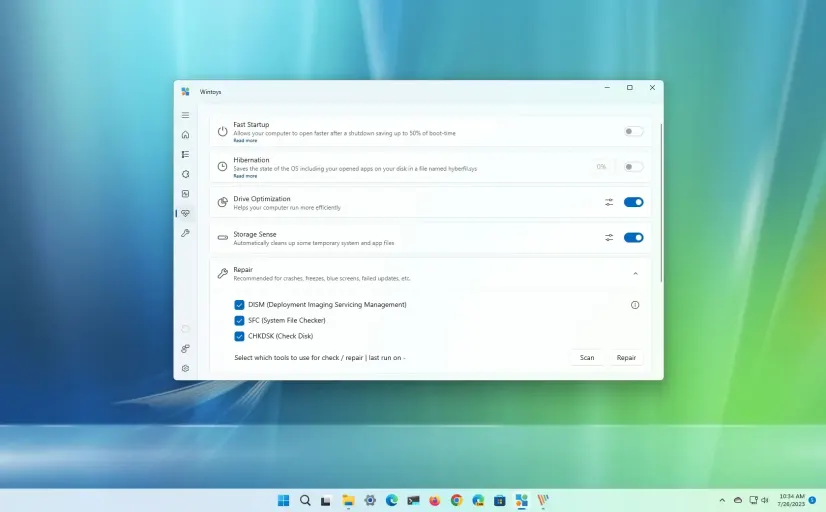
Press Ctrl + Shift + Esc to open the Task Manager.
Click on Startup apps from the left navigation sidebar.
Walk through the list of programs marked as Enabled.
Right-click non-essential applications (like media players, game launchers, or secondary chat tools) and select Disable.
Mac Login Item Management
- Open System Settings from your main Apple menu.
- Navigate directly to General → Login Items.
- Under the Open at Login list, choose applications you don’t need immediately when turning on your Mac and click the minus (
-) button to remove them.
Clearing Out Digital Clutter for Better Performance
Solid-state drives (SSDs) and traditional spinning hard drives need room to breathe if you want them to operate efficiently. When your main storage drive hits 90% capacity or higher, the operating system struggles to handle temporary virtual memory, leading to system freezes and agonizingly long loading screens.
                      STORAGE CAPACITY & PERFORMANCE
┌──────────────────────────────────────────────────────────────────┐
│ 0% to 75% Full: Optimal Operating Speed                          │
│ ████████████████████████████████████████                         │
│                                                                  │
│ 76% to 89% Full: Acceptable Range (Minor Slowdowns May Occur)    │
│ ██████████████████████████████████████████████                   │
│                                                                  │
│ 90%+ Full: Critical Zone (Severe System Drag & File Paging)      │
│ █████████████████████████████████████████████████████████        │
└──────────────────────────────────────────────────────────────────┘
- Target Unused Apps: Go through your list of installed applications and delete heavy programs or forgotten games you haven’t opened in months.
- Empty the Downloads Folder: The downloads directory is a total graveyard for forgotten installers, massive zip archives, and duplicate files. Clean it out regularly.
- Offload Heavy Media: High-resolution photo libraries, raw video footage, and large audio projects should be moved off your main drive to external storage or secure cloud servers.
The Power of a Simple System Restart
Leaving a laptop sleeping for weeks on end is certainly convenient, but it prevents your computer from clearing out cached files, reclaiming leaked RAM, and finishing background updates.
A clean system restart flushes out temporary memory glitches, shuts down hung background tasks, and gives your system a fresh start. If your PC starts behaving strangely, restart it before spending hours trying complicated fixes.
Staying Current: Software Updates and System Safety
Ignoring software update notifications is tempting when you’re busy working. However, running an outdated operating system leaves you open to security vulnerabilities and performance bugs that developers have already fixed.
Why Updates Matter
- Critical Security Patches: Protect your personal files against newly discovered malware and online threats.
- Bug Repair: Fix known system crashes, software freezes, and annoying glitches.
- Hardware Drivers: Improve how smoothly your operating system communicates with your physical hardware, like graphics cards and Wi-Fi chips.
Checking for System Updates
- Windows: Open Settings → Windows Update and click Check for updates.
- Mac: Go to System Settings → General → Software Update to install pending software patches.
Diagnosing Mysterious PC Performance Dips
When your computer suddenly slows to a crawl, your fan starts spinning loudly, or your mouse cursor stutters across the screen, a rogue background process is usually the culprit.
                    HOW TO DIAGNOSE A SLOW SYSTEM
                                  │
                                  ▼
                   Open System Resource Monitor
                  (Task Manager / Activity Monitor)
                                  │
              ┌───────────────────┴───────────────────┐
              ▼                                       ▼
    High CPU Usage (>85%)                   High Memory Usage (>90%)
              │                                       │
              ▼                                       ▼
Identify process, save work,            Close memory-heavy app or
& select "End Task"                     restart your web browser
On Windows, open Task Manager and sort your active processes by CPU, Memory, or Disk usage to track down resource hogs. On Mac, open Activity Monitor from your Utilities folder for the same breakdown. If an app you aren’t using is hogging 90% of your CPU power, selecting End Task will instantly make your computer responsive again.
Don’t forget to check for overheating. If cooling vents are blocked by dust, blankets, or rug fibers, your computer will intentionally slow itself down (thermal throttling) to protect its delicate internal parts from heat damage.
Solving Daily Wi-Fi and Connectivity Headaches

Few things throw a wrench into your day faster than losing your internet connection. Before assuming your internet service provider is having an outage, work through these simple troubleshooting steps.
                     WI-FI TROUBLESHOOTING PATH
                                  │
                                  ▼
                Are other devices connecting properly?
                                  │
         ┌────────────────────────┴────────────────────────┐
         ▼                                                 ▼
      [ YES ]                                           [ NO ]
         │                                                 │
         ▼                                                 ▼
Issue is specific to PC:                        Issue is network-wide:
• Toggle Wi-Fi Off / On                         • Restart Wireless Router
• Restart Computer                              • Contact Service Provider
• Forget Network & Reconnect
- Toggle the Connection: Turn your computer’s Wi-Fi off, wait 10 seconds, and turn it back on.
- Forget and Reconnect: Open your network settings, select your home Wi-Fi network, choose Forget Network, and log back in with your password.
- Power Cycle the Router: Unplug your home wireless router from the wall, wait 30 seconds, and plug it back in.
- Update Network Drivers: Outdated network card drivers can cause intermittent drops, especially after major operating system upgrades.
Everyday Security Habits That Keep You Safe

Protecting your computer and private files doesn’t require expensive security tools. Simple everyday habits build a strong defense against online threats.
                      CORE SECURITY CHECKLIST
┌──────────────────────────────────────────────────────────────────┐
│ [✓] Use Unique Passwords (Managed via a Password Manager)       │
│ [✓] Enable Multi-Factor Authentication (MFA) on Important Accounts│
│ [✓] Keep Operating Systems and Web Browsers Updated Automatically│
│ [✓] Avoid Downloads from Unverified Third-Party Websites         │
└──────────────────────────────────────────────────────────────────┘
- Use a Password Manager: Stop reusing the same password across multiple websites. A password manager helps you generate and store strong, unique passwords effortlessly.
- Enable Multi-Factor Authentication (MFA): Require an authenticator app code or security prompt when logging into sensitive email, bank, or work accounts.
- Be Smart About Downloads: Download software exclusively from official developer sites or verified app stores. Be suspicious of unexpected email attachments or web pop-ups claiming your computer is infected.
Essential Keyboard Shortcuts for Windows and Mac
Learning a handful of basic keyboard shortcuts is one of the easiest ways to speed up your daily computer use.
| Action | Windows Shortcut | Mac Shortcut |
| Copy Text / Item | Ctrl + C | Cmd + C |
| Paste Text / Item | Ctrl + V | Cmd + V |
| Cut Text / Item | Ctrl + X | Cmd + X |
| Undo Last Action | Ctrl + Z | Cmd + Z |
| Select Everything | Ctrl + A | Cmd + A |
| Save File | Ctrl + S | Cmd + S |
| Find Text in Page | Ctrl + F | Cmd + F |
| Switch Applications | Alt + Tab | Cmd + Tab |
| Capture Screen Area | Win + Shift + S | Cmd + Shift + 4 |
| Capture Full Screen | Print Screen | Cmd + Shift + 3 |
Uninstalling Unwanted Programs without Leaving Files Behind
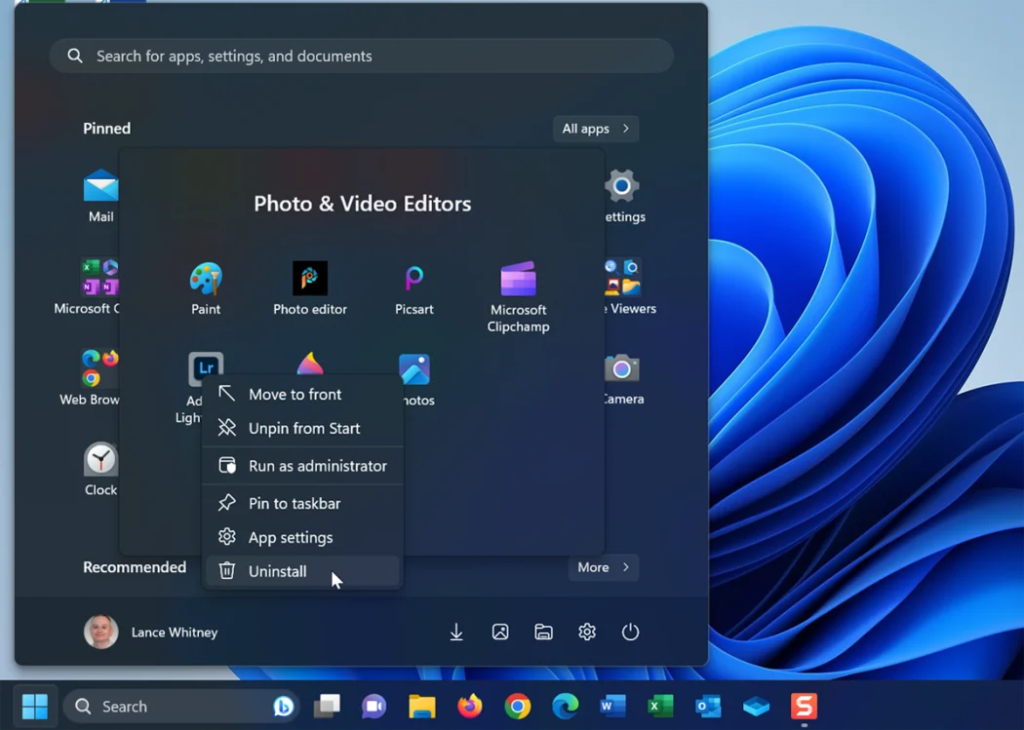
Dragging an app’s icon straight to the recycle bin often leaves behind leftover configuration files, caches, and hidden registry entries.
- On Windows: Head to Settings → Apps → Installed apps. Scroll down to the app you want to remove, click the three-dot menu, and click Uninstall.
- On Mac: Open Finder, click on the Applications folder, and drag the unwanted program to the Trash. For programs installed via specialized package installers, check if an uninstaller utility came with the software.
Building a Bulletproof Backup Strategy
Hardware crashes always happen when you least expect them. A dead hard drive, a stolen laptop, or an accidental liquid spill can destroy years of family photos, work files, and personal records in a single instant.
                       THE 3-2-1 BACKUP STRATEGY
┌──────────────────────────────────────────────────────────────────┐
│ 3 TOTAL COPIES OF YOUR IMPORTANT DATA                            │
│ ├─ 1 Primary Copy (Stored directly on your computer)             │
│ ├─ 1 Local Backup (Stored on an external hard drive or SSD)      │
│ └─ 1 Offsite Backup (Stored in a secure cloud service)           │
└──────────────────────────────────────────────────────────────────┘
Following the proven 3-2-1 rule keeps your files safe no matter what happens to your physical computer. Built-in tools like Windows Backup, Apple’s Time Machine, and secure cloud storage providers make keeping automated backups completely painless.
Troubleshooting Common Hardware and App Frustrations
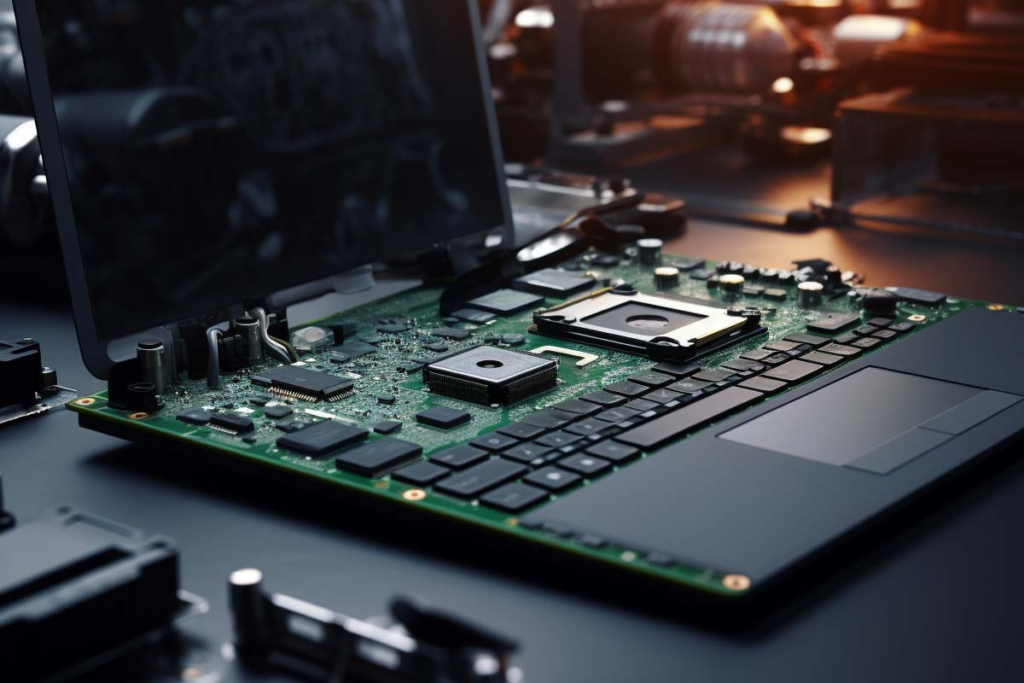
When your hardware or software starts misbehaving, taking a logical approach helps you find the solution fast.
Computer Won’t Turn On
Double-check that the power cable is firmly plugged into both the wall outlet and the laptop port. If you are using a desktop PC, verify that the master power switch on the back of the power supply unit is turned on. Try a completely different wall outlet before assuming your power supply has died.
System Keeps Freezing
If your screen repeatedly locks up, pay attention to whether the freeze happens inside one specific program or across the whole system. Repeated freezing is often caused by corrupted graphics drivers, a failing hard drive, or insufficient system RAM.
No Audio Output
Click the speaker icon in your system tray or menu bar to verify that your master volume isn’t muted. Make sure your computer hasn’t silently paired with a nearby Bluetooth speaker or headphones in another room.
Unresponsive Mouse or Keyboard
For wireless accessories, swap in fresh batteries or plug the device in to charge. For wired gear, unplug the USB connector, wait 5 seconds, and try plugging it into a different USB port on your system.
Windows vs. Mac: Finding What Fits Your Life
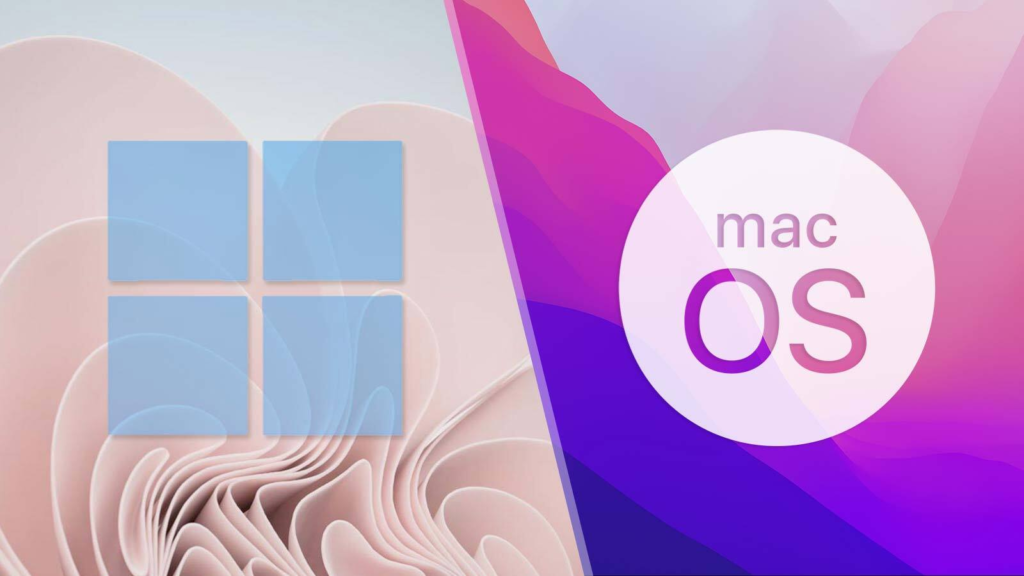
Deciding between a Windows PC and a Mac comes down to your personal budget, software needs, and hardware preferences. Neither platform is universally superior; they simply meet different needs.
| Feature Area | Windows Ecosystem | Mac Ecosystem |
| Hardware Variety | Huge range of choices across custom desktops, laptops, and 2-in-1s. | Premium hardware lineup designed directly by Apple. |
| Gaming Support | Broad native compatibility with modern PC games, mods, and VR setups. | Growing game selection, but native compatibility remains limited. |
| Software Options | Outstanding support for specialized legacy tools and business apps. | Seamless integration with iPhone, iPad, and Apple ecosystem services. |
| Customization | Deep control over hardware component upgrades and software tweaks. | Polished, reliable user experience with very little maintenance setup. |
Optimizing Your PC for Smooth Gaming
You don’t need to spend thousands on a high-end graphics card to get smooth, enjoyable frame rates out of your favorite games.
                   GAMING PERFORMANCE TWEAKS
┌─────────────────────────────────────────────────────────────┐
│ 1. Update Graphics Drivers (NVIDIA / AMD / Intel)           │
└──────────────────────────────┬──────────────────────────────┘
                               │
                               ▼
┌─────────────────────────────────────────────────────────────┐
│ 2. Close Background Browsers & Heavy Work Apps              │
└──────────────────────────────┬──────────────────────────────┘
                               │
                               ▼
┌─────────────────────────────────────────────────────────────┐
│ 3. Lower demanding settings in-game:                         │
│    • Shadows & Reflections  • Motion Blur                   │
│    • Volumetric Fog        • Ray Tracing                    │
└──────────────────────────────┬──────────────────────────────┘
                               │
                               ▼
┌─────────────────────────────────────────────────────────────┐
│ RESULT: Higher, More Consistent Frame Rates (FPS)           │
└──────────────────────────────┘
- Update Graphics Drivers: Download the official driver management software from NVIDIA, AMD, or Intel to make sure you have the latest game performance updates installed.
- Tweak In-Game Settings: Heavy visual effects like realistic shadows, volumetric fog, reflections, and ray tracing consume tremendous graphics power. Turning these settings down from “Ultra” to “Medium” often yields a huge boost in smooth gameplay with almost no noticeable drop in visual quality.
Knowing When to Upgrade Components vs. Buying New
Replacing your entire computer isn’t always necessary when system performance drops. Upgrading specific hardware parts can give an older machine a brand-new lease on life for a fraction of the cost of a new system.
                  HARDWARE UPGRADE DECISION TREE
                                  │
                                  ▼
             What is causing the primary bottleneck?
                                  │
         ┌────────────────────────┼────────────────────────┐
         ▼                        ▼                        ▼
  Low Memory (RAM)          Slow Drive (HDD)         Declining Battery
         │                        │                        │
         ▼                        ▼                        ▼
Add RAM modules for      Swap old drive for       Replace internal battery
better multitasking      a fast SATA/NVMe SSD     (Laptops)
If your laptop or desktop supports component swaps, adding extra RAM or upgrading an old spinning hard drive to a fast solid-state drive (SSD) can make your computer feel lightning-fast overnight. However, if your main processor is many years old and struggling with basic web browsing, investing in a modern replacement machine is usually the smarter long-term move.
Simple Daily Maintenance Habits for Long-Term Reliability
Keeping your computer fast, safe, and dependable doesn’t take hours of effort. Following a lightweight routine keeps annoying tech headaches at bay.
- Weekly Habits: Restart your computer at least once or twice a week to clear out temporary caches and allow pending background tasks to finish clean-up.
- Monthly Habits: Run system updates, clean out your Downloads folder, and check your remaining drive storage to make sure your primary drive has plenty of breathing room.
- Seasonal Habits: Gently blow accumulated dust out of your computer’s cooling vents using canned air, review your backup drives to confirm your data is syncing properly, and audit your installed applications to remove software you no longer use.