It rarely happens with a big dramatic crash. Instead, it’s a slow, quiet leak. You sit down in the morning, coffee in hand, ready to get into deep focus on an important deliverable. But before you can even open your main software, you have to wade through a maze of notifications. The top workflow tools for better team productivity in 2026 can help reduce this daily distraction by keeping tasks, updates, and team communication more organised.
Where was that client feedback stored again? Was it attached to a thread from last Thursday, dropped into a fast-moving group chat, or buried in a random folder on the drive? Who actually has the ball right now—and did anyone bother to ping them?
As teams grow, disorganization has a way of creeping in silently. What used to be a two-minute chat across a small desk turns into fragmented email chains, forgotten assignments, missed deadlines, and endless check-in messages. Before long, everyone is spending more energy talking about work than actually doing it.
That’s where modern workflow management comes in. It isn’t about adding extra software to clutter your browser tabs or micromanaging people’s time. When done right, a solid workflow system creates a shared source of truth—a central nervous system for your entire team.
Here is a practical, grounded look at how modern workflow tools operate, why they are essential for your team’s sanity, how the top platforms compare, and how to build a simple system people will actually enjoy using.
What Exactly Is a Workflow Tool?
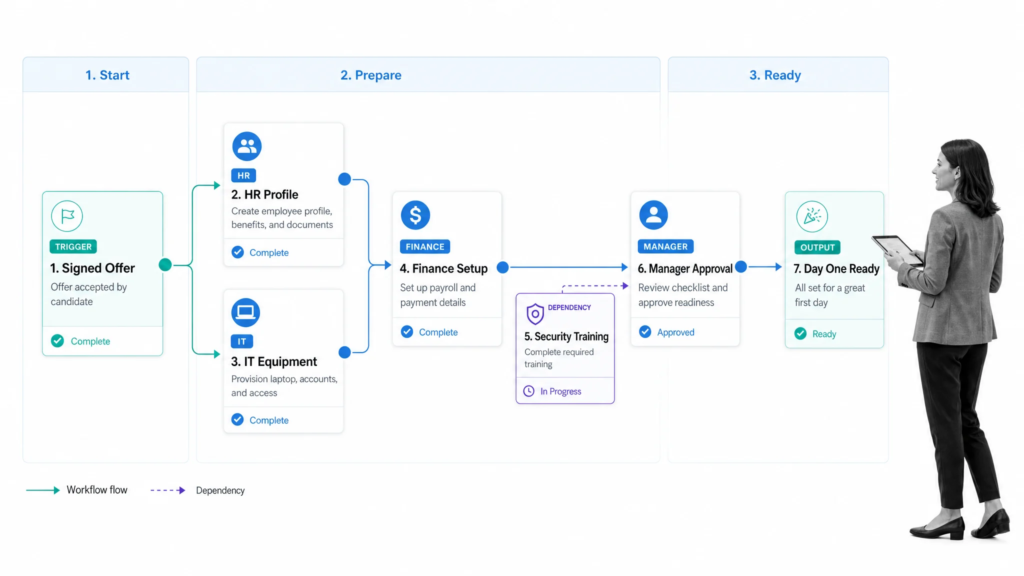
At its core, a workflow tool is a clear, visual workspace designed to help teams map out, track, execute, and document their daily responsibilities in one centralized place.
Instead of keeping key details locked away in private inboxes or buried inside complex spreadsheets, a workflow tool makes every moving part visible. It breaks down projects into clear, bite-sized stages so everyone can instantly see who owns what, when it’s due, and what step it’s sitting on right now.
The Content Assembly Line in Action
Consider how a typical content creation team operates on a weekly basis:
- Without a clear workflow: A manager pings a writer with a topic idea. The writer drafts the piece and emails a document to an editor. The editor makes changes, emails it back, forgets to alert the SEO specialist or designer, and the post misses its publish date because nobody knew who had the final green light.
- With a clear workflow: A single digital task represents the article. It moves fluidly across clear columns: Topic Approved → Writing → Editing → SEO & Design → Ready to Publish. Anyone on the team can open that task, view the draft, leave feedback in the comments, and see exactly whose turn it is to act.
[ Traditional Setup ]  ---> Lost Emails + Unclear Roles + Constant Interruptions
[ Workflow System  ]  ---> Shared Board + Clear Owners + Total Visibility
The Crucial Difference: Workflows vs. Messaging Apps
It’s easy to confuse chat applications with workflow tools, but mixing them up is one of the main causes of team confusion:
- Chat Platforms (Slack, Teams, WhatsApp): Built for real-time conversation, quick questions, and team announcements. They are fast and casual, but information moves quickly and gets buried almost immediately.
- Workflow Platforms (Asana, Trello, ClickUp): Built for structured tracking. They store permanent context, record project history, assign explicit ownership, and track progress over time.
Why Workflows Transform Team Productivity
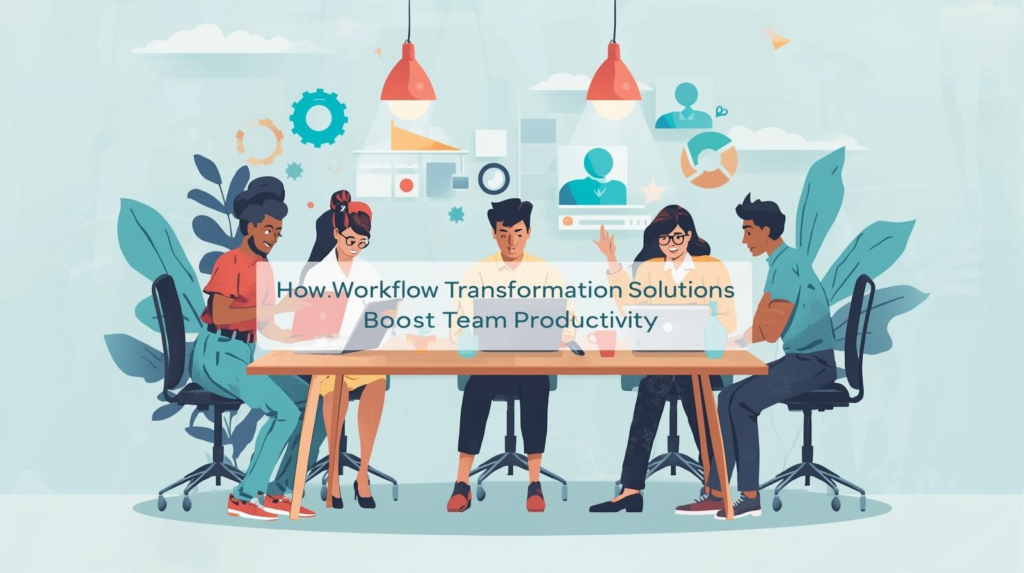
Real productivity isn’t about rushing, working late, or typing faster. It’s about removing friction and eliminating wasted motion.
When a team operates without an organized process, they fall victim to what researchers call “work about work”—the hidden time sink that eats up hours every single week. A well-designed workflow fixes this in three distinct ways:
1. Eliminating the Dreaded “Status Update” Ping
“Hey! Quick check-in—where are we on this?”
This innocent-looking message is one of the biggest focus-killers in modern work. Every time someone gets interrupted for a quick status update, their concentration breaks, and it can take fifteen to twenty minutes to get back into the zone. A live dashboard gives managers and teammates total visibility. Need to see where a project stands? Just open the board and look—no ping necessary.
2. Preventing Single-Point-of-Failure Chaos
When project details live entirely inside one person’s head or private email account, everything grinds to a halt the moment they take a sick day or go on vacation. Storing background info, reference links, and updates inside shared tasks creates an open knowledge base that anyone can jump into when needed.
3. Creating Genuine Accountability and Peace of Mind
When every single assignment has one clear owner and a realistic due date, the guesswork disappears. Team members don’t have to carry mental sticky notes or stress over forgetting minor details. They log in, check their personal task list for the day, and focus their mental energy entirely on execution.
Top Workflow Tools Compared
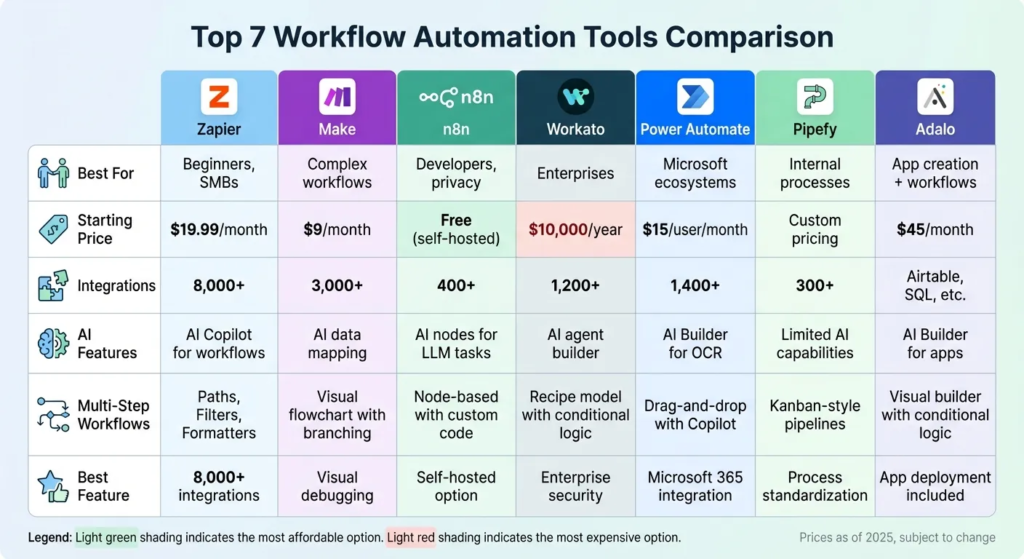
There is no single platform that works for every single company. A small design studio needs a completely different setup than a software engineering team or an operations department. Here is how the leading platforms stack up today:
| Platform | Best Suited For | Main Workflow Style | Ease of Setup |
| Trello | Small teams, straightforward tasks | Visual Kanban Boards (Cards) | Very Easy |
| Asana | Cross-functional projects, growing teams | Multi-View (Lists, Boards, Timelines) | Easy to Medium |
| ClickUp | Teams wanting an all-in-one platform | Fully Customizable Views & Built-in Docs | Medium to Advanced |
| Monday.com | Visual operations & team tracking | Color-Coded Interactive Spreadsheets | Easy to Medium |
| Notion | Knowledge hubs & docs-first teams | Connected Databases & Wiki Pages | Medium to Advanced |
| Slack | Real-time chat & rapid team updates | Channel-Based Messaging | Very Easy |
| Microsoft Teams | Enterprises in the Microsoft Ecosystem | Integrated Chat, Calls & Office Files | Easy to Medium |
1. Trello: Clean, Simple Visual Tracking
Trello popularized the digital Kanban board, and it remains one of the absolute easiest ways to get a team organized in a matter of minutes.
- How it works: You build boards made of vertical columns (lists) and fill them with individual cards (tasks). As work progresses, you drag and drop cards from left to right—moving through stages like To Do, In Progress, Review, and Done.
- Why teams love it: There is virtually no learning curve. If you know how to move a sticky note across a physical whiteboard, you already know how to use Trello.
- Best used for: Content calendars, simple marketing campaigns, event planning, and small business operations.
2. Asana: Connecting Everyday Tasks to Bigger Goals
Asana strikes a fantastic balance between deep structure and intuitive design, making it a favorite for mid-sized and cross-departmental teams.
- How it works: You organize work into projects, tasks, and subtasks, with the ability to switch effortlessly between list views, Kanban boards, calendar layouts, and Gantt-style timelines. It supports task dependencies, so Task B automatically alerts its owner the moment Task A is finished.
- Why teams love it: Asana shines at showing how small daily assignments fit into larger quarterly goals. Its timeline view makes it simple to catch scheduling conflicts before they cause missed deadlines.
- Best used for: Growing companies, agency client work, product launches, and multi-step marketing campaigns.
3. ClickUp: The Feature-Packed Powerhouse
ClickUp’s goal is to replace multiple separate tools by bringing task tracking, whiteboards, document editing, goal setting, and time tracking into one single dashboard.
- How it works: Everything follows a clear hierarchy: Spaces hold Folders, Folders hold Lists, and Lists hold Tasks. You can customize almost every view, field, and status to match your team’s exact specifications.
- Why teams love it: It offers massive flexibility. Instead of paying for separate tools for document editing, time tracking, and project management, ClickUp handles all of them in one place.
- Best used for: Tech-savvy teams, agencies with complex deliverables, and companies looking to streamline their software subscriptions.
4. Monday.com: Visual Operations Made Simple
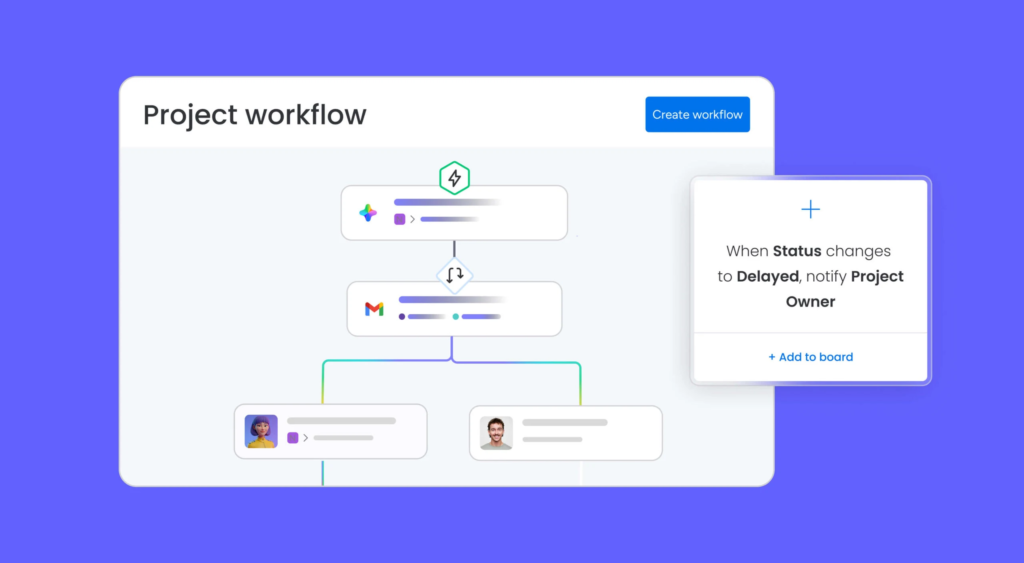
Monday.com turns classic spreadsheets into visual, interactive workflow hubs that give you an instant snapshot of project health.
- How it works: You build custom tables where rows represent work items (tasks, client accounts, or hiring candidates) and columns track statuses, assigned team members, budgets, dates, and files.
- Why teams love it: It’s visually clear and very approachable for non-technical departments. HR teams, sales operations, and event managers can design tailored operational workflows without touching technical settings.
- Best used for: Operations management, resource planning, sales pipelines, and high-level management overviews.
5. Notion: Merging Notes, Docs, and Tasks
Notion operates like a blank, flexible canvas, allowing you to blend rich text, embedded files, interactive databases, and task lists on the exact same page.
- How it works: Rather than locking you into rigid layouts, Notion empowers you to build custom relational databases. A single research document can turn seamlessly into a project management board with custom views for different team members.
- Why teams love it: It acts as a central brain for your organization. Brand guidelines, meeting notes, project briefs, and daily tasks live side-by-side.
- Best used for: Remote-first companies, editorial teams, startups building internal wikis, and research-heavy projects.
6. Slack & Microsoft Teams: The Communication Backbone
While chat apps shouldn’t replace your main task board, they play a vital supporting role in a modern team setup.
- Slack breaks noisy group conversations down into organized, topic-specific channels (e.g.,
#proj-website-redesignor#design-approvals). It connects directly with tools like Asana or Trello to send automated updates straight into your chat feeds. - Microsoft Teams is the natural choice for organizations embedded in the Microsoft 365 world. It unifies video meetings, team messaging, and real-time document collaboration across Word, Excel, and PowerPoint into one connected app.
Golden Rule for Chat Apps: Use chat channels for discussing ideas and making quick calls, but always log final decisions, task owners, and due dates inside your dedicated workflow tool.
How to Set Up a Practical Team Workflow (Step-by-Step)
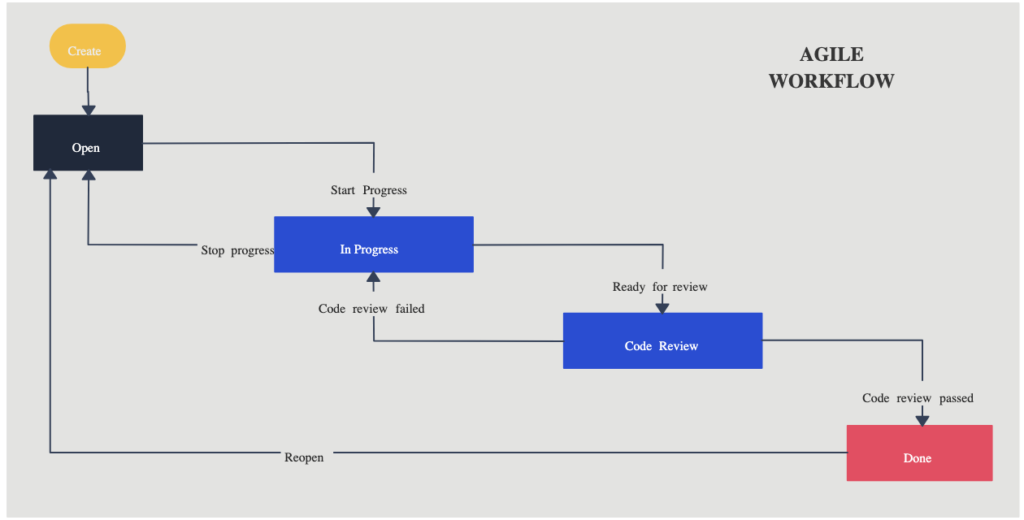
Buying a shiny new tool won’t fix an inherently messy process. Software simply amplifies your existing habits—if your current routine is chaotic, adding a complex app will only give you digital chaos.
To build a reliable workflow that your team will actually stick with, follow this simple blueprint:
Step 1: Map Current Process
   └─► Step 2: Keep Stages Simple (3-5 max)
         └─► Step 3: Enforce Clear Task Standards
               └─► Step 4: Layer In Helpful Automation
Step 1: Map Out Your Process on Paper
Before inviting your team into a new tool, sit down with a pen and notepad to outline how work actually gets done from start to finish.
Ask yourself:
- Where do new requests come from (emails, client forms, internal ideas)?
- Who needs to review or sign off on work before it’s complete?
- What key info is required before someone can even begin working on a task?
Step 2: Keep Your Stages Lean
Resist the urge to create fifteen detailed stages for every minor action. Start with a lean, four-stage setup:
- Backlog / Incoming: Approved ideas or requests that haven’t started yet.
- In Progress: Work actively being tackled right now.
- Review / Approval: Completed work waiting on edits, quality checks, or sign-off.
- Done: Fully finished assignments requiring no further action.
You can always add custom columns down the road, but keeping things straightforward from day one ensures high adoption rates.
Step 3: Establish Clear Task Standards
A task titled “Fix Website” is a fast track to confusion. Set simple standards for how tasks must be created across your workspace. Every single task logged should include:
- A clear, descriptive title: e.g., “Update homepage hero banner for Spring Sale”
- One single assignee: Exactly one person responsible for driving it forward.
- A hard due date: A realistic, agreed-upon deadline.
- Essential context: A brief description, key background details, or links to references.
Unlocking Extra Hours with Smart Automations

Once your team is comfortable with the basic workspace setup, you can turn on native automations to handle tedious administrative chores.
Automations operate on simple rules: “When X happens, automatically do Y.”
Here are three simple, high-impact automations you can set up right away:
- Automatic Hand-Offs: When a writer changes a task status from In Progress to Review, automatically assign the card to the editor and push the due date out by 48 hours.
- Instant Request Logging: When a client fills out an intake form, automatically generate a new card in your Incoming list and alert the project lead.
- Recurring Operations: Set your workspace to create a “Weekly Financial Review” task every Monday morning at 9:00 AM, pre-loaded with a standard checklist.
These small background routines eliminate dozens of manual steps every day, freeing up massive amounts of time over the course of a month.
Common Mistakes That Sabotage Team Workflows
Even with top-tier software, teams frequently hit predictable speed bumps. Keep an eye out for these common traps:
1. Over-Engineering the Setup
It can be tempting to add dozens of custom tags, mandatory fields, elaborate color codes, and complex subtasks. However, if updating a task card takes longer than doing the actual work, people will quickly stop using the system. Prioritize low friction over complex features.
2. Tool Overlap & Information Sprawl
If your marketing team tracks work in Trello, developers live in Jira, designers use Monday.com, and managers send assignments over chat messages, your company data becomes scattered. Pick one primary project management hub for your operational tasks, stick with it across departments, and connect peripheral apps through integrations.
3. Letting Boards Become Digital Graveyards
A workflow tool only works when the team trusts the data inside it. If your workspace is cluttered with abandoned, overdue tasks from three months ago, people will stop paying attention to due dates. Schedule a 15-minute weekly review to clean up finished tasks, adjust dates for delayed items, and keep your workspace accurate.