Let’s be honest: you probably downloaded a new productivity app last month. Then another one the week after. Right now, your phone or laptop is likely home to a task manager, a focus timer, a habit tracker, a calendar, and three or four other shiny tools you completely forgot you installed.
It feels good to download a new app. It feels like getting organized. It feels like progress.
Except it rarely is.
Instead of helping us get more done, our sprawling collection of tools often creates a new kind of modern mess: digital clutter. We spend half our day updating lists, syncing schedules, and moving tasks from one view to another.
If you want to build a daily routine that actually lasts, the solution isn’t adding more tools. It’s choosing a few solid ones, giving each tool a single job, and deleting the rest.
Here is a plain-English, realistic look at how to cut through the noise, choose the right productivity tools, and build a minimal stack that actually holds together for the long haul.
The Hidden Cost of “App Hopping”
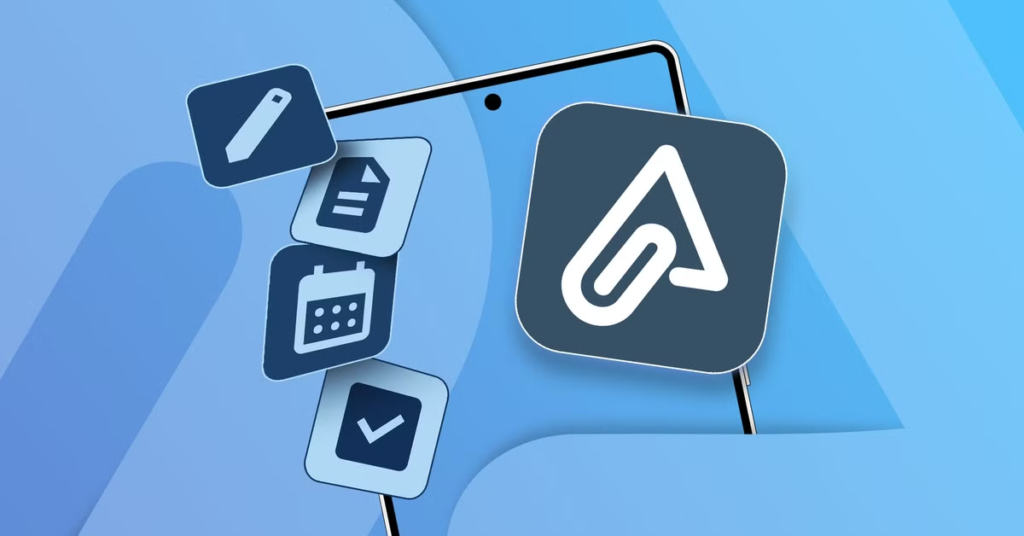
Why do so many of us feel completely overwhelmed even though we have access to the smartest software in human history?
The answer comes down to a simple concept: context switching.
Every time you switch between your email, a project management board, a team chat window, and a personal to-do list, your brain has to stop, reorient, and start over.
┌─────────────────────────────────────────────────────────┐
│               THE CONTEXT-SWITCHING TRAP               │
└────────────────────────────┬────────────────────────────┘
                             │
       ┌─────────────────────┼─────────────────────┐
       ▼                     ▼                     ▼
┌─────────────┐       ┌─────────────┐       ┌─────────────┐
│ Task App A  │  ──>  │ Calendar B  │  ──>  │  Slack /    │
│ (Reorient)  │       │ (Reorient)  │       │  Email C    │
└─────────────┘       └─────────────┘       └─────────────┘
       │                     │                     │
       └─────────────────────┼─────────────────────┘
                             ▼
               [ ~5 Weeks Lost Per Year ]
Studies show that office workers toggle between apps and screens over a thousand times a day. All that jumping around adds up. Reorienting yourself after every quick distraction eats up hours of useful time every single week. Over an entire year, you end up losing nearly a month’s worth of working time just figuring out where you left off.
The takeaway isn’t that apps are bad or that technology is ruining our focus. The takeaway is simply that fewer, well-chosen tools beat a bloated collection every single time.
Before you search the app store for another solution, the most important question to ask yourself is: What can I delete today?
How to Evaluate What You Actually Need
Most “best productivity apps” lists hand you forty different links, assign them star ratings, and wish you good luck. But star ratings don’t matter if an app doesn’t fit the way your brain works.
When building a system that lasts, evaluate tools based on three straightforward rules:
- One App, One Primary Job: Never let two tools compete for the exact same function. If you write daily tasks in both a physical notebook and a phone app, your system will eventually break because you won’t trust either one completely.
- Low Friction Beats High Customization: If an app requires three hours of setup, custom coding, and complex formula building before you can add a simple grocery list, you will eventually abandon it when life gets busy.
- Reliable Defaults: The best tool is the one you don’t have to think about using. It opens fast, loads quickly, and gets out of your way.
The Core Productivity Stack: The 5 Essential Roles
To keep things dead simple, most people only need five fundamental tools in their daily routine. Anything beyond this should serve a very specific, specialized need.
┌─────────────────────────────────────────────────────────────────┐
│                   THE 5-TOOL CORE SYSTEM                        │
├──────────────────┬──────────────────────────────────────────────┤
│ 1. Task Manager  │ Holds to-dos, deadlines, and project steps   │
│ 2. Calendar      │ Guards time, schedules events and meetings   │
│ 3. Notes / Docs  │ Stores reference info, ideas, and drafts     │
│ 4. Habit Tracker │ Builds daily repetition and consistency      │
│ 5. Focus Timer   │ Protects deep work and blocks distractions   │
└──────────────────┴──────────────────────────────────────────────┘
1. Task Management (The “What”)
- Top Pick: Todoist
- Why it works: It is fast, clean, and uses simple natural language typing. You can type “Submit quarterly report next Tuesday at 3pm,” and the app automatically sets the date, time, and reminder.
- The Golden Rule: A task manager is for actionable items only. It is not a place to store random web links, long-form journals, or project ideas.
2. Time & Scheduling (The “When”)
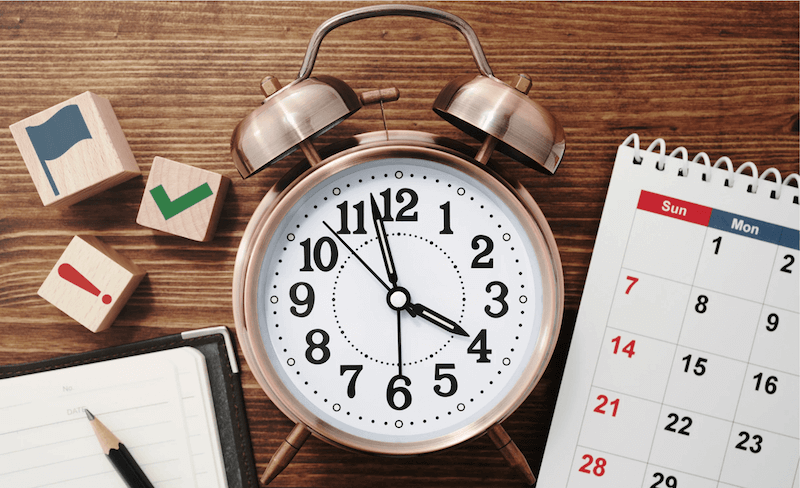
- Top Pick: Google Calendar (or Apple Calendar)
- Why it works: It is universal, completely reliable, and syncs across every device instantly.
- The Golden Rule: If something takes up actual time on your clock—a meeting, a doctor visit, or a dedicated two-hour writing session—it goes on the calendar. If it’s just a general task with no fixed time block, keep it in your task manager.
3. Note-Taking & Knowledge (The “Where”)
- Top Picks: Notion (for structured team projects) or Obsidian (for fast, offline personal notes)
- Why they work: Notion lets you build organized pages, tables, and documents in one shared spot. Obsidian stores plain text files directly on your device, making it super fast and completely private.
- The Golden Rule: Keep your notes separated into “Active Projects” and “Reference Material” so you aren’t digging through hundreds of old ideas to find today’s information.
4. Habit Tracking (The “Consistency”)
- Top Picks: Streaks or TickTick
- Why they work: They focus on buildable daily momentum. Seeing a simple visual chain of completed days encourages you to keep going without overwhelming you with complex charts.
5. Focus & Time Awareness (The “Guardrails”)
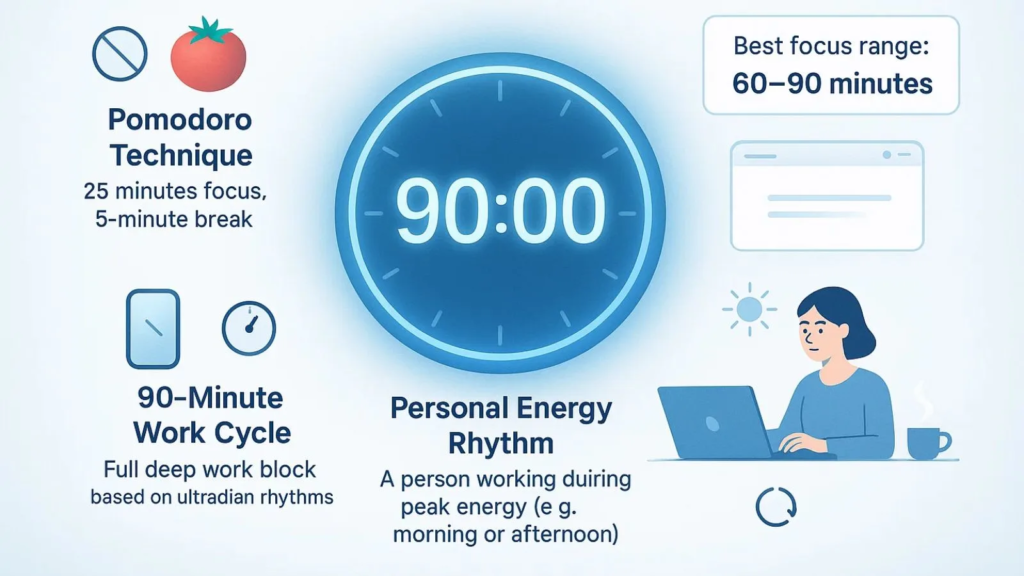
- Top Pick: RescueTime or simple Pomodoro timers
- Why they work: RescueTime runs quietly in the background to show you where your digital hours actually go, giving you an honest baseline of your daily screen habits without forcing you to log hours manually.
The Rise of AI Automation: Making Your Apps Talk to Each Other
Having a lean stack of 4 or 5 solid tools is a great start. But what happens when those tools need to share information?
In recent years, Artificial Intelligence has shifted from a fun novelty into an invisible engine that connects our digital gear. The goal of using AI isn’t to generate endless text or post robot-written updates; it’s to eliminate the manual “busywork” that steals your attention during the day.
┌─────────────────────────────────────────────────────────────────┐
│                  AI AS AN INTEGRATION LAYER                     │
├─────────────────────────────────────────────────────────────────┤
│                                                                 │
│   [Incoming Email]  ──>  AI Summarizes & Extracts Action Items │
│                                         │                       │
│                                         ▼                       │
│   [Calendar / Tasks] <── Automatically Schedules Action Item    │
│                                                                 │
└─────────────────────────────────────────────────────────────────┘
1. Connecting Your Tools Behind the Scenes
Instead of manually copying information from a customer email into your task manager, then creating a calendar event, and finally notifying your team in Slack, automation platforms can handle those connections automatically.
- Automation Hubs (like Zapier): Act as the connective tissue between thousands of different apps. You can set up simple “if this happens, do that” rules. For instance: When a new client fills out a contact form, create a task in Todoist and draft a follow-up email.
- AI Orchestration: Modern AI assistants can read across your connected apps, summarize long thread updates, and automatically pull out action items so you don’t have to manually scan endless messages.
2. Intelligent Assistants & Chatbots
- ChatGPT & Claude: Great for brainstorming, drafting first cuts of long documents, explaining difficult technical topics in plain English, or formatting messy data into clean tables.
- Perplexity AI: Operates like an answer engine. Instead of giving you ten pages of sponsored links to click through, it scans the web and returns a clear, cited summary of the exact answer you’re looking for.
3. Smarter Email & Scheduling
- AI Schedulers (like Reclaim or Clockwise): These smart tools sit on top of your standard calendar. Instead of forcing you to reschedule missed time blocks manually, they automatically rearrange your priority tasks, breaks, and meetings when unexpected events pop up.
- Smart Email Summaries: Tools built into modern inbox managers automatically highlight urgent messages, draft quick routine replies, and group low-priority newsletters away from your main view.
A Simple 3-Step Plan to Clean Up Your Digital Stack

If you feel overwhelmed by the number of apps on your phone or computer right now, you don’t need to burn everything down and start over. Just follow this easy weekend audit:
┌─────────────────────────────────────────────────────────┐
│                 THE WEEKEND APP AUDIT                   │
└────────────────────────────┬────────────────────────────┘
                             │
     ┌───────────────────────┼───────────────────────┐
     ▼                       ▼                       ▼
┌─────────┐             ┌─────────┐             ┌─────────┐
│ STEP 1  │             │ STEP 2  │             │ STEP 3  │
│ Audit   │     ──>     │ Consolidate│  ──>     │ Test &  │
│ Inventory             │ Roles   │             │ Prune   │
└─────────┘             └─────────┘             └─────────┘
Step 1: Do an Inventory Audit
Take fifteen minutes to write down every single productivity app, note tool, and task manager you currently have installed on your phone and computer. You might be surprised by how long the list actually is.
Step 2: Assign Each App One Clear Job
Match your tools against the core roles:
- What is my single Task Manager?
- What is my single Calendar?
- What is my single Note / Document Store?
If you have two apps trying to fulfill the same role (for example, keeping tasks in both Apple Reminders and Notion), pick one to keep and completely remove the other.
Step 3: Run a 14-Day “No New Apps” Test
Commit to using your selected minimal setup for two full weeks without downloading a single new tool. Resist the urge to fix a bad day by looking for a shiny new app.
When your system feels messy, the problem is almost always your daily habits or workflow clarity—not the software you’re using.
Summary Table: Building Your Minimal Stack
| Role | Standard Top Choice | Best AI/Automation Companion | What It Should Own |
| Tasks | Todoist / TickTick | Zapier Copilot | To-dos, deadlines, sub-tasks |
| Calendar | Google Calendar / Apple Calendar | Reclaim AI / Clockwise | Time blocks, appointments, meetings |
| Notes & Docs | Notion / Obsidian | ChatGPT / Claude | Meeting notes, reference files, long drafts |
| Search & Research | Standard Web Browser | Perplexity AI | Quick fact-checking, summarizing web data |
| Focus & Time | RescueTime | Simple Built-in Timers | Blocking distractions, tracking screen time |
Frequently Asked Questions
1. How do I stop constantly switching to new productivity apps?
The easiest way is to set a strict “cooling off” rule. When you hear about a trendy new app, force yourself to wait two full weeks before installing it. During those two weeks, write down the specific problem you hope the new app will solve. Most of the time, you will realize your current setup can handle it just fine with a small tweak.
2. Isn’t Notion enough to handle tasks, notes, AND my calendar all in one?
While Notion can do almost everything, using it for fast, everyday tasks can sometimes add friction. Opening a heavy app just to jot down “buy milk” or “call landlord at 2 PM” takes longer than using a dedicated task app. Many people find the best balance is using Notion for big documents and reference notes, while keeping daily to-dos in a lightweight app like Todoist.
3. How many apps should a minimal productivity setup actually have?
For most people, 3 to 5 core tools are plenty. A standard setup usually includes one calendar, one task manager, one note-taking app, and an optional focus or habit tracker. If you work in a specialized field, you might add a tool or two for your specific trade, but the core foundation should remain small.
4. Do I need expensive paid subscriptions to build a good system?
Not at all. Almost all of the core tools mentioned—including Google Calendar, Todoist, Obsidian, Notion, and basic AI search tools—offer very generous free versions that are more than enough for individual use. You rarely need to upgrade to paid tiers unless you need advanced team collaboration features.
5. What should I do if my job forces me to use tools I don’t like?
Use your work-mandated tools (like Microsoft Outlook or Slack) strictly for work communication, and keep your personal organization system simple. You can use light automations or simple daily check-ins to bridge the gap—for example, forwarding an important work email directly to your personal task manager inbox so you never miss a deadline.