We shop from our phones, pay bills, check our bank Security accounts, send messages, save photos to the cloud, work online, and sign in to more apps than we can probably remember.It’s incredibly convenient. But there’s another side to that convenience.
The more we do online, the more personal information ends up connected to our accounts and devices. That makes those accounts worth protecting.
The good news is that you don’t need to know everything about cybersecurity to become safer online.
You also don’t need to spend hours changing complicated settings.
A few sensible habits can make a real difference. Start with the basics, make them part of your routine, and improve things gradually.
Here’s where I’d start.
Why Online Security Matters
Think about your most important online accounts for a moment.
Your email. Banking. Shopping. Social media. Cloud storage. Work Security accounts. Maybe a few payment apps and dozens of other services you’ve signed up for over the years.
Now imagine losing access to just one of them.
Depending on the account, someone could potentially read private information, reset other passwords, make purchases, contact people while pretending to be you, or gain access to other connected services.
That’s why online security isn’t simply about creating a complicated password.
It’s about protecting the different parts of your digital life.
Good security habits can reduce your chances of dealing with things like:
- Stolen passwords
- Phishing attempts
- Account takeovers
- Identity theft
- Malware
- Unauthorized purchases
- Exposure of personal information
You can’t make your online life completely risk-free. Nobody can.
What you can do is make common attacks much more difficult to pull off.
Give Every Important Account Its Own Password Security
This is probably the first thing I’d change if you’re currently using the same password everywhere.
I understand why people do it. Remembering dozens of different passwords is annoying.
But imagine using the same key for your house, car, office, and every other place you visit. If someone got hold of that key, they’d have access to everything.
Passwords work in a similar way.
If one website suffers a data breach and your password is exposed, attackers may try those same login details on other popular websites.
That’s why your important accounts should have unique passwords.
Avoid passwords based on information that’s easy to guess, such as your name, birthday, phone number, pet’s name, or favorite team.
Long, unique, and difficult-to-guess passwords are a much better choice.
A Password Security Manager Can Make Life Easier
If you’re thinking, “There’s no way I’m going to remember all those passwords,” don’t worry.
You don’t need to.
A reputable password manager can create and store unique passwords for you. Instead of remembering every individual login, you only have to remember one main password.
Of course, that main password matters a lot.
Make it strong, unique, and something you don’t use anywhere else.
Turn On Two-Factor Authentication Security
A strong password is important, but it’s not your only line of defense.
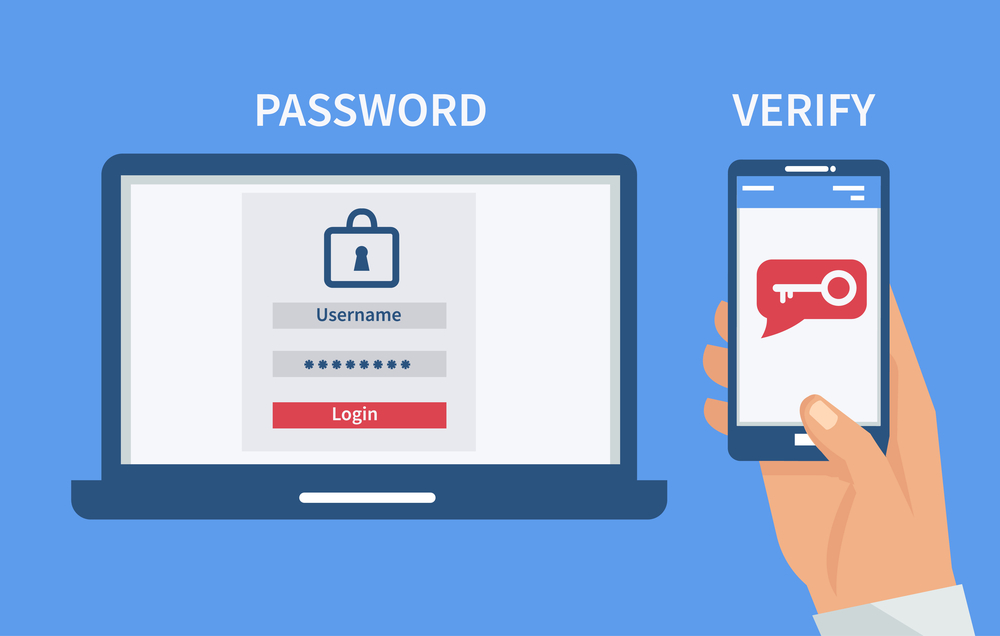
Two-factor authentication, or 2FA, adds another step when you sign in.
Depending on the service, you might be asked for a verification code, an approval through an authentication app, a security key, or another form of verification.
That extra layer can be extremely useful.
If someone somehow gets your password, they may still be unable to get into your account without the second authentication method.
Whenever 2FA is available for an important account, consider turning it on.
Which Accounts Should You Protect First?
You don’t have to enable it everywhere at the same time.
Start with the accounts that matter most.
Your main email account should be a priority because it may be used to reset passwords for many of your other accounts.
After that, think about banking and financial services, work accounts, cloud storage, and social media.
Protect the accounts that would cause the most trouble if someone else gained control of them.
Get Better at Recognizing Phishing
Some scams are surprisingly simple.
You don’t always need sophisticated malware or complicated hacking techniques. Sometimes a scammer just needs to send a convincing message at the right moment.
Phishing messages often pretend to come from banks, delivery companies, online stores, employers, social networks, or other familiar services.
The message might say:
“Your account has been locked.”
“Your payment failed.”
“A Your package is waiting.”
“Verify your information now.”
The goal is to make you react before you have time to think.
Pause Before Clicking
When an unexpected message arrives, slow down.
Ask yourself:
- Was I expecting this?
- Do I recognize the sender?
- Does the email address or phone number look legitimate?
- Is the message trying to scare me or rush me?
- Is it asking for a password, payment, or other sensitive information?
- Does the link actually belong to the company it claims to represent?
If something seems suspicious, don’t click the link.
Instead, open the company’s official app or website yourself.
That small change in habit can prevent many phishing scams.
Stop Ignoring Software Updates
We’ve all been there.
You’re busy doing something and suddenly your phone or computer wants to install an update.
It’s tempting to press “Later.”
But software updates aren’t just about adding new features or changing the look of an app.
Many updates also fix security vulnerabilities.
Keep your operating system, browser, apps, and other important software up to date.
If automatic updates are available, turning them on can make this much easier.
Once you’ve set it up, your devices can handle much of the work for you.
Give Your Home Wi-Fi Some Attention
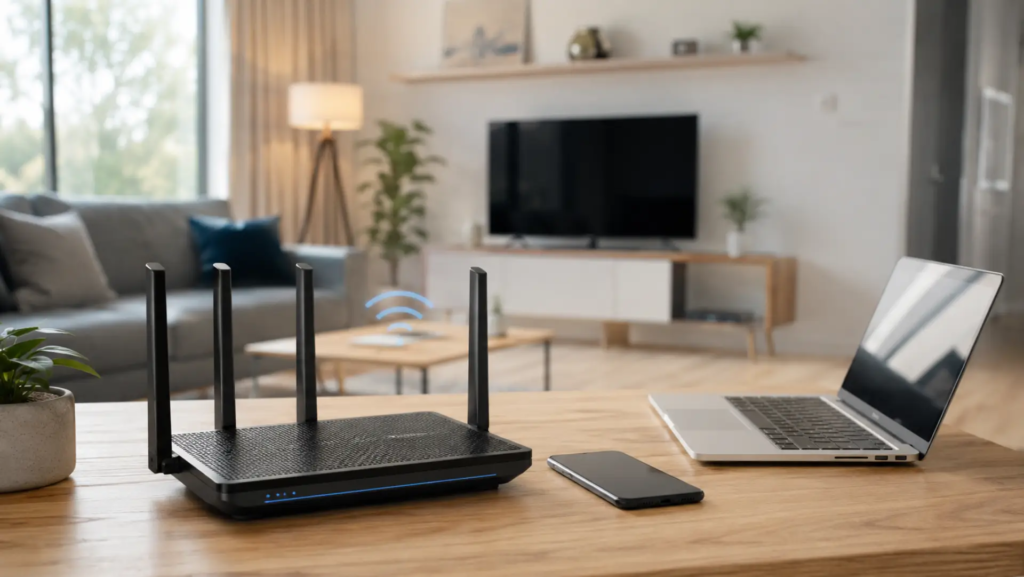
Your Wi-Fi router is easy to forget.
Once it’s working, most of us rarely think about it.
But it plays an important role in your home network.
Check whether your router still uses a default administrator password. If it does, change it.
Your Wi-Fi password should also be strong and unique. Use the strongest modern security option your router supports.
And don’t forget about firmware updates.
If your router is several years old and the manufacturer no longer provides security updates, replacing it may be a better option.
Be Careful When Using Public Wi-Fi
Public Wi-Fi can be useful when you’re at a café, hotel, airport, or another public place.
But don’t assume that every network is trustworthy just because it has a familiar name.
When you’re using an unfamiliar network, be especially careful with sensitive accounts and financial information.
If you need to do something particularly important, using your mobile data or another trusted connection may be a better choice.
Think Before You Share Personal Information
Not every security problem starts with a hacked computer.
Sometimes, we give away useful information ourselves.
Social media can reveal your birthday, workplace, hometown, family members, travel plans, phone number, or even details about where you live.
That doesn’t mean you need to stop posting altogether.
Just think about what you’re sharing and who can see it.
Ask yourself whether a particular piece of information really needs to be public.
Once something is online, you can’t always control where it ends up.
Take Another Look at Your Privacy Settings
When was the last time you checked your social media privacy settings?
If the answer is “I don’t remember,” you’re not alone.
Many people set their accounts up once and never look at those options again.
It’s worth spending a few minutes checking them.
Look at:
- Who can see your posts
- Who can send you messages
- Which apps are connected to your accounts
- What personal information is visible publicly
- Which devices are signed in
- Which services have permission to access your account
You might find an old app you no longer use or a device you forgot was still connected.
Remove access when appropriate.
Keep an Eye on Login Activity
Many websites now let you see where your account has been accessed.
Use that feature occasionally.
If you notice a login from a device, browser, or location that doesn’t make sense, investigate it.
It might have a harmless explanation. Maybe you signed in from a new phone or computer.
But if you genuinely don’t recognize it, don’t ignore it.
Change your password, sign out of unfamiliar sessions, check your security settings, and enable multi-factor authentication if you haven’t already.
You don’t need to obsess over login activity.
A quick check every so often is enough for most people.
Don’t Forget About Your Phone
Think about everything stored on it.
Your smartphone may be one of the most valuable devices you own from a privacy perspective.
Photos.
Messages.
Emails.
Contacts.
Banking apps.
Payment information.
Social media accounts.
Authentication apps.
That’s a lot of personal information sitting in one place.
Start with a strong screen lock. Keep your phone updated and avoid installing apps from questionable sources.
It’s also worth reviewing app permissions.
If an app has access to your microphone, location, contacts, camera, or photos, ask yourself whether it actually needs that access.
If it doesn’t, consider removing the permission.
Back Up the Things You Can’t Replace
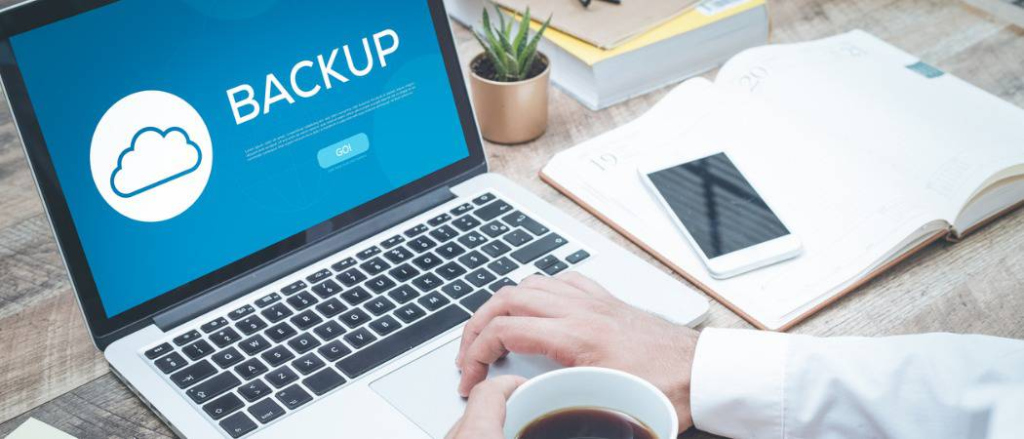
Security isn’t only about preventing attacks.
Sometimes things simply go wrong.
A phone gets lost. A laptop stops working. A hard drive fails. Files become corrupted.
That’s why backups matter.
Make copies of important photos, documents, work files, and anything else you couldn’t easily replace.
You could use cloud storage, an external drive, or both.
The exact method matters less than actually having a backup.
Don’t Wait for Disaster
Most people don’t think about backups until something disappears.
That’s the worst time to start.
Set up a simple backup routine now, even if it’s not perfect.
A basic backup is much better than having nothing at all.
Think Twice Before Downloading
Before downloading an app, program, browser extension, or file, consider where it came from.
Whenever possible, stick with official websites and reputable app stores.
Be especially careful with unexpected attachments.
If someone sends you a file you weren’t expecting, confirm with them before opening it.
Even if the message appears to come from someone you know, their account could have been compromised.
A quick confirmation can save you from opening something dangerous.
Learn to Recognize Fake Websites
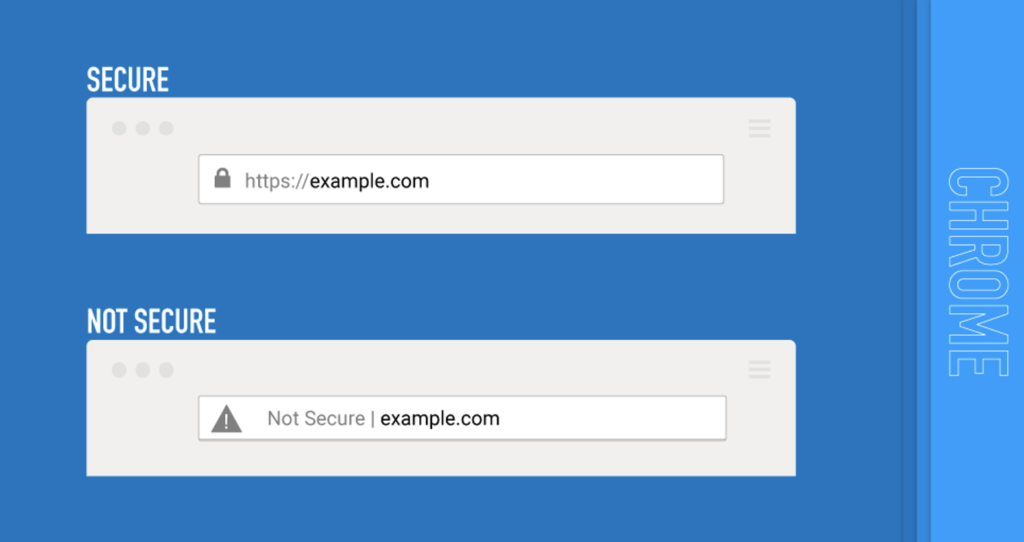
Fake websites can look incredibly convincing.
They may use familiar logos, colors, layouts, and language to make you believe you’re on the real site.
That’s why appearances alone aren’t enough.
Before entering your password, card details, or other sensitive information, check the website address.
Look for:
- Strange domain names
- Misspelled words
- Unexpected redirects
- Unusual website addresses
- Links that don’t match the company they’re supposed to represent
If you aren’t sure, don’t use the link you received.
Instead, open the company’s official app or type its website address yourself.
Pay Attention to Security Alerts
Security notifications can be easy to dismiss.
You might get an alert saying there was a new login and assume it’s nothing.
Sometimes it is nothing.
It could simply be you signing in from a new device.
But if you don’t recognize the activity, take a closer look.
Check your account immediately and change your password if necessary.
If you act quickly, you may be able to stop a problem before the person trying to access your account gets much further.
Be Selective With Browser Extensions
Browser extensions can make everyday tasks easier.
There are extensions for shopping, writing, productivity, accessibility, entertainment, and almost everything else.
But remember that some extensions can request access to information in your browser.
Before installing one, look at the developer, reviews, requested permissions, and reputation.
And don’t forget about the extensions you already have.
Every few months, take a quick look through the list.
If you don’t remember installing something or haven’t used it for a long time, removing it may be a good idea.
Build a Security Routine You Can Actually Follow
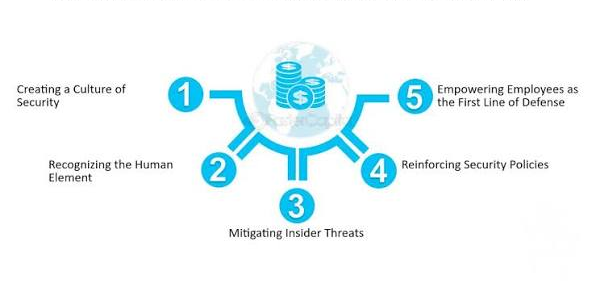
You don’t need to spend your life thinking about cybersecurity.
In fact, a simple routine is probably more useful than an extremely complicated one that you eventually stop following.
Once a Month
Take a quick look at your most important account activity.
Check for unfamiliar logins or anything that doesn’t look right.
Every Few Months
Review your:
- Password manager
- Connected apps
- Logged-in devices
- Privacy settings
- Browser extensions
Remove anything you no longer need.
Whenever Updates Arrive
Install important security updates instead of postponing them indefinitely.
Whenever Something Looks Suspicious
Act quickly.
Don’t ignore an unfamiliar login, suspicious message, unexpected password reset, or other warning sign.
The sooner you investigate, the better.
What Should You Do If You Think Your Account Has Been Hacked?
First, don’t panic.
If you believe someone has accessed your account, change the password as soon as possible using a trusted device.
If you’ve used that same password on other websites, change those passwords too.
Then check the account carefully.
Look for unfamiliar login sessions, changed recovery information, unexpected messages, purchases, or newly connected apps.
Sign out of devices you don’t recognize and enable two-factor authentication if it’s available.
If the account is connected to your bank or payment information, contact the financial institution through its official website or phone number.
Most importantly, don’t ignore the warning signs and hope they’ll disappear.
A Simple Online Security Checklist
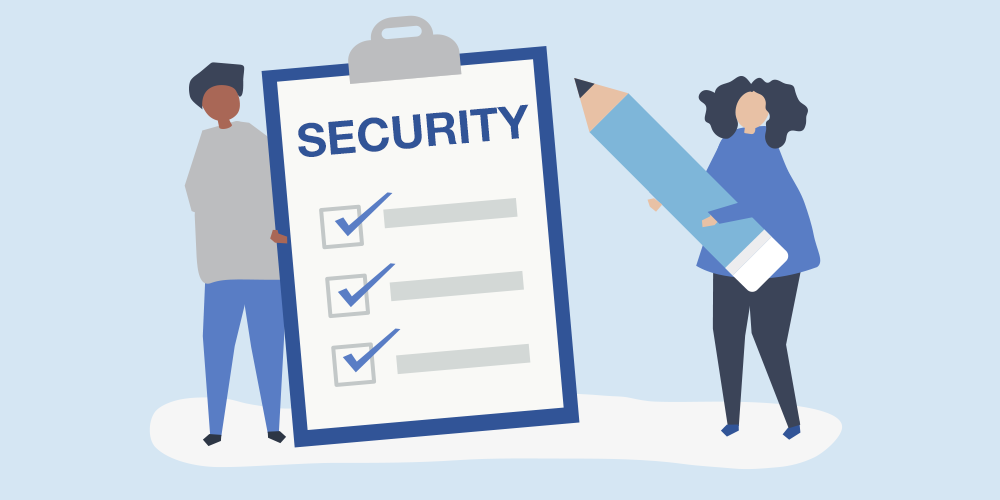
If you want to improve your security today, you don’t need to do everything at once.
Start with these basics:
- Use a different password for every important account.
- Consider using a reputable password manager.
- Enable two-factor authentication.
- Keep your phone and computer updated.
- Update your browser and apps regularly.
- Learn how to recognize phishing messages.
- Secure your home Wi-Fi.
- Be cautious on unfamiliar public Wi-Fi networks.
- Check account login activity occasionally.
- Remove old apps and connected services.
- Review your privacy settings.
- Back up important files.
- Download software from trusted sources.
- Use a strong screen lock on your phone.
- Don’t click unexpected links without checking them.
- Pay attention to security notifications.
Frequently Asked Questions
1. What is the easiest way to improve online security?
Start with the basics: use unique passwords, enable two-factor authentication, keep your devices updated, and be careful with unexpected links and messages.
2. Why should I use a different password for every account?
If one password is exposed in a data breach, attackers may try the same password on your other accounts. Unique passwords help limit the damage.
3. Is two-factor authentication really necessary?
Yes. It adds another layer of protection beyond your password, making it much harder for someone to access your account even if they know your password.
4. How can I tell if an email or message is a phishing scam?
Look for unexpected requests, urgent language, suspicious links, unusual sender addresses, spelling mistakes, or requests for passwords and payment information. When in doubt, visit the company’s official website directly.
5. Should I use a password manager?
A reputable password manager can make it much easier to use strong, unique passwords without having to remember every one of them.