
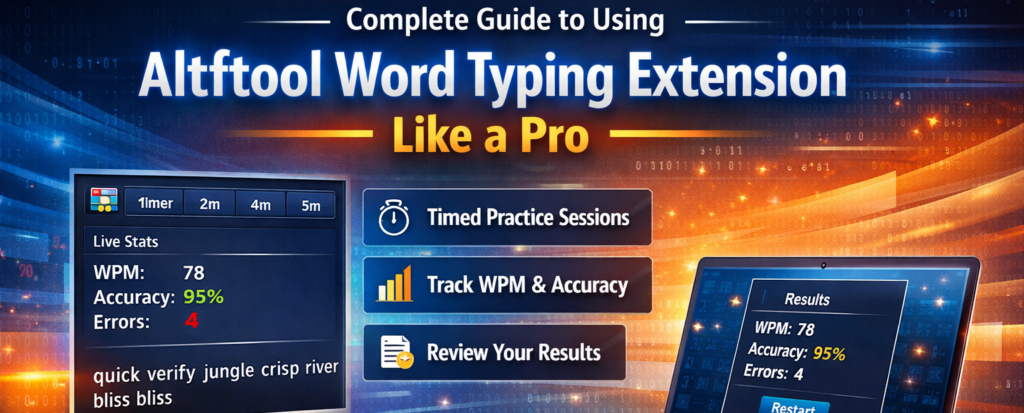
Introduction: My Experience with Altftool Word Typing Extension
When I first started looking for a simple way to improve my typing speed, most tools felt either too complex or too distracting. That’s when I discovered Altftool Word Typing – Typing Practice Game. What stood out immediately was how clean and focused it felt. No unnecessary features. No complicated setup. Just pure typing practice inside a compact browser extension popup.
After using it consistently, I noticed not only an increase in my words per minute (WPM) but also better accuracy and overall keyboard confidence. If you’re serious about typing faster and smarter, this guide will help you use the Altftool Word Typing Extension like a pro.
Why Altftool Word Typing Extension Feels Different
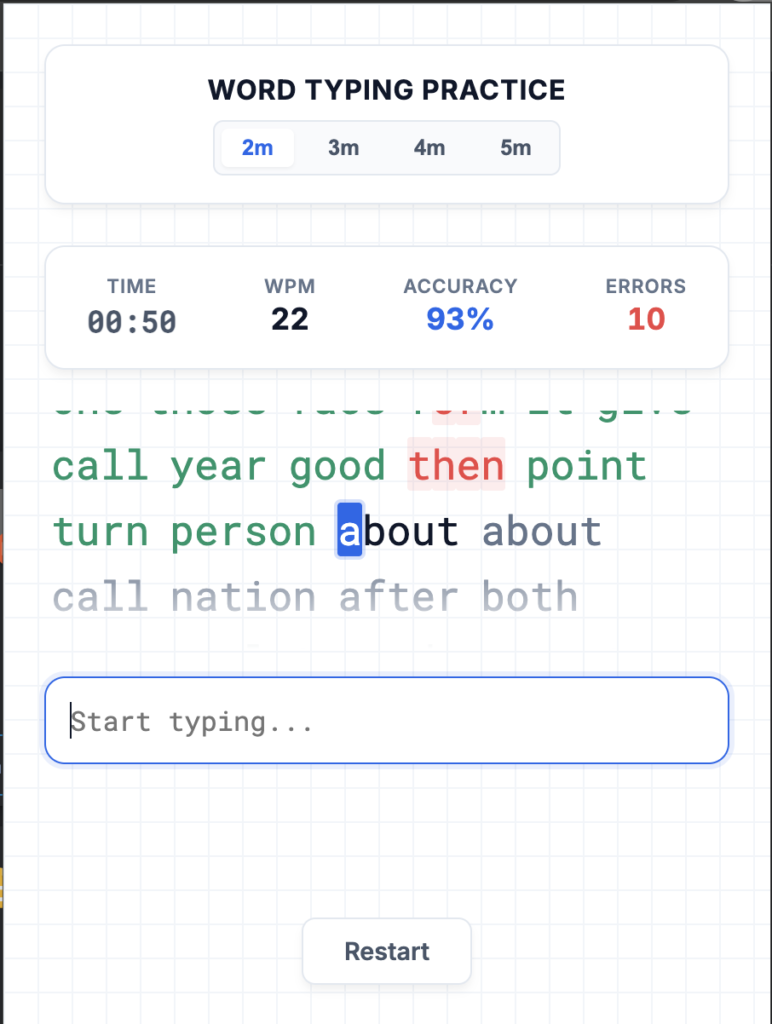
One of the biggest advantages of this extension is its simplicity. The moment you open the popup, you’re ready to start. There’s no account creation, no internet dependency, and no clutter. Everything runs locally, which makes it incredibly fast and distraction-free.
Unlike many online typing platforms, this extension focuses purely on skill-building. The environment feels controlled and performance-driven, which actually motivates you to improve with every session.
Timed Practice Modes That Build Real Discipline
What I personally love is the flexibility in timed sessions. You can choose between 2, 3, 4, or 5-minute practice modes.
When I started, I chose 2-minute sessions because they felt less intimidating. Over time, I gradually increased the duration to 5 minutes. That small progression made a huge difference in my stamina and concentration.
Short sessions are great for quick daily practice, while longer sessions simulate real writing tasks. This structured timing helps build both speed and consistency.
Real-Time WPM Tracking That Pushes You to Improve
The dynamic WPM calculation is honestly one of the most motivating features. As you type, you can see your words per minute updating in real time.
The first time I used it, I kept glancing at the WPM counter, trying to push myself slightly faster without losing control. Over days of practice, I could clearly see improvement. Watching those numbers grow creates a healthy challenge with yourself.
It turns typing practice into a measurable goal instead of just random keyboard activity.
Accuracy Tracking and Error Counter for Smarter Practice
Speed is important, but accuracy is everything. The extension calculates your accuracy percentage based on correct keystrokes and tracks errors instantly.
At first, I realized I was focusing too much on speed and making too many mistakes. Seeing the error counter rise forced me to slow down and type more carefully. That shift actually improved both my speed and accuracy in the long run.
The character-level feedback is extremely helpful. Correct letters and incorrect letters are highlighted instantly, so you immediately know where you went wrong. This real-time correction prevents bad typing habits from forming.
Dynamic Word Generation Keeps Practice Fresh
Another feature I genuinely appreciate is the random word generation for every session.
No two sessions feel exactly the same. Because the words change each time, you can’t just memorize patterns. This keeps your brain actively engaged and improves real adaptability. It feels closer to real-world typing situations rather than repetitive drills.
Reviewing Results Like a Pro
At the end of each session, a results modal appears showing:
- Final WPM
- Accuracy percentage
- Total errors
- Correct characters typed
This summary is where real improvement happens. I made it a habit to quickly review my results after every session. If my accuracy dropped, I focused on control in the next round. If my WPM plateaued, I challenged myself to push slightly harder.
Tracking these numbers consistently gives you a clear performance timeline.
Step-by-Step: How to Use It Effectively
Using the extension is incredibly simple:
You install and open the popup. Choose your typing duration. Once you begin typing, the timer starts automatically. As you type, you receive real-time updates on WPM, accuracy, and errors. When the timer ends, you review your results and restart for another session.
To use it like a pro, I recommend practicing at least 10–15 minutes daily. Start small, focus on accuracy first, and let speed improve naturally.
The Biggest Advantage: 100% Local Processing
One thing that gives me peace of mind is that everything works locally. There’s no internet connection required and no external APIs involved.
That means faster performance, zero lag, and no data sharing concerns. It’s just you and your keyboard.
Final Thought
Altftool Word Typing – Typing Practice Game is more than just a small browser extension. It’s a focused, distraction-free training tool that genuinely helps improve typing speed and accuracy.
From real-time WPM tracking to detailed accuracy insights, every feature is built to make you better with consistent practice. In my experience, the key isn’t just using it once — it’s building a daily habit around it. If you stay consistent, you’ll be surprised how quickly your typing transforms.
Frequently Asked Questions – Altftool Word Typing Extension
Disclaimer : This article is based on personal experience and understanding of the Altftool Word Typing Extension features. Individual results may vary depending on practice consistency, typing habits, and prior experience. This content is for informational purposes only.
#Altftool #WordTypingExtension #TypingPractice #IncreaseWPM #ProductivityTools #ChromeExtension #TypingSpeed #DigitalSkills #Carrerbook #Anslation