
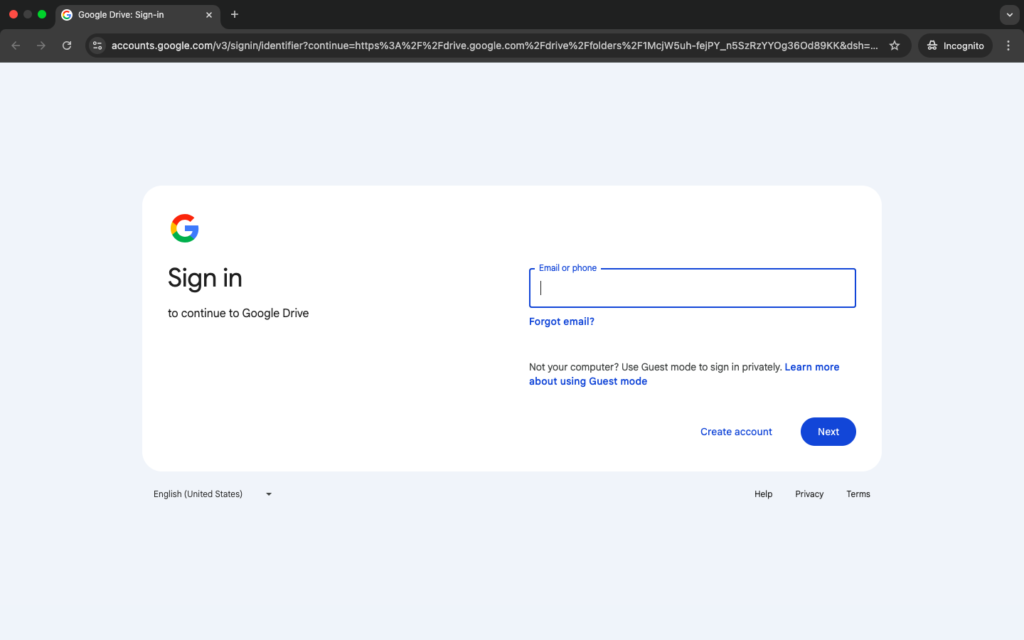
In a world where privacy feels more important than ever, I’ve found myself constantly switching to Incognito mode for quick research, testing websites, or simply browsing without leaving a trail. But manually opening a new Incognito window and copying the URL every single time? It felt unnecessary and slow. That’s exactly when the Open Incognito Tab feature from the Altftool extension changed the game for me.
Why I Started Using Open Incognito Tab
As someone who works online daily, I often need to check how a website behaves without saved cookies, cached data, or logged-in sessions. Normally, I’d open a new Incognito window, paste the link, and close the original tab. It sounds simple — but when you repeat this process dozens of times a day, it becomes frustrating.
The Open Incognito Tab extension removes that friction completely. With a single click (or shortcut), the active tab instantly opens in a new Incognito window. No copy-paste. No extra steps. Just smooth, instant private browsing.
One-Click Incognito – The Core Feature
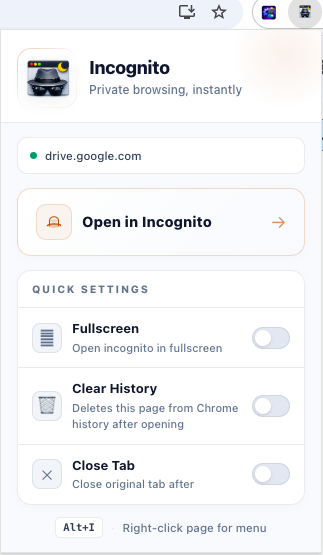
What I personally love most is how effortlessly the extension works. You simply trigger it using the popup button, right-click context menu, or the keyboard shortcut (Alt + I / Option + I). Within seconds, your current tab is duplicated into a fresh Incognito window.
It feels like a built-in browser superpower that should have existed from the beginning.
Fullscreen Mode for Distraction-Free Privacy
There are moments when I want a completely immersive browsing session — especially while testing layouts or focusing on specific tasks. The optional fullscreen mode is a subtle but powerful feature. When enabled, the Incognito window opens in fullscreen automatically, giving a clean and distraction-free experience.
For me, this is particularly useful during focused research sessions.
Automatic History Removal – True Privacy
One feature that really impressed me is the optional automatic history removal. If enabled, the extension deletes the opened URL from your browsing history after transferring it to Incognito mode.
This means you don’t have to manually clear history or worry about accidentally leaving traces behind. It adds an extra layer of privacy that feels thoughtful and intentional.
Close Original Tab – Clean & Organized
I tend to keep too many tabs open. The “Close Original Tab” option helps reduce clutter instantly. Once the Incognito window is launched, the regular tab can automatically close — keeping my workspace tidy and efficient.
It’s such a small detail, but it genuinely improves workflow.
Multiple Ways to Trigger – Built for Convenience
What makes this extension even more practical is the flexibility in triggering it. Whether you prefer:
- A popup button
- A right-click context menu
- Or a keyboard shortcut
You’re covered. Personally, I rely heavily on the Alt + I shortcut — it becomes muscle memory after just a few uses.
Fully Local & Privacy-First
One of my biggest concerns with browser extensions is data tracking. But this tool processes everything locally using Chrome Extension APIs. There are no external network requests, no analytics, and no tracking involved.
That transparency makes a huge difference. You’re not sacrificing privacy for convenience — you’re actually enhancing it.
How It Works (Behind the Scenes)
From a technical perspective, the flow is beautifully simple. Once triggered, the extension reads your saved settings from local storage, detects the active tab, retrieves the URL, and creates a new Incognito window with that exact link. Based on your settings, it may remove the URL from history or close the original tab.
The entire process happens almost instantly — and entirely on your device.
Who Should Use This Extension?
In my opinion, this extension is perfect for:
- Developers testing websites
- Marketers previewing ads or landing pages
- Students researching privately
- Anyone who values quick privacy access
- People who constantly switch between normal and Incognito sessions
If you use Incognito mode even occasionally, this tool will save you time.
The Ultimate Gmail Performance Dashboard by AltF
The Gmail Analytics Extension by AltF Tool is a productivity-focused browser extension designed to provide users with…
How to Organize Your Favorite Websites with Altftool Bookmark Manager
In today’s digital world, we visit dozens of websites every day for work, learning, shopping,…
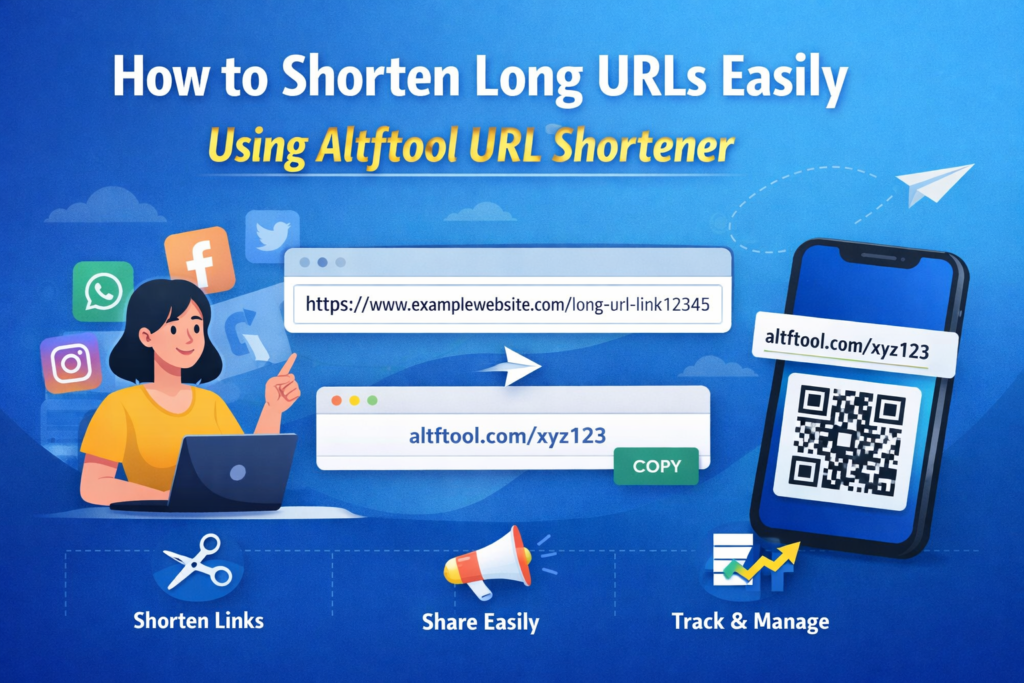
How to Shorten Long URLs Easily Using Altftool URL Shortener
In today’s digital world, sharing links has become a daily activity. Whether you are sharing…
Master Your Precision: Play Aim Trainer Pro Now
Aim Trainer Pro is a web-based utility hosted on AltFTool designed to help users test and…

Top Email Extractor Extensions for Fast and Easy Email Collection
In today’s digital world, collecting contact information efficiently is essential for marketers, researchers, business owners,…

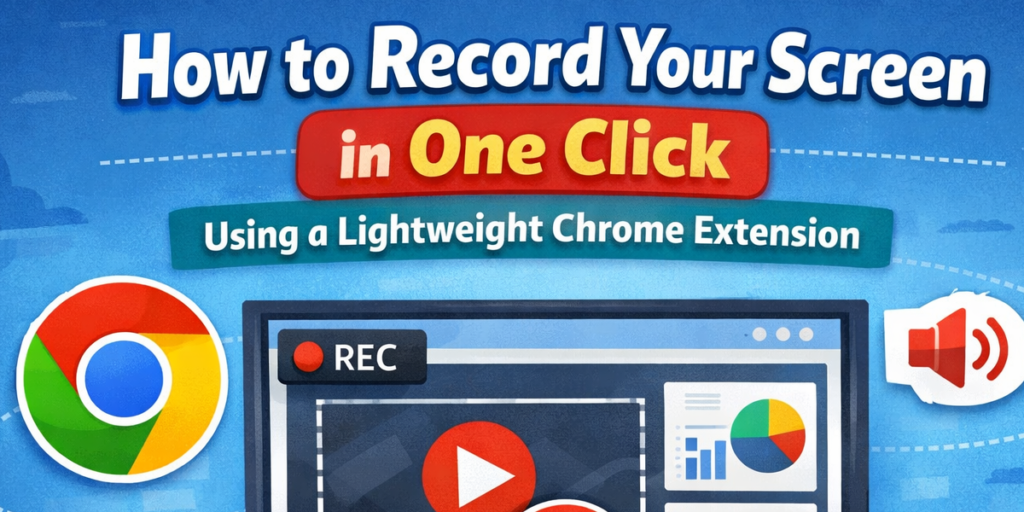
How to Record Your Screen in One Click Using a Lightweight Chrome Extension
Screen recording has become an essential tool for professionals, educators, developers, and content creators. Whether…
Final Thoughts
After using Open Incognito Tab regularly, I can honestly say it has become part of my daily workflow. It removes small but repetitive friction and replaces it with a smooth, privacy-first experience.
Sometimes the best tools aren’t the most complex ones — they’re the ones that simplify something you already do. And this extension does exactly that. If privacy, speed, and convenience matter to you, this is definitely worth trying.
Disclaimer : This blog is based on personal experience using the Open Incognito Tab feature from the Altftool extension. Features and functionality may vary depending on browser updates and individual settings. Always review extension permissions before installing any browser tool.
#Altftool #IncognitoMode #PrivateBrowsing #ChromeExtension #OnlinePrivacy #ProductivityTools #BrowserTips #DigitalPrivacy #TechTools #WorkSmart #Carrerbook #Anslation