
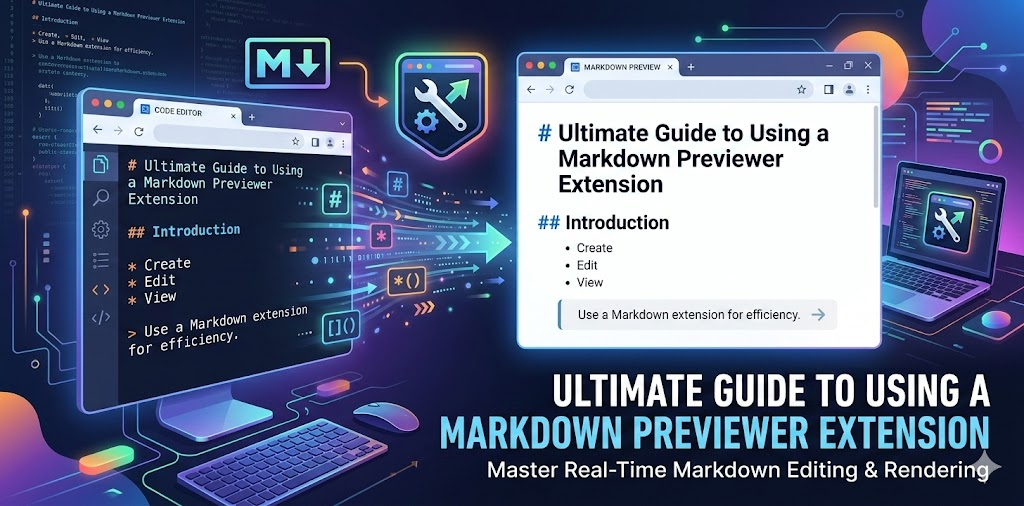
Markdown has become an essential tool for developers, technical writers, and content creators. Its simplicity allows you to format text quickly, maintain readability, and convert it into clean HTML without distractions. However, writing Markdown is only half the process; seeing your content properly formatted in real time is where a Markdown Previewer Extension like Markdown Converter – Chrome Extension shines.
This guide walks you through how to use a Markdown Previewer Extension effectively, the features it offers, and why it is an indispensable tool for anyone working with Markdown.
What Is a Markdown Previewer Extension?
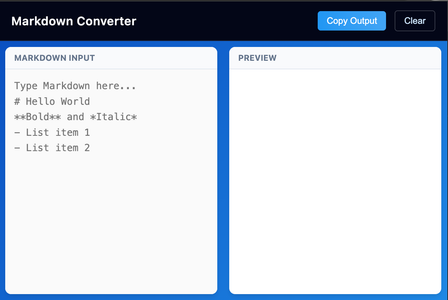
A Markdown Previewer Extension is a lightweight Chrome tool that allows users to write Markdown syntax and instantly see the HTML output. Unlike online editors, everything is processed locally within your browser, meaning no external websites or tools are needed. It provides a fast, secure, and efficient environment to convert Markdown into formatted HTML in real time.
Markdown Converter is designed for developers, bloggers, documentation writers, and anyone who frequently works with Markdown. Its goal is to simplify the workflow while maintaining a clean, distraction-free interface.
Key Features of Markdown Converter
The extension is packed with essential features that make writing and previewing Markdown seamless:
- Live Preview: Automatically converts Markdown to HTML as you type, showing immediate results.
- Header Support: Supports headings from H1 to H6 using
#syntax for structured documents. - Text Formatting: Supports bold, italic, and inline code for clear emphasis.
- Lists: Handles both unordered (
-or*) and ordered (1.) lists effortlessly. - Blockquotes: Format quotes with
>syntax for easy highlighting. - Links: Converts Markdown links into clickable HTML links.
- Horizontal Rules: Supports
---syntax to separate sections neatly. - HTML Escaping: Protects against raw HTML injection for added security.
- Copy Output: One-click button to copy the generated HTML to your clipboard.
- Clear Option: Reset the editor and preview instantly for a fresh start.
These features make it more than just a simple preview tool. It’s a mini Markdown workstation right in your browser.
Step-by-Step Guide: How to Use Markdown Converter
Using the extension is straightforward and intuitive. Here’s the workflow:
Step 1: Click the Markdown Converter extension icon in your Chrome toolbar to open the editor.
Step 2: Type your Markdown syntax in the left input panel. Whether you’re creating headings, lists, links, or blockquotes, the editor captures it all.
Step 3: The extension automatically converts your Markdown into HTML in real time, displaying the formatted output in the right panel.
Step 4: Review the preview to ensure your content appears as intended. You can make adjustments instantly and see results live.
Step 5: Click ‘Copy Output’ to copy the HTML to your clipboard. Paste it directly into your website, CMS, or documentation platform.
Step 6: Click ‘Clear’ to reset the editor and preview fields when you want to start fresh.
This workflow keeps the process fast, focused, and efficient without leaving your browser or switching tabs.
Why Use a Markdown Previewer Extension?
1. Real-Time Feedback
Live previews let you see your formatting as you type, eliminating the need for repeated copying and pasting.
2. Local Processing
Since all processing happens in your browser, your data remains private and secure.
3. Lightweight and Efficient
Unlike heavy online editors, the extension is fast, easy to access, and designed to integrate seamlessly into your workflow.
4. Ideal for Professionals
Whether you are a developer writing README files, a technical writer preparing documentation, or a blogger formatting content, this extension reduces friction and saves time
Tips for Getting the Most Out of Markdown Converter
- Use keyboard shortcuts for faster formatting.
- Organize your Markdown into structured headings (H1-H6) for readability.
- Regularly use the Copy Output feature to integrate HTML into your workflow quickly.
- Take advantage of Clear to reset and practice Markdown syntax without distraction.
By combining these tips with the extension’s features, you can maximize productivity and streamline your Markdown workflow.
Final Thoughts
Markdown Previewer Extensions like Markdown Converter – Chrome Extension offer a practical and efficient way to write, preview, and convert Markdown into HTML. The combination of live preview, secure local processing, and a clean interface makes it an ideal choice for developers, writers, and content creators.
If you regularly work with Markdown, this extension can save you time, simplify formatting, and enhance your workflow—turning a repetitive task into a smooth, distraction-free experience.
This article is based on the provided documentation for Markdown Converter – Chrome Extension. Features, compatibility, and functionality may change over time. Users should review the official extension details and Chrome policies before installation and use.
#MarkdownPreviewer #MarkdownExtension #ChromeExtension #WebDevelopment #TechnicalWriting #ProductivityTools #HTMLConversion #Anslation #Carrerbook