
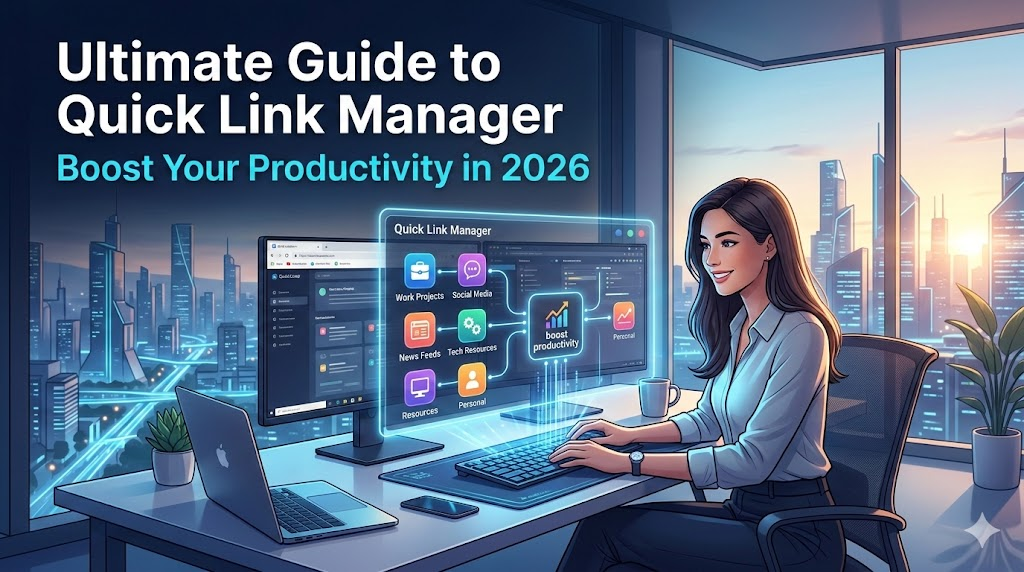
In 2026, productivity is no longer about working harder — it’s about working smarter. As someone who constantly switches between research tabs, client dashboards, social platforms, and shopping tools, I realized I was wasting more time searching for links than actually using them. That’s when I started using Quick Link Manager, an Altftool Chrome extension that completely changed the way I organize my daily browsing.
This guide is based on my personal experience using the extension — how it fits into my workflow, what makes it different, and why it might be exactly what you need this year.
A Simple Yet Powerful Link Hub Inside Your Browser
Quick Link Manager is designed to help users save, organize, and instantly access important websites directly from a Chrome extension popup. Think of it as a mini desktop link hub that lives quietly in your browser toolbar.
Instead of bookmarking everything and forgetting where it went, this tool lets you store frequently used pages, categorize them automatically, search through them in real time, and open them instantly. What I personally love is that everything is stored securely using chrome.storage.sync, which means all my saved links are available across devices as long as I’m signed into Chrome.
No complicated setup. No learning curve. Just clean, organized access.
Features That Actually Make a Difference
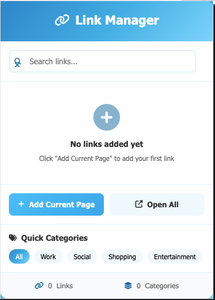
Add Current Page Instantly
One of my favorite features is the “Add Current Page” button. Whenever I’m on an important site, I just open the popup and save it instantly. No extra tabs, no copy-paste.
Right-Click Context Menu Integration
Even better? I can right-click any webpage or link and save it directly. This feels seamless, especially when I’m deep into research mode.
Automatic Categorization
This is where it gets smart. The extension automatically classifies links into categories like work, social, shopping, entertainment, or general. I didn’t realize how helpful this would be until I saw my links neatly organized without doing anything manually.
Smart Search & Category Filtering
The real-time search bar is a productivity booster. Instead of scrolling through dozens of saved links, I just type a keyword and it filters instantly. You can also filter by category if you only want to see work-related or entertainment links.
Open Links Your Way
You can open individual links in new tabs (active or background). But the real time-saver? Open All Links. When I start my workday, I filter by “Work” and open everything I need in one click.
Easy Deletion & Clean Management
Old links piling up? Just delete them instantly. It keeps everything fresh and clutter-free.
Sample Data for First-Time Users
If you’re new, it comes with pre-populated example links. It helps you understand how the tool works without feeling lost.
Modern Sky Gradient UI
I’ll admit — I appreciate good design. The sky gradient theme gives the popup a modern, clean look. It feels pleasant rather than overwhelming.
How It Fits Into My Daily Workflow
Step 1: Open the Extension
Every morning, I click on the Quick Link Manager icon in my browser toolbar.
Step 2: Save Important Pages
If I’m reading an article or working on a client dashboard, I either click “Add Current Page” or right-click to save it.
Step 3: Automatic Organization
The extension automatically categorizes the link, so I don’t have to waste time deciding where it belongs.
Step 4: Filter When Needed
When I need something, I simply search by keyword or filter by category.
Step 5: Open What I Need
I click on a single link or use “Open All” to launch multiple tabs at once.
Step 6: Clean Up
If a link is no longer relevant, I delete it in seconds.It sounds simple — because it is. But that simplicity is exactly what makes it powerful.
Why Quick Link Manager Improves Productivity
Before using this extension, I relied on bookmarks and memory. Both failed me often. Bookmarks became messy folders I never opened, and memory… well, that’s unreliable.
With Quick Link Manager:
- I save time searching.
- I reduce tab overload.
- I start my day faster.
- I stay organized without effort.
In 2026, productivity tools must be lightweight, intuitive, and efficient. This one checks all the boxes.
Who Should Use It?
From my perspective, this extension is perfect for:
- Bloggers managing research links
- Students organizing study resources
- Developers switching between dashboards
- Marketers handling multiple platforms
- Anyone who opens the same websites daily
If your browser is your workspace, this tool makes that workspace smarter.
The Ultimate Gmail Performance Dashboard by AltF
The Gmail Analytics Extension by AltF Tool is a productivity-focused browser extension designed to provide users with…
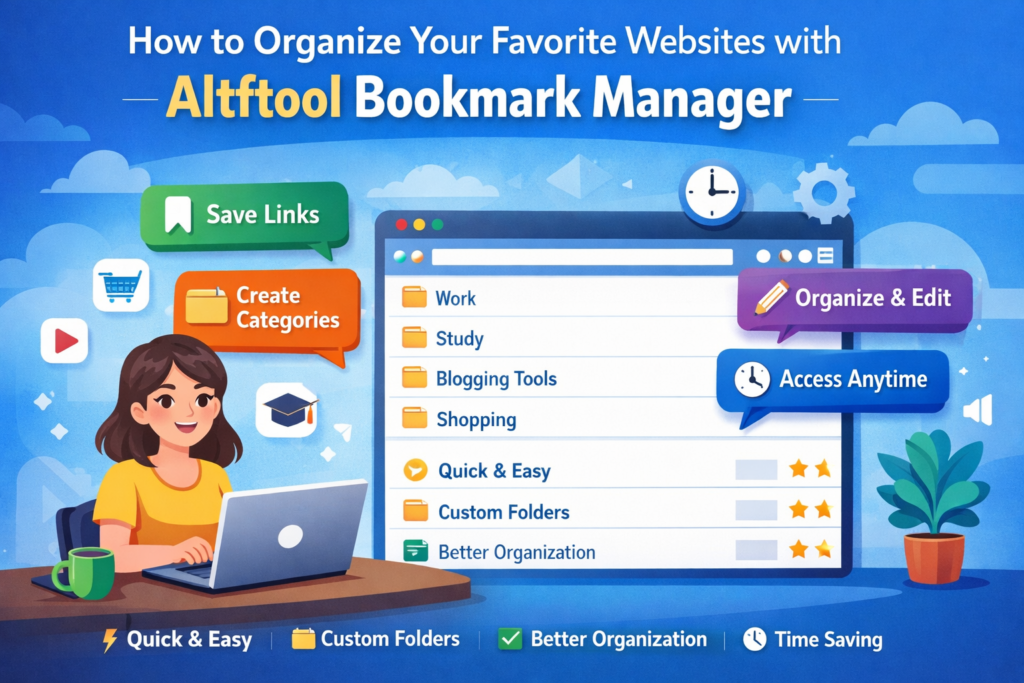
How to Organize Your Favorite Websites with Altftool Bookmark Manager
In today’s digital world, we visit dozens of websites every day for work, learning, shopping,…
How to Shorten Long URLs Easily Using Altftool URL Shortener
In today’s digital world, sharing links has become a daily activity. Whether you are sharing…

Master Your Precision: Play Aim Trainer Pro Now
Aim Trainer Pro is a web-based utility hosted on AltFTool designed to help users test and…

Top Email Extractor Extensions for Fast and Easy Email Collection
In today’s digital world, collecting contact information efficiently is essential for marketers, researchers, business owners,…

How to Record Your Screen in One Click Using a Lightweight Chrome Extension
Screen recording has become an essential tool for professionals, educators, developers, and content creators. Whether…
Final Thoughts
After weeks of using Quick Link Manager, I can honestly say it’s one of those small tools that creates a big impact. It doesn’t try to do too much — it simply solves a real problem: quick access to important links without clutter.
If you’re serious about boosting your productivity in 2026, this extension is worth trying. Sometimes, the smallest workflow upgrades make the biggest difference.
Frequently Asked Questions (FAQs)
Disclaimer : This article is based on personal experience and is written for informational purposes only. Features and functionality may evolve with future updates of the extension. Always review extension permissions and settings before installation.
#QuickLinkManager #AltftoolExtension #ProductivityTools #ChromeExtensions #WorkflowOptimization #DigitalOrganization #TechTools2026 #Carrerbook #Anslation