
In today’s fast-paced digital world, every second matters. While researching, writing blogs, or even casually browsing, I often found myself constantly copying text, opening a new tab, pasting it into Google, and then repeating the same process for YouTube or Wikipedia. It felt small at first — but when you do it 50 times a day, it becomes exhausting. That’s exactly where Quick Search completely changed my browsing experience.
My First Impression

The first thing I noticed after installing Quick Search was how lightweight and smooth it felt. There was no complicated setup, no unnecessary permissions — just a simple extension that works instantly. Since all operations are handled locally using Chrome Extension APIs, it felt secure and fast without any lag.
What impressed me most was how natural it became in my daily workflow. It didn’t feel like an extra tool — it felt like something my browser should have had by default.
Context Menu Integration: The Real Game Changer
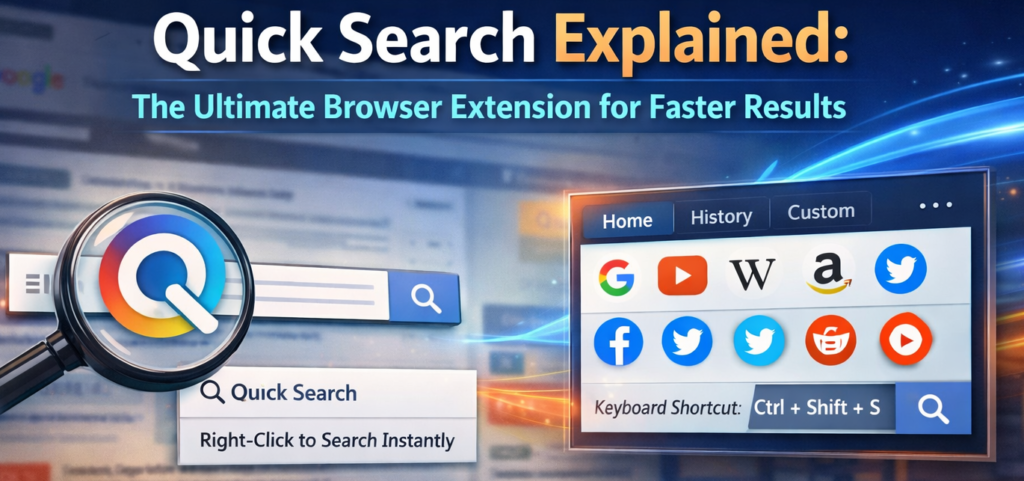
The feature I personally use the most is the right-click context menu integration. Imagine reading an article and finding an unfamiliar term. Instead of copying and pasting it into multiple tabs, I simply select the text, right-click, and choose Quick Search. Within seconds, I can search it on Google, YouTube, Wikipedia, or even Reddit.
It may sound simple, but this small shortcut saves so much time — especially when researching for blog content or learning something new.
Multiple Search Engines in One Place
Quick Search supports multiple platforms including Google, YouTube, Wikipedia, Amazon, GitHub, StackOverflow, Twitter, Reddit, Google Translate, and Google Images. For someone like me who switches between research, coding references, product searches, and social media trends — this is incredibly helpful.
Instead of typing the same keyword separately into different websites, I can instantly compare results across platforms. For example, while writing tech blogs, I often check GitHub repositories and StackOverflow discussions together. With Quick Search, it happens in seconds.
Keyboard Shortcut for Speed Lovers
If you’re someone who prefers keyboard over mouse, the shortcut feature is a blessing. Pressing Ctrl + Shift + S (Cmd + Shift + S on Mac) opens the floating search popup near the selected text.
Personally, this feature makes browsing feel smooth and efficient. It keeps my hands on the keyboard and maintains focus — especially during deep work sessions.
Floating Search Popup & Custom Engines
One feature that really stands out is the floating search popup. It appears near the selected text, so you don’t even have to move your eyes far from your reading area. It feels intuitive and modern.
Even better, you can add custom search engines using a simple URL format with the %s placeholder. I added a few niche tools I regularly use, and now everything is centralized. It feels personalized and powerful.
Search History & Organized Popup Interface
Quick Search stores the last five searches, which is surprisingly useful. Sometimes I revisit previous queries, and instead of remembering what I typed, I just check the History tab.
The popup interface is clean and tab-based — Home, History, and Custom engines — making it very user-friendly even for beginners.
How It Works (Simple User Flow)
Using Quick Search is extremely straightforward:
First, select text on any webpage.
Second, right-click and choose Quick Search or use the keyboard shortcut.
Third, select your preferred search engine from the popup.
Finally, a new tab opens instantly with the search results.
Alternatively, you can open the extension popup directly to search manually, check history, or manage custom engines.
Why I Think It’s Worth Using
After using Quick Search consistently, I genuinely feel it improves browsing efficiency. It reduces repetitive actions, keeps focus intact, and makes research smoother. For students, bloggers, developers, and everyday users — it’s a small extension that delivers a big productivity boost.
Final Thought
Quick Search proves that sometimes the simplest tools create the biggest impact. It doesn’t try to overwhelm you with unnecessary features. Instead, it focuses on doing one thing — making searches faster and smarter — and it does that exceptionally well. If you value speed, convenience, and workflow efficiency, this extension is definitely worth trying.
Disclaimer : This article is based on personal experience and understanding of the Quick Search extension features. It is for informational purposes only. Users should review extension permissions and policies before installation.
#QuickSearch #BrowserExtension #ProductivityTools #Altftool #ChromeExtension #TechReview #DigitalEfficiency #Carrerbook #Anslation