
We live in a world of open tabs, saved links, and “I’ll read this later” promises. What starts as a productive browsing session often turns into a cluttered mess of bookmarks scattered across folders, duplicated links, and dozens of tabs draining both memory and focus. Digital clutter is real—and it quietly impacts how we work every day.
A simple, well-designed Bookmark Manager can change that.
This Chrome extension popup is built with a clear purpose: help you organize, search, save, and restore your browsing activity without adding complexity. It works entirely using Chrome’s native APIs, which means it feels fast, lightweight, and fully integrated into your browser experience.
Let’s explore how it helps you take control of your digital space.
Why Digital Clutter Hurts Productivity
Every extra tab is a distraction. Every misplaced bookmark wastes time. When your browser becomes crowded, your focus follows the same pattern.
You might recognize these habits:
- Keeping 20+ tabs open because you might need them later
- Saving bookmarks randomly without categories
- Forgetting where you saved an important link
- Reopening the same websites every day manually
A structured system removes friction. And that is exactly what this Bookmark Manager is designed to do.
Overview: A Practical Bookmark Manager Built for Everyday Use
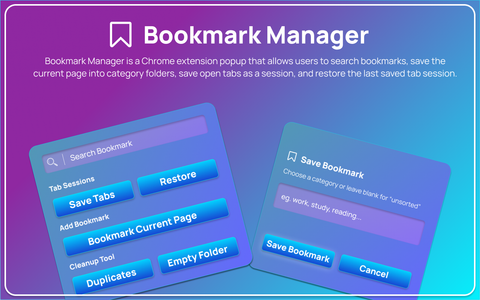
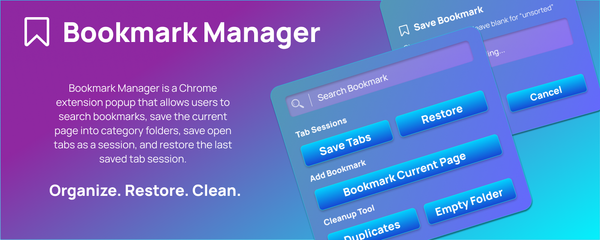
This Bookmark Manager is a Chrome extension popup that allows you to:
- Search existing bookmarks instantly
- Save the current page into organized category folders
- Store all open tabs as a session
- Restore the last saved tab session with one click
There are no unnecessary features. No complicated dashboards. Just clean functionality built around how people actually browse.
Core Features Explained
1. Bookmark Search
Instead of digging through folders manually, you can search your bookmarks instantly using Chrome’s built-in bookmarks search functionality.
Type what you’re looking for.
See matching results.
Open them in a new tab immediately.
This feature eliminates the frustration of not remembering where you saved something. It brings speed and simplicity back to your workflow.
2. Add Bookmark by Category
Saving a bookmark should not create chaos—it should create order.
With this extension:
- You can save the current page directly into an existing category folder.
- You can create a new category on the spot.
- Duplicate URLs are automatically prevented.
This ensures your bookmark collection stays clean and structured. Over time, this simple habit builds a personal digital library that actually makes sense.
3. Save Current Tabs
We have all been there. You’re working on something important with multiple tabs open. Suddenly you need to shut down your browser—or your system restarts.
Instead of relying on memory or manually reopening everything, this feature stores all open tabs from the active window using local storage.
One click, and your entire working environment is saved.
This is especially helpful for:
- Research sessions
- Study material
- Project-based browsing
- Content planning
- Development work
4. Restore Last Session
Saving tabs is useful. Restoring them instantly is powerful.
With the “Restore last session” option, previously saved tabs reopen automatically using Chrome’s tab creation system. It recreates your workspace exactly as you left it.
No guessing.
No searching.
No rebuilding from scratch.
It gives you continuity in your workflow.
5. Clean Popup Interface
The experience matters just as much as the functionality.
The extension popup includes:
- A search input field
- Clear action buttons
- Status messages for user feedback
- A modal overlay for entering category names
Everything is accessible within a simple popup from the toolbar. No complicated navigation. No unnecessary screens. Just straightforward interaction.
How It Works: Simple User Flow
The beauty of this Bookmark Manager is in how intuitive it feels.
Step 1: Open the extension popup from the toolbar.
Step 2: Use the search field to find existing bookmarks and open them instantly.
Step 3: Click “Bookmark current page,” enter a category name, and save it.
Step 4: Click “Save current tabs” to store all open tabs in the active window.
Step 5: Click “Restore last session” whenever you need to reopen them.
Each action is deliberate. Each feature solves a real browsing problem.
The Bigger Benefit: Mental Clarity
When your digital environment is organized, your thinking becomes clearer.
A structured bookmark system reduces friction. Saved sessions remove anxiety about losing work. Search functionality saves minutes every day—and those minutes compound.
This Bookmark Manager does not try to overwhelm you with advanced automation or complex systems. Instead, it focuses on consistency, reliability, and simplicity.
And often, simplicity is what truly improves productivity.
Final Thoughts
Digital organization is not about perfection. It is about control.
A simple Bookmark Manager can transform how you browse, research, and manage information. By combining bookmark search, categorized saving, tab session storage, and quick restoration, this extension creates a balanced system that works quietly in the background.
If you are tired of messy bookmarks and endless tabs, this is not just a tool—it is a reset for your digital habits.
Declutter your browser, and you may be surprised how much clarity follows.
This blog content is created for informational purposes based on the documented features of the Bookmark Manager Chrome extension. Functionality described reflects the extension’s current implementation using Chrome’s native APIs. Performance and behavior may vary depending on browser version and user environment.
#BookmarkManager #ChromeExtension #ProductivityTools #DigitalOrganization #WebDevelopment #BrowserProductivity #TechTools #Anslation #Carrerbook