
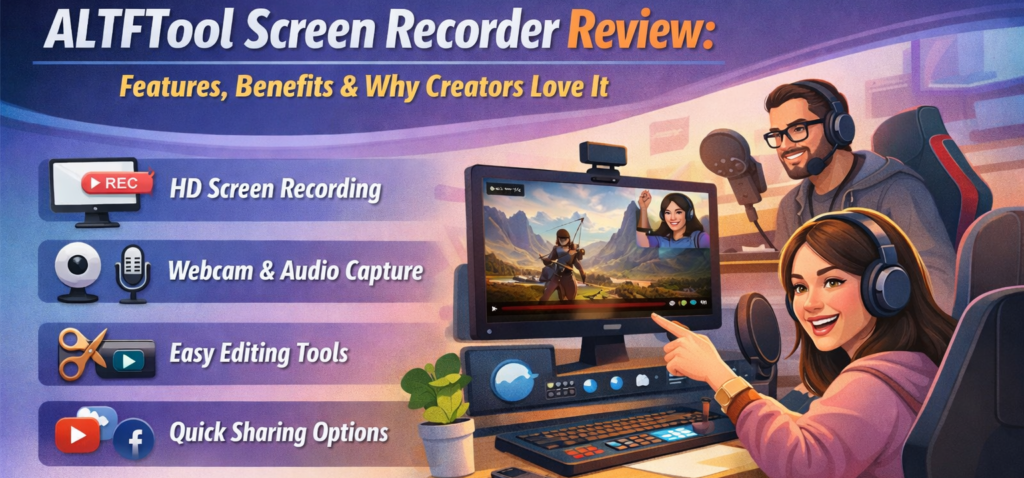
A Simple Tool That Actually Does What It Promises
As someone who regularly creates tutorials, walkthroughs, and quick explainer videos, I’ve tested countless screen recording tools. Some were too heavy. Some required sign-ups. Others slowed down my browser or uploaded files to unknown servers. That’s why trying the ALTFTool Screen Recorder felt refreshing.
It doesn’t try to be everything. It simply records your screen — quickly, cleanly, and without unnecessary complications. And honestly, that simplicity is exactly what makes it powerful.
One-Click Recording Without the Clutter

The first thing I noticed was how straightforward the extension is. You click the extension icon, hit “Start Recording,” and choose whether you want to capture your entire screen, a specific window, or just a browser tab. That’s it.
There are no dashboards, no forced accounts, and no pop-up ads. It works directly from a lightweight Chrome extension popup. For creators who need speed and efficiency, this makes a big difference.
Clean Screen Capture Using Modern Browser APIs
The extension uses the getDisplayMedia API, which means it records your screen securely through the browser’s built-in permission system. You get to choose exactly what you want to share, whether it’s:
- Your full desktop
- A specific application window
- A single browser tab
Because it’s built directly on modern browser technology, it feels stable and responsive. I didn’t experience lag or freezing during short and medium-length recordings.
Audio Support That Actually Works
Many simple screen recorders fail when it comes to audio. Either they don’t capture system sound properly or require complicated setup.
ALTFTool Screen Recorder supports system audio capture when the browser allows it. That means if you’re recording a presentation, tutorial, or demo with sound, you can include it without extra steps. For creators, educators, and product reviewers, this is essential.
Real-Time Timer and Clear Recording Status
During recording, the extension shows a real-time timer in MM:SS format. It may sound like a small feature, but it’s incredibly helpful.
When I record content, I like knowing how long I’ve been speaking. It helps with pacing and keeps videos concise. The live recording indicator also ensures you always know when recording is active, preventing accidental missed clips.
Automatic Download — No Upload, No Waiting
This is one of my favorite parts. Once you click “Stop Recording,” the video automatically downloads as a timestamped WebM file.
There’s no cloud upload.
No processing delay.
No file conversion wait time.
Everything happens locally on your device using the MediaRecorder API. The file saves instantly, and you can use it right away in your editing software or share it directly.
For privacy-conscious users, this is a huge benefit. Your recordings are never sent to external servers.
Smart Stream Cleanup for Better Performance
Another detail I appreciated is how the extension stops media tracks immediately after recording ends. This might sound technical, but it basically means your browser resources are freed right away.
There’s no background activity continuing after you’re done. That makes the tool feel lightweight and efficient.
A Fully Self-Contained Popup Design
Unlike many Chrome extensions that rely on background scripts or third-party APIs, this screen recorder is fully self-contained within its popup interface.
That design keeps things simple and reduces potential security risks. It also contributes to faster performance since the tool isn’t constantly running in the background.
Who Is This Screen Recorder Best For?
From my experience, this extension works especially well for:
- YouTube creators making quick tutorials
- Students recording assignments or presentations
- Professionals capturing demos for clients
- Developers recording bug reports
- Bloggers creating visual walkthroughs
If you need advanced editing, annotations, or overlays, you may still want separate editing software. But for pure recording, this tool does its job cleanly and efficiently.
My Honest Experience Using It
After using ALTFTool Screen Recorder for multiple quick projects, what stood out most was reliability. It didn’t crash. It didn’t freeze. It didn’t demand extra permissions beyond what was necessary.
Sometimes, the best tools are the ones that stay out of your way. This extension focuses on one job — recording your screen — and it executes it well.
The Ultimate Gmail Performance Dashboard by AltF
The Gmail Analytics Extension by AltF Tool is a productivity-focused browser extension designed to provide users with…
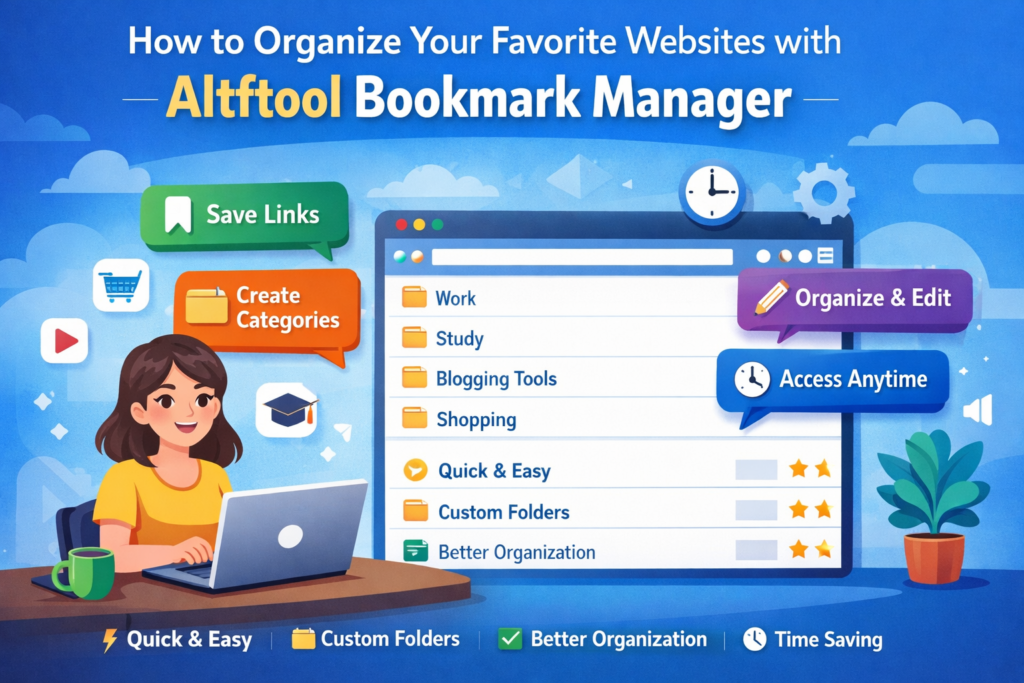
How to Organize Your Favorite Websites with Altftool Bookmark Manager
In today’s digital world, we visit dozens of websites every day for work, learning, shopping,…
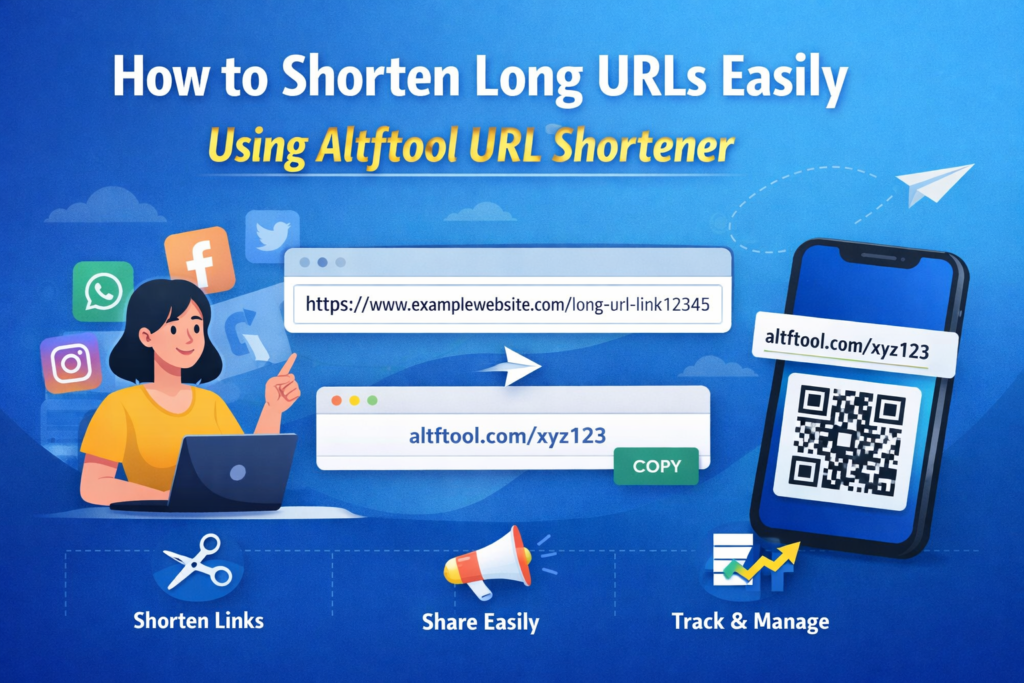
How to Shorten Long URLs Easily Using Altftool URL Shortener
In today’s digital world, sharing links has become a daily activity. Whether you are sharing…

Master Your Precision: Play Aim Trainer Pro Now
Aim Trainer Pro is a web-based utility hosted on AltFTool designed to help users test and…

Top Email Extractor Extensions for Fast and Easy Email Collection
In today’s digital world, collecting contact information efficiently is essential for marketers, researchers, business owners,…
How to Record Your Screen in One Click Using a Lightweight Chrome Extension
Screen recording has become an essential tool for professionals, educators, developers, and content creators. Whether…
Final Thought
In a market full of complex, cloud-based screen recording platforms, ALTFTool Screen Recorder feels like a return to simplicity. It is fast, privacy-focused, and easy to use.
If you are someone who values one-click functionality, local file saving, and no unnecessary complications, this extension is absolutely worth trying. It may not replace full-scale video production software, but for everyday screen recording needs, it delivers exactly what creators expect.
Frequently Asked Questions (FAQ)
Disclaimer : This review is based on personal experience and publicly available feature information. Individual performance may vary depending on browser version, device capability, and recording length. This article is for informational purposes only and does not constitute technical or professional advice.
#ALTFTool #ScreenRecorder #ChromeExtension #ContentCreators #ProductivityTools #TechReview #BrowserTools #DigitalCreators #Carrerbook #Anslation