
Downloading images from modern websites is no longer as simple as right-clicking and saving. Many sites now use lazy loading, background rendering, and dynamic content injection, which makes manual saving frustrating and inconsistent. I personally faced this issue while collecting reference images for a content project. Some images wouldn’t load fully, others saved in low resolution, and many useful visuals were hidden in background layers.
That’s when I started using Image Download Helper by AltFTool, and it genuinely simplified the entire process.
A Clean and User-Friendly Interface

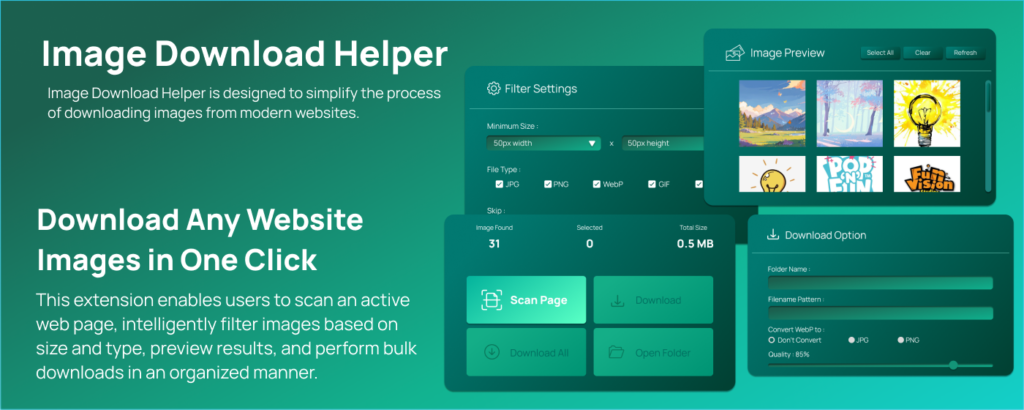
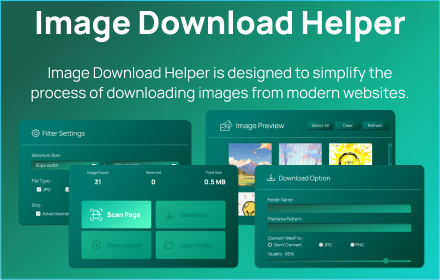
The first thing I noticed was the modern Mint Teal interface. It feels organized, minimal, and easy to navigate. There’s no unnecessary clutter. Everything—from scanning to filtering to downloading—is clearly structured.
Opening the extension from the Chrome toolbar instantly gives you access to scanning tools and download settings without overwhelming you with technical details.
Smart Image Scanning That Finds Everything
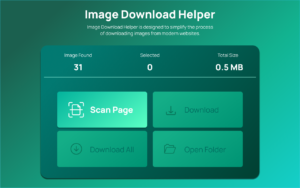
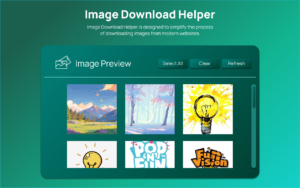
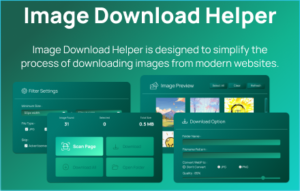
The real strength of this extension lies in its smart image scanning capability. Once I clicked “Scan Page,” it extracted all images from the active tab within seconds.
What impressed me most was that it detected:
- Standard embedded images
- Lazy-loaded images
- Background images
- Dynamically injected content
Normally, background or lazy-loaded images require inspecting the page manually, which can be time-consuming. This extension handles everything automatically, and since all processing is done locally using Chrome APIs, it feels secure and fast.
Intelligent Filtering for Better Results
One of the biggest problems with bulk downloading is clutter. Websites contain icons, ads, logos, and tiny thumbnails that you don’t actually need.
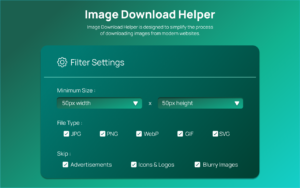
The intelligent filtering feature solved this for me. I could:
- Set minimum width and height
- Filter by file type
- Skip ads and icons
- Avoid blurry or low-quality images
This made the preview grid much cleaner and allowed me to focus only on high-quality visuals.
Preview Grid and Bulk Download System
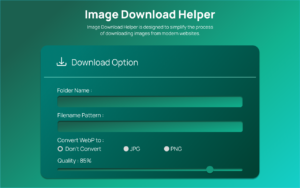
The preview grid is one of my favorite parts. Images are displayed in a paginated layout with dimension overlays, making selection easier. You can choose specific images or download everything at once.
The bulk download system includes progress tracking, so you always know what’s happening. If needed, you can cancel the process or open the download folder directly. It feels smooth and controlled rather than chaotic.
Custom Naming and WebP Conversion
Managing downloaded images can be messy, especially when file names are random. This extension allows custom naming patterns like:
- {index}_{name}
- {width}x{height}_{name}
- Timestamp-based naming
It also supports WebP conversion to JPG or PNG, which saved me from using separate conversion tools. The adjustable compression quality (10% to 100%) is another practical feature, especially when optimizing images for web use.
The Ultimate Gmail Performance Dashboard by AltF

How to Organize Your Favorite Websites with Altftool Bookmark Manager

How to Shorten Long URLs Easily Using Altftool URL Shortener

Master Your Precision: Play Aim Trainer Pro Now

Top Email Extractor Extensions for Fast and Easy Email Collection

How to Record Your Screen in One Click Using a Lightweight Chrome Extension
Final Thoughts
From my experience, Image Download Helper by AltFTool is a practical and efficient solution for anyone who regularly downloads images from websites. It eliminates manual work, improves organization, and provides advanced controls without being complicated. Whether you’re a designer, blogger, marketer, or researcher, this tool can save significant time.
Disclaimer : This article is based on personal experience and general research. Features may vary depending on browser updates and website structures. Always ensure you have proper rights or permission before downloading and using images from any website.
#ImageDownloadHelper #AltFTool #ChromeExtension #BulkImageDownloader #ProductivityTools #WebTools #Carrerbook #Anslation