Running a business involves more than completing tasks. Workflow You have emails to answer, projects to manage, deadlines to meet, client requests to follow up on, and important details that can easily get lost in a busy day. When everything is scattered across spreadsheets, messages, and notebooks, even simple work can take longer than expected.
That is where workflow tools can make a real difference.
The right workflow tool helps you organize tasks, assign responsibilities, track progress, manage approvals, and automate repetitive work. Instead of constantly asking who is doing what or searching for the latest project update, you can keep important information in one organized workspace.
However, not every business needs the same software. A freelancer managing three clients has different requirements from a small marketing agency or a growing company with several departments. Some people need a simple task board, while others need advanced automation, reporting, and team collaboration.
In this guide, we will explore the best workflow tools for small businesses, teams, and freelancers, compare their strengths, and explain how to choose one that fits your daily work.
What Are Workflow Tools?
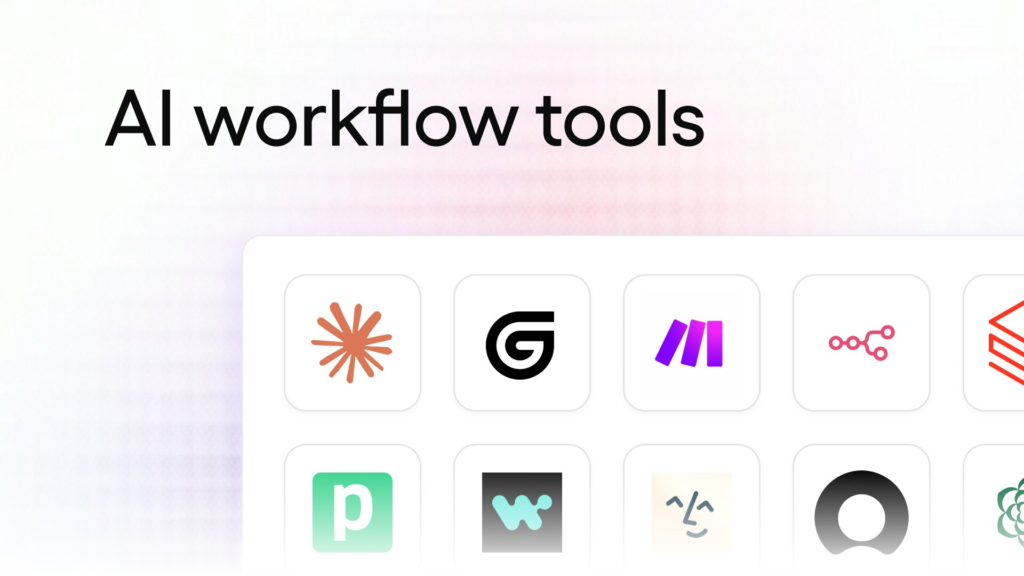
Workflow tools are digital platforms that help people organize, manage, and automate the steps involved in completing work. They can support everything from planning a content calendar and tracking customer inquiries to approving invoices and managing project deadlines.
For example, imagine you run a small online business. When a customer places an order, someone needs to confirm the details, prepare the product, arrange delivery, and update the customer. A workflow tool can turn these steps into a repeatable process, making it easier to see what has been completed and what still needs attention.
Depending on the platform, workflow tools may offer:
- Task creation and assignment
- Project boards, calendars, and timelines
- Team communication and file sharing
- Automated reminders and status updates
- Approval processes and recurring checklists
- Reporting and progress tracking
- Integrations with email, forms, calendars, and other business apps
Some tools focus on project management, while others specialize in connecting apps or building repeatable business processes. Understanding this difference helps you choose the right solution.
Why Small Businesses, Teams, and Freelancers Need Workflow Tools
A clear workflow can make everyday work easier to manage without adding unnecessary complexity.
Better task organization: Keep deadlines, priorities, notes, and responsibilities together instead of searching through multiple applications.
Clearer team communication: Everyone can check task status, review project updates, and understand what needs to happen next.
Less repetitive work: Automation can handle routine actions, such as sending notifications or transferring information between connected applications.
Improved accountability: Assigning an owner and due date makes it easier to identify who is responsible for each step.
More consistent processes: Reusable templates and checklists help teams follow the same process for recurring activities.
Better visibility: Project dashboards and reports can help managers identify delays, workload problems, and unfinished tasks.
The biggest benefit is having a reliable way to manage work. Software alone will not solve every organizational problem, but a well-designed workflow can make responsibilities and priorities much clearer.
10 Best Workflow Tools for Small Businesses, Teams, and Freelancers
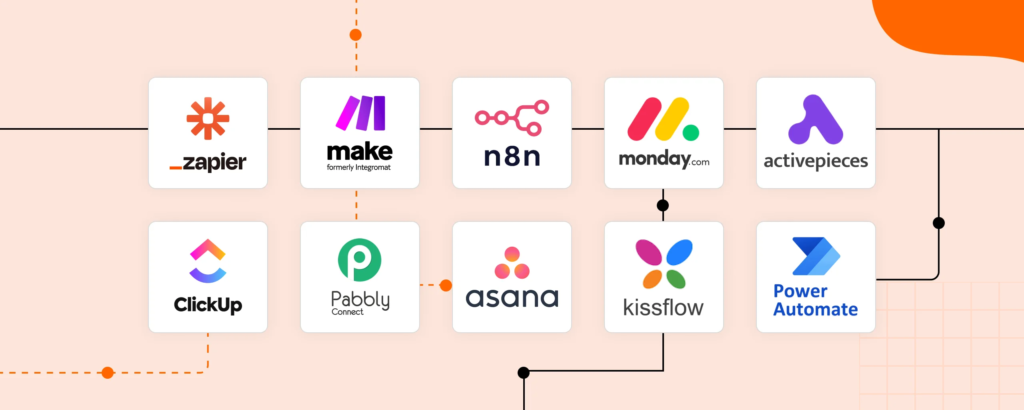
1. ClickUp — Best for an All-in-One Workspace
ClickUp is a versatile work management platform for businesses that want to organize tasks, documents, projects, and team activities in one place.
It supports multiple ways to view work, including lists, boards, and calendars. Teams can assign tasks, set deadlines, create custom workflows, and use automation features to reduce repetitive administrative work.
Best for: Small businesses, agencies, growing teams, and freelancers handling multiple projects.
Key features:
- Task and project management
- Custom views and project dashboards
- Documents and collaborative workspaces
- Recurring tasks and automation options
- Goals and progress tracking
Why choose it?
ClickUp can be useful when your work involves several connected activities, such as planning a marketing campaign, assigning content to writers, reviewing drafts, and tracking publication dates. The flexibility is a strength, although new users may need time to configure their workspace.
Explore: https://clickup.com/
2. Trello — Best for Simple Visual Workflows
Trello uses boards, lists, and cards to organize work visually. Each card can represent a task, project, client request, or content item. Moving a card from one list to another makes its progress easy to understand.
For example, a freelancer might create lists called “Ideas,” “In Progress,” “Waiting for Approval,” and “Completed.” Each project moves through the board as work progresses.
Best for: Freelancers, small creative teams, content planners, and people who prefer straightforward task tracking.
Key features:
- Drag-and-drop task boards
- Checklists, labels, and due dates
- Team collaboration
- Board templates
- Automation options through Butler
Why choose it?
Trello is a practical starting point for people who want to organize work without building a complicated system. Teams managing complex dependencies or detailed reporting may eventually need a more advanced platform.
Explore: https://trello.com/
3. Asana — Best for Structured Team Projects
Asana helps teams coordinate projects, assign responsibilities, and follow deadlines. It is particularly useful when work passes between several people or departments.
A marketing team, for instance, can use Asana to coordinate a campaign from initial planning through design, review, approval, and publication. Each stage can have a responsible person and a deadline.
Best for: Small businesses, marketing teams, project coordinators, and service providers.
Key features:
- Task assignments and deadlines
- Project lists and board views
- Timeline and project planning features
- Workflow rules and automation
- Progress reporting and integrations
Why choose it?
Asana offers a structured way to keep projects moving and make responsibilities visible. It is worth considering if missed deadlines, unclear ownership, or disconnected project updates are common problems in your team.
Explore: https://asana.com/
4. monday.com — Best for Visual Workflow Management
monday.com provides customizable boards and dashboards for managing projects, tasks, and business processes. Its visual interface allows teams to organize work using status columns, timelines, owners, and other fields.
Businesses can adapt their boards to different needs, including sales pipelines, content production, customer onboarding, and internal project tracking.
Best for: Small businesses, client service teams, agencies, and operations managers.
Key features:
- Customizable workflow boards
- Status tracking and deadlines
- Project dashboards
- Automation and integrations
- Multiple project views
Why choose it?
The platform is useful when you want a clear visual overview of work across different projects. Before choosing a paid plan, check which automation, integration, and reporting features are included in that tier.
Explore: https://monday.com/
5. Notion — Best for Documents, Knowledge, and Tasks
Notion combines notes, documentation, databases, and project organization in a flexible workspace. It is particularly useful for businesses that need to keep their working documents close to their task lists.
A freelancer could maintain client information, project briefs, meeting notes, content calendars, and reusable templates in one workspace. A small team could also build an internal knowledge base for company procedures.
Best for: Freelancers, content creators, consultants, startups, and documentation-heavy teams.
Key features:
- Notes and shared documents
- Custom databases
- Task and project tracking
- Templates and knowledge bases
- Collaborative workspaces
Why choose it?
Notion works well when information management is just as important as task management. Its flexibility means you may need to spend time creating a structure that fits your business rather than relying entirely on a ready-made workflow.
Explore: https://www.notion.com/
6. Zapier — Best for Connecting Apps and Automating Tasks

Zapier focuses on connecting applications so that actions in one service can trigger actions in another. These automated workflows are commonly called Zaps.
For example, when someone submits a contact form, Zapier could send the information to a spreadsheet, create a task in a project management app, and notify the appropriate team member, depending on the apps and plan you use.
Best for: Small businesses, freelancers, marketing teams, and anyone who regularly transfers information between applications.
Key features:
- Connections between supported apps
- Trigger-based automation
- Multi-step workflows on eligible plans
- Automated notifications and data transfers
- Tools for building and managing integrations
Why choose it?
Zapier is useful when your existing applications work well individually but do not communicate effectively. Instead of replacing your entire software setup, you can automate selected steps between compatible services.
Explore: https://zapier.com/
7. Airtable — Best for Data-Driven Workflows
Airtable combines spreadsheet-style organization with database features. It helps businesses manage structured information and build workflows around records, views, and connected data.
A small agency could use Airtable to maintain a content inventory, track client deliverables, monitor campaign assets, or organize product information. Different views can help team members work with the same data in ways that suit their responsibilities.
Best for: Content teams, operations managers, small agencies, and businesses managing large amounts of organized information.
Key features:
- Custom databases
- Multiple views of the same information
- Forms and data collection
- Workflow automation options
- Integrations and reporting features
Why choose it?
Airtable is worth considering when a basic spreadsheet no longer provides enough structure. However, businesses with complex data requirements should plan their tables and relationships carefully before building a large system.
Explore: https://www.airtable.com/
8. Todoist — Best for Personal Productivity and Freelancers
Todoist is a task management application designed to help individuals and teams organize their responsibilities. It is especially suitable for people who want a straightforward way to capture tasks, set due dates, and manage priorities.
A freelancer can create separate projects for clients, add upcoming deadlines, and organize smaller actions into manageable lists.
Best for: Independent professionals, consultants, solo business owners, and people managing daily responsibilities.
Key features:
- Task lists and priorities
- Due dates and recurring tasks
- Project organization
- Reminders and collaboration features
- Calendar and application integrations
Why choose it?
Todoist is a good option if you need reliable task tracking without the extra setup associated with larger work management platforms. For complicated team dependencies and extensive project reporting, a dedicated project management tool may be more appropriate.
Explore: https://todoist.com/
9. Make — Best for Custom Automation Workflows
Make is a visual automation platform that allows users to connect applications and create workflows with multiple steps, conditions, and branching logic.
For example, a business could create an automation that receives a form submission, checks the submitted information, sends the data to a connected system, and routes a notification according to predefined conditions.
Best for: Businesses with repetitive processes, operations teams, and users who need more control over automation logic.
Key features:
- Visual workflow builder
- Multi-step scenarios
- Conditional routes and filters
- Application integrations
- Data transformation options
Why choose it?
Make can support more elaborate automation scenarios than a basic one-trigger, one-action setup. Its visual builder is powerful, but complex workflows require careful testing and maintenance.
Explore: https://www.make.com/
10. Process Street — Best for Repeatable Business Procedures
Process Street is designed around structured processes, recurring checklists, and standard operating procedures. It can help businesses make sure important steps are completed in the right order.
For instance, a company onboarding a new client may need to collect documents, confirm project requirements, assign an account manager, schedule a meeting, and prepare internal records. A repeatable process helps the team follow the same steps for each new client.
Best for: Service businesses, operations teams, agencies, and companies with repeatable procedures.
Key features:
- Process templates and checklists
- Repeatable workflow execution
- Task assignments and approvals
- Process visibility
- Integration options
Why choose it?
Process Street is particularly relevant when consistency matters more than maintaining a general task list. Check the available plans and features to confirm that they support your required approval and integration processes.
Explore: https://www.process.st/
Workflow Tools Comparison Table
The following table summarizes the main use case for each platform. These are general recommendations, not a universal ranking; the best choice depends on how your business works.
| Workflow Tool | Best For | Main Strength | Consider If You Need |
|---|---|---|---|
| ClickUp | Growing businesses and teams | All-in-one work management | Tasks, documents, and project tracking |
| Trello | Freelancers and small teams | Visual task boards | Simple, easy-to-follow workflows |
| Asana | Structured projects | Task ownership and coordination | Clear deadlines and team responsibilities |
| monday.com | Business operations | Customizable visual boards | Dashboards and status tracking |
| Notion | Knowledge-focused teams | Documents and databases | Notes, procedures, and tasks together |
| Zapier | Cross-app automation | Connecting applications | Less manual data transfer |
| Airtable | Data-driven workflows | Structured records | Flexible databases and multiple views |
| Todoist | Individual productivity | Simple task organization | Personal tasks and recurring reminders |
| Make | Custom automation | Conditional, multi-step scenarios | More complex app integrations |
| Process Street | Repeatable procedures | Standardized checklists | Consistent processes and approvals |
How to Choose the Right Workflow Tool for Your Needs
With so many options available, it helps to start with the problem you are trying to solve rather than the number of features a platform offers.
1. Identify Your Biggest Workflow Problem
Start by examining where work tends to slow down. Do tasks get forgotten? Are team members unsure about deadlines? Do employees repeatedly copy information between applications? Are client onboarding steps handled differently every time?
Write down the two or three problems that cause the most frustration. Your software should address those issues directly.
2. Match the Tool to Your Work Style
A visual board may be ideal for a creative team, while a project timeline might suit a team coordinating several deadlines and dependencies. A freelancer who mainly needs reminders may prefer a simpler task manager.
Choose a tool that fits the way you already think about and organize work.
3. Check Pricing and Plan Limitations
Compare the features included in free and paid plans. Pay attention to user limits, automation allowances, storage, integrations, reporting, and minimum seat requirements.
A free plan can be enough for an individual or a small team, but the cost may increase when you add users or require advanced functionality. Review current vendor pricing before committing, as plans and prices can change.
4. Consider Your Existing Applications
If your business relies on email, calendars, spreadsheets, forms, or a customer relationship management system, check whether the new tool integrates with them.
Good integrations can reduce duplicate data entry and help your team maintain a more consistent flow of information.
5. Test the Tool With a Real Project
Before moving every project into a new platform, try it with one actual workflow. Set up a few tasks, assign responsibilities, add deadlines, and test any automation you plan to use.
Ask the people who will use it every day whether the setup feels clear and manageable. A simpler tool that everyone uses consistently may be more valuable than a sophisticated platform that requires constant supervision.
Practical Workflow Examples for Different Users
For Small Businesses
A small business could use a workflow tool to manage customer inquiries, sales follow-ups, order preparation, and employee responsibilities.
For example, a new customer inquiry could be assigned to a team member, given a follow-up deadline, and moved through stages until the customer receives a response. A connected automation tool could send notifications or transfer information between compatible apps.
For Teams
Teams can use workflow tools to coordinate projects that involve several people. A content team, for example, can track each article from research to drafting, editing, approval, and publication.
Every task can have an owner and deadline, reducing uncertainty about what needs to happen next.
For Freelancers
Freelancers often manage multiple clients with different requirements and delivery dates. A task manager or project board can separate each client’s work, store project notes, and track pending approvals.
A reusable client onboarding checklist can also make it easier to collect project details and begin work consistently.
Common Workflow Management Mistakes to Avoid

Even a good platform can become difficult to use when the workflow is poorly designed.
- Creating too many stages: Keep the process simple enough for everyone to understand.
- Using too many tools: Avoid spreading the same information across multiple platforms without a clear reason.
- Automating a confusing process: Establish a clear manual workflow before adding automation.
- Leaving tasks without owners: Assign responsibility so work does not remain unattended.
- Ignoring team feedback: Review how people use the platform and adjust the setup when necessary.
- Failing to review automations: Test workflows regularly to catch broken connections, incorrect routing, or unexpected results.
Start with a basic system, observe how it performs, and expand it when there is a clear need.
It can make sense when each tool has a distinct role. For example, a business might use Asana to manage projects and Zapier to connect its applications. However, adding multiple tools without a clear purpose can increase costs and create duplicate work.
Frequently Asked Questions
1. What are the best workflow tools for small businesses?
ClickUp, Trello, Asana, monday.com, and Notion are popular options for organizing tasks, managing projects, and improving team collaboration. The best choice depends on your business needs and budget.
2. Which workflow tools are best for freelancers?
Trello and Todoist are useful for simple task management, while Notion helps organize project notes and client information. ClickUp is worth considering for freelancers handling multiple complex projects.
3. Are there free workflow tools available?
Yes. Several workflow platforms offer free plans or entry-level options. Features, user limits, storage, and automation capabilities vary, so check each provider’s current pricing before choosing.
4. What is the difference between workflow management and workflow automation?
Workflow management organizes tasks, responsibilities, and project stages. Workflow automation uses predefined rules to perform repetitive actions, such as sending notifications, updating records, or transferring information between apps.
5. How do workflow tools improve productivity?
Workflow tools help teams track deadlines, assign responsibilities, reduce repetitive administrative work, and monitor project progress. They can also improve communication by keeping task details and updates in one place.